
GICT knowledge base
How to Change the Listening Port of LiteSpeed Web Server?
Published
You can simply change the listening port of your Litespeed web server from WHM. The LiteSpeed Web Server allows you to change the port number from WHM panel. The port offset in the LiteSpeed panel allows you to run Apache and LiteSpeed in parallel by running LiteSpeed on a separate port.
Please follow the steps to change the port number.
1) login to WHM.
2) Navigate to ‘Plugins’ section.
3) Click on ‘LiteSpeed Web Server’ to enter the control panel. From there you can update the port number for LiteSpeed web server.
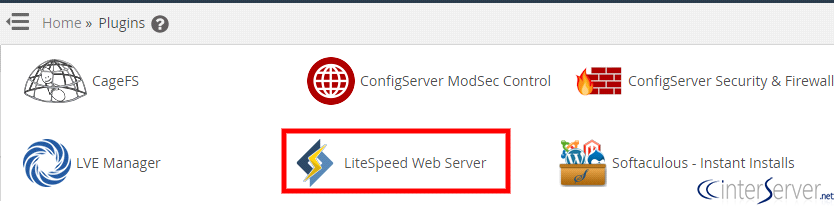
4) Click on ‘Change port offset’ button to change the port number of LiteSpeed web server.

5) From the next screen, you would be able to change the port number.
The Port Offset allows you to run Apache and LiteSpeed in parallel by running LiteSpeed on a separate port.
For example, if Apache is running on port 80 and the LiteSpeed port offset is 2000, then you will be able to access LiteSpeed-powered web pages on port 2080.
Once you have updated the port number, you would need to chick on the change button to update the changes.
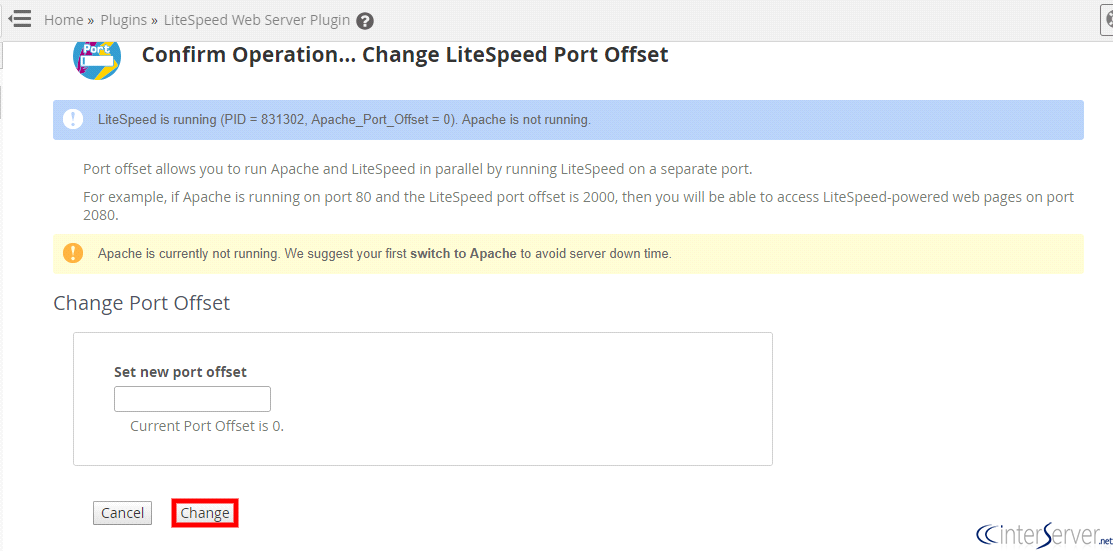
After clicking the ‘Change’ button, the Litespeed web server will listen on the new port you have mentioned there.
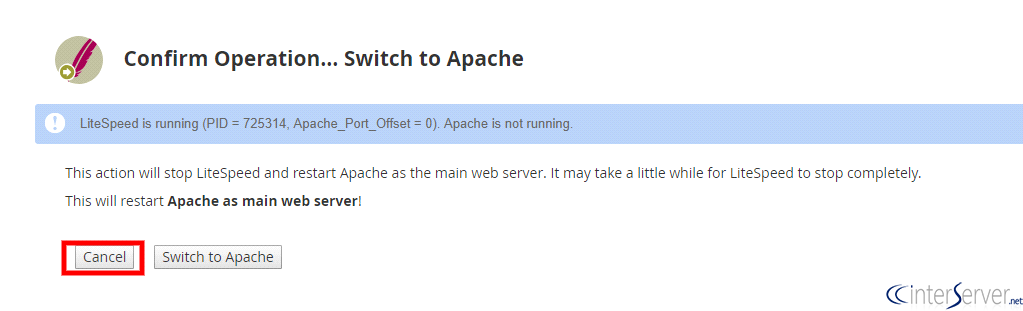
If you wish to revert the changes, or do you wish to cancel the request, then you can simply abort it by clicking the ‘Cancel’ button on the screen.
If you need any further help please do reach our support department.
Related guides
Using GEOIP to block an ASN or Country on GICTServer shared hosting with litespeed
Boost Security: Using LiteSpeed GeoIP for Country or ASN Blocking Running a website site means you're a constant target for spam, brute-force attacks, and malicious bots.
LiteSpeedHow to fix ‘OpenLiteSpeed is functioning normally’ error?
'OpenLiteSpeed is functioning normally' error mostly happens when we're using free Open Source 'LiteSpeed' webserver.
LiteSpeedHow can you Switch to Apache from Litespeed in WHM?
How to Switch to Apache from Litespeed in WHM? You can perform this task your WHM using the plugin called “Switch to Apache”.
LiteSpeedLiteSpeed Cache is Disabled Warning on WordPress
As the name implies, the Litespeed cache is a cache and it is used in the Litespeed Web Server. The Litespeed web server is a substitute to the Apache Web