
GICT knowledge base
How to Add Font Awesome Icons to Your WordPress Site?
Published
Font Awesome is a toolkit of fonts and icons, which are based on CSS and LESS with 1,278 icons, was released on December 7, 2017. The latest version of Font Awesome comes in two packages Font Awesome Free and the proprietary Font Awesome Pro. We can create a visually appealing website by adding Font Awesome Icons. Font Awesome Icons are loads faster because they are not images, they are CSS fonts. The main benefits of Font Awesome Icons are listed below.
1) Without compromising the quality of icons, we can display the icons at any sizes. That means the icons are vectors.
2) The icons are customizable, you can change the color and also add animation to the icons.
3) Supported in all browsers.
We can add the Font Awesome to our WordPress site in two ways: manually and using a plugin.
Adding Font Awesome Icons to your website manually.
We can add Font Awesome Icons manually to our WordPress site by adding some codes to your theme’s function.php file. Follow the below steps to add Font Awesome Icons manually.
1) Login to your WordPress Dashboard.
2) Click on the “Editor” menu from the section “Appearance”.
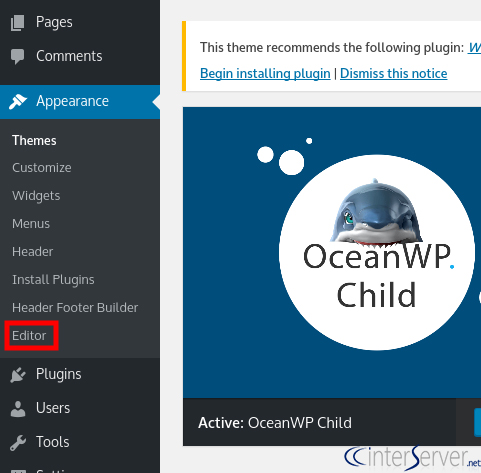
3) Click on the link “Theme Functions” from the right-hand side of the prompted screen.
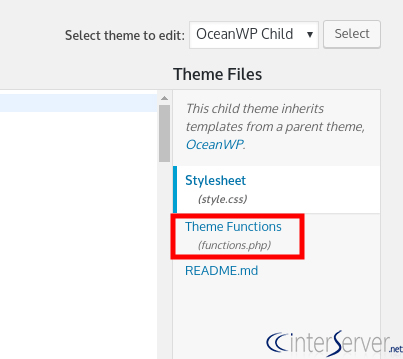
4) Copy and paste the below codes to the functions.php file.
add_action( ‘wp_enqueue_scripts’, ‘tthq_add_custom_fa_css’ );
function tthq_add_custom_fa_css() {
wp_enqueue_style( ‘custom-fa’, ‘https://use.fontawesome.com/releases/v5.0.6/css/all.css’ );
}
Adding Font Awesome to Your WP Site Using a Plugin
We can add Font Awesome Icons to your website using a free plugin “Better Font Awesome”. To install the plugin, please follow the steps.
1) Login to your WordPress Dashboard.
2) Click on “Add New” under the section “Plugins” and search for the plugin “Better Font Awesome” and install and activate the plugin.
3) On any post or page, use the insert of this plugin to embed a range of icons on your website.
Related guides
7 Common Hosting Mistakes Beginners Make (And How to Avoid Them)
7 common hosting mistakes beginners make in 2026: no backups, ignored updates, bad host choice, weak passwords, single point of failure, no staging. With fixes for each.
WordPressWebsite Migration Backup Checklist: What to Save and How to Test
Prepare a website migration backup: inventory files, databases, email and DNS, check archive integrity, test recovery and plan a safe final synchronization.
WordPressCore Web Vitals in 2026: A Practical Fix Guide for Site Owners
Core Web Vitals 2026: practical fixes for LCP, INP, and CLS. Real root causes, what to measure, common misconceptions, and a priority order of fixes for site owners.
WordPressFixing the WordPress “Death Loop”: When Missing Files slow down your site
You’ve just launched your new WordPress site or pushed a big update. In your staging environment, everything ran perfectly.