
GICT knowledge base
Event Manager – Best Event Management Plugin for WordPress
Published
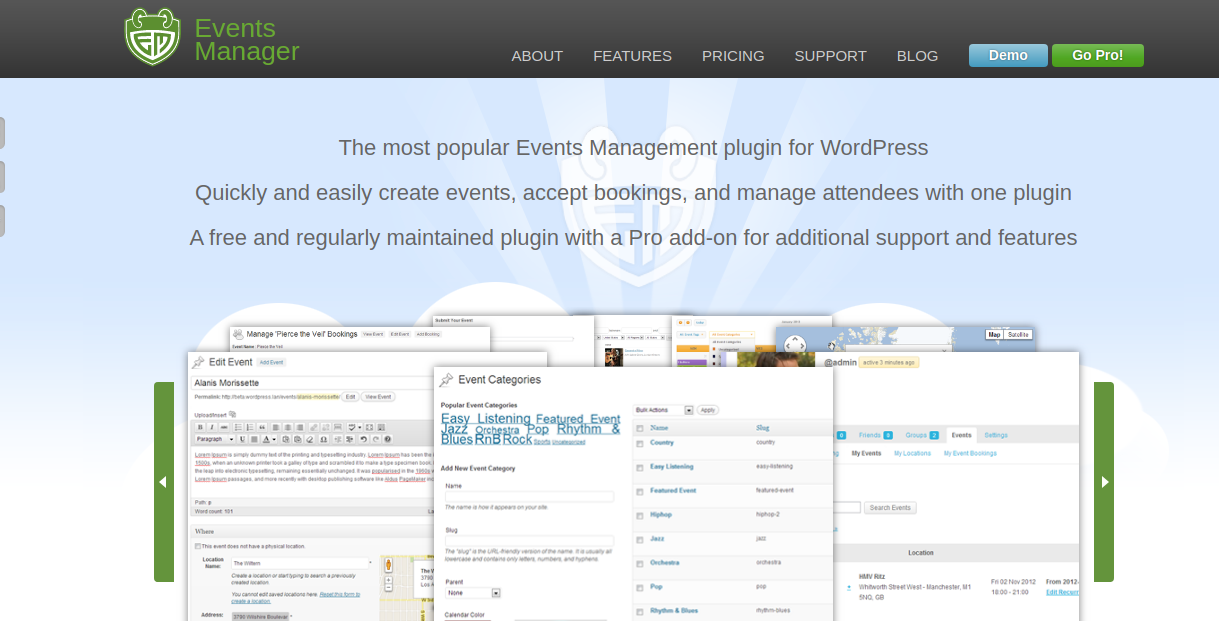
Event manager is the most popular event management plugin, trusted by more than 100,000 users worldwide. It comes with powerful features that make it easy for you to create a variety of events, manage attendees, and accept bookings.
The event manager lets you create single or regularly occurring events and multiple tickets with various optional restrictions. It also helps you get a better SEO ranking on google with meaningful URLs.
The plugin comes with a ticket booking feature in which you can create multiple tickets with various optional restrictions. You can integrate PayPal with the plugin to handle payments for your events. Once tickets are booked, the plugin will automatically send the booking status to respective users.
You can display your event with various AJAX power calendars, ranging from daily to monthly.
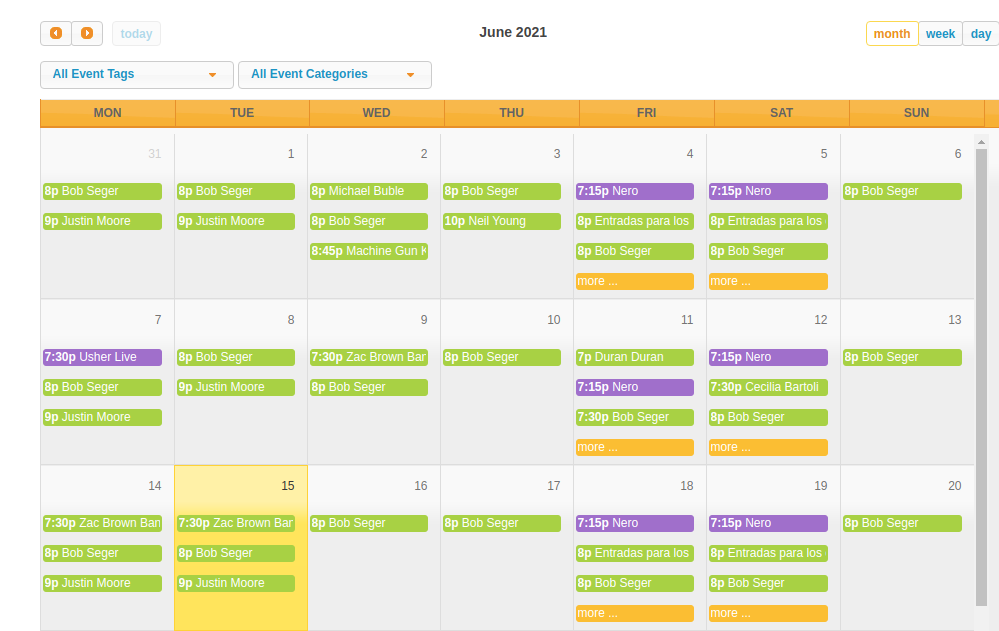
The calendar is easy to style and incorporate into your site design easily. You can download iCal feeds of your event with any popular organization tool like Google Calendar, Thunderbird, Outlook, and many more.
The plugin allows users to filter events by country, state, region. Infect, users also can manage and share their locations for others to use, depending upon how much power they have over events.
Let’s understand all the stuff practically by installing the plugin on wordpress.
Setting up the plugin
Here are some of the main settings that you might want to change before you create your event. First, we need to install and activate the plugin.
1. Install and activate the plugin
Go to wordpress dashboard, click on Plugins >> Add New button and search “Event Manager”. Find the correct plugin from the search result, install and activate it.
2. General settings
General settings include user capabilities, event submission form, privacy settings, etc, in which you can enable custom fields, event attributes, categories, and more. You can change them to meet your specifications.
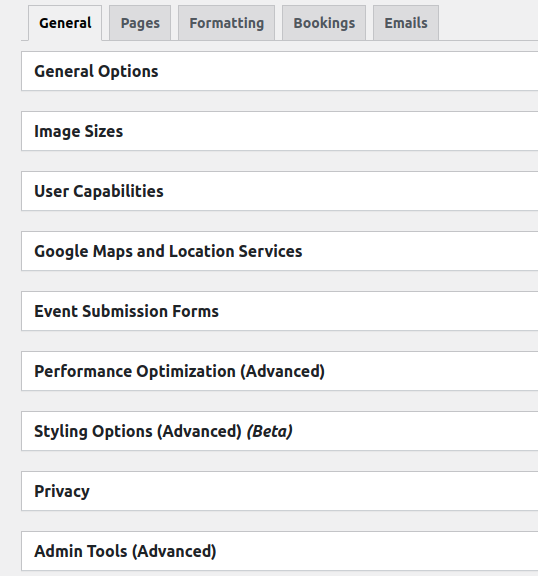
One thing to keep note that you must change the country before setting the location for the event. This setting is located under general options.

3. Pages
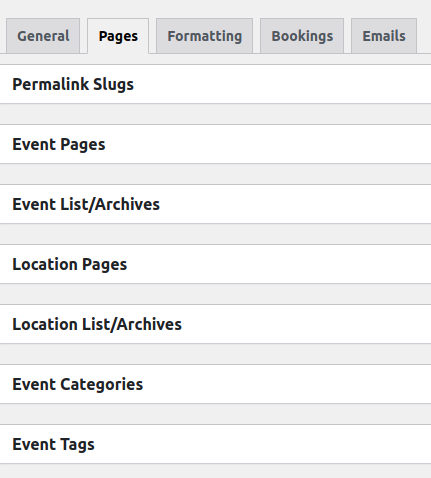
The page tab allows you to have more control over your event’s content. You can change your archive pages, event categories, and tag, and also enable/disable event search for your page.
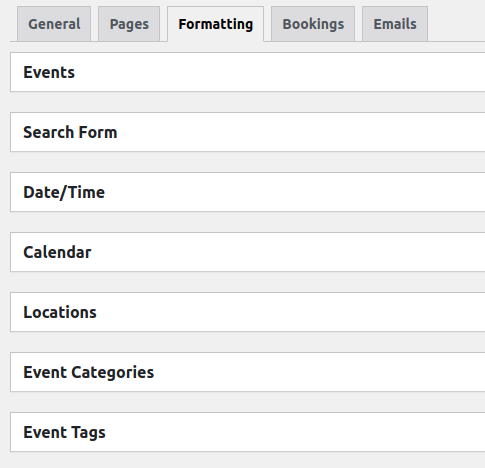
4. Formatting/Layouts
Formatting tabs include search forms, Date/Time, calendar, locations, maps, etc. this allows you to control how your event pages are displayed. For editing the display, you will need basic HTML knowledge.
5. Booking options
The booking options determine how people register for your event. In this tab, you can allow canceling ticket option, double booking option, custom ticket order, and much more.
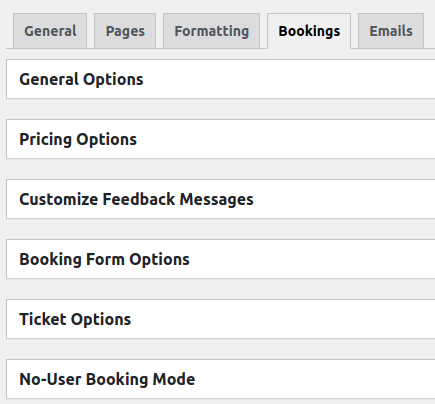
You can also set the “Currency” and “Tax Rate” under the Pricing Options tab.

Don’t forget to set the currency formatting before the event goes live.
6. Email
If you want to send an automatic email to users, then you make sure that email is correctly configured for your server on the event setting page.
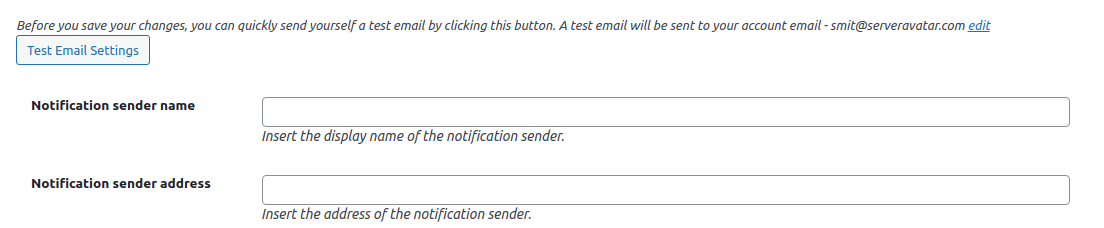
The event manager uses the default PHP mail function for sending an email to users. However, there are different other options you can use like SMTP, PHP Mail, Qmail, Sendmail, etc.
Once you change the email settings, you need to test the email settings by clicking on the “Test Email Settings” button. A test mail will be sent to your registered account.
Features
- Recurring event: Create daily, weekly, monthly, and yearly event pattern
- Flexible calendar: Small and full-sized AJAX-powered calendar with plenty of customizable options.
- Front-end submission and management: Allow site members to submit their events and manage them without entering the admin area.
- User permission and capabilities: Total control over who can manage, edit and publish events, bookings, locations.
- Webinars integrations: Automatically create and manage zoom meetings and sync bookings made via Event manager.
- Customizable event-specific emails: customize your event template for each event including payment method.
- Customizable booking forms: Create individual booking forms for each event and add custom fields to your event booking forms.
- WooCommerce integration: Integrate with WooCommerce to allow for payment method and cart checkout.
- Flexible formatting of event pages: The use of placeholders and HTML gives you complete control over the appearance of your event.
- Works with other wordpress plugins: The event manager works with many wordpress plugins to add more features such as social media, slideshow, post linking, galleries, and much more.
So, these are the features. Now, Let’s talk about the pricing of this plugin.
Pricing
Besides the free version, there is also the event manager pro version. However, the free version gives you full flexibility with amazing features that you need, without paying any money.
You can use the pro version for just $75/year. With it, you will get some amazing features including PayPal payment support, premium support, and action and filters allowing you to extend the plugin in endless ways.
That’s it. We hope this article helped you to easily create and manage events with the event manager plugin for WordPress. If you are facing any issues, please let us know in the comment section. We will get back to you with help, as soon as possible!
Related guides
7 Common Hosting Mistakes Beginners Make (And How to Avoid Them)
7 common hosting mistakes beginners make in 2026: no backups, ignored updates, bad host choice, weak passwords, single point of failure, no staging. With fixes for each.
WordPressWebsite Migration Backup Checklist: What to Save and How to Test
Prepare a website migration backup: inventory files, databases, email and DNS, check archive integrity, test recovery and plan a safe final synchronization.
WordPressCore Web Vitals in 2026: A Practical Fix Guide for Site Owners
Core Web Vitals 2026: practical fixes for LCP, INP, and CLS. Real root causes, what to measure, common misconceptions, and a priority order of fixes for site owners.
WordPressFixing the WordPress “Death Loop”: When Missing Files slow down your site
You’ve just launched your new WordPress site or pushed a big update. In your staging environment, everything ran perfectly.