
GICT knowledge base
Enable Litespeed Cache for All WordPress Websites in cPanel
Published
What is Browser Caching
When a user visits a website, the elements on the page they visit are stored in a cache, so the next time if the user again visits the same site, your browser can load the page without having to send another HTTP request to the server. Install WordPress plugins which will help capture caches more effectively and ensure a faster website. You can enable Litespeed cache WordPress plugin on your website which results in the best practices that make for a high PageSpeed score, and more importantly an exceptional user experience.
How to Enable Litespeed Cache
Litespeed cache for WordPress is a plugin which helps to improve the website performance. The LiteSpeed WHM plugin includes a section for managing LiteSpeed Cache for WordPress. From there you can enable the cache for all your WordPress installation. To do this, please follow the given below steps:
1) Login to your WHM interface.
2) Navigate to the ‘Plugins’ section.
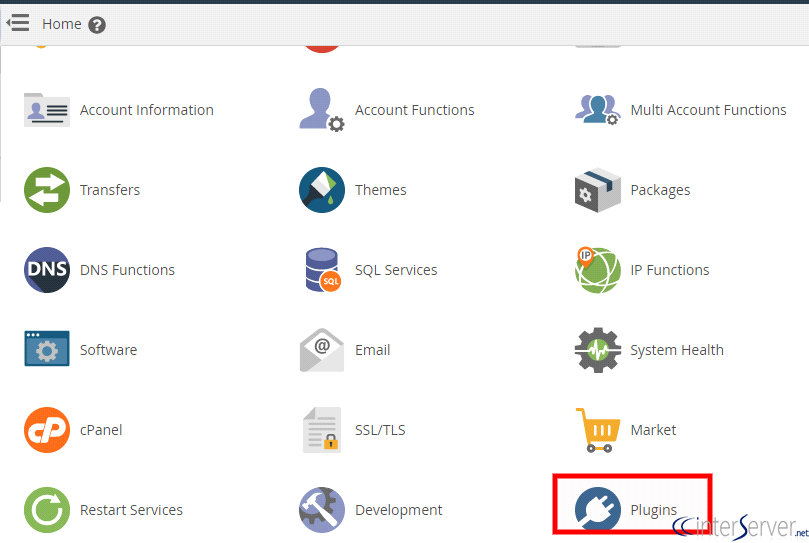
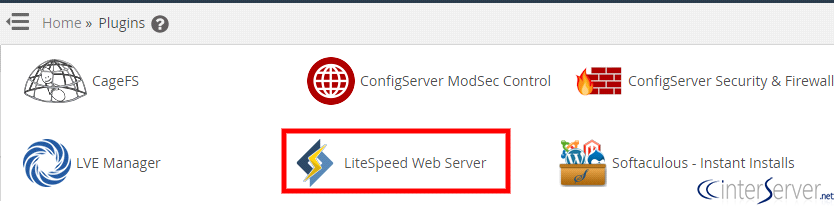
3) Click on the icon ‘LiteSpeed Web Server’.
4) On the next page click on the icon ‘Mass Enable/Disable Cache’ for enabling the WordPress cache for all the WordPress installation on the server.

5) A new page will open and here click on the option ‘Manage Cache Installations ‘. After clicking the mentioned option, you can also scan to discover all active WordPress installations on your server.

This is how you can enable Litespeed cache for all WordPress websites in your cPanel server. After enabling the Litespeed cache the website performance will increase.
If you need any further help, please do reach our support department.
Related guides
Using GEOIP to block an ASN or Country on GICTServer shared hosting with litespeed
Boost Security: Using LiteSpeed GeoIP for Country or ASN Blocking Running a website site means you're a constant target for spam, brute-force attacks, and malicious bots.
LiteSpeedHow to fix ‘OpenLiteSpeed is functioning normally’ error?
'OpenLiteSpeed is functioning normally' error mostly happens when we're using free Open Source 'LiteSpeed' webserver.
LiteSpeedHow can you Switch to Apache from Litespeed in WHM?
How to Switch to Apache from Litespeed in WHM? You can perform this task your WHM using the plugin called “Switch to Apache”.
LiteSpeedLiteSpeed Cache is Disabled Warning on WordPress
As the name implies, the Litespeed cache is a cache and it is used in the Litespeed Web Server. The Litespeed web server is a substitute to the Apache Web