
GICT knowledge base
How to Duplicate Posts and Pages in WordPress
Published
This article is significant for blog owners—also, every person who updates posts on the web daily. Now it is common to duplicate the posts and pages on your blog or website. Because sometimes we have to copy some pages or posts to save out time. So, we came up with a list containing some plugins that will help you to duplicate pages or posts on your WordPress site. Those plugins are:
- Yoast Duplicate Post
- Duplicate Page/Post
- Post-Duplicator
So, listed plugins will help you to create a Page of Post duplicate on your WordPress. These programs are easy to use and very effective. You have to install the plugin on your WordPress.
You can ask google if you don’t know how to install a plugin in WordPress. In this article, I will explain to you how we can use the plugins after installing them. Let’s see how we can duplicate the pages and post with the help of these plugins.
Yoast Duplicate Posts
Yoast is a very important plugin that allows us to manage SEO settings on our website. It also provides us some small and handy features like Duplicate posts. In this section, I will show you how to Duplicate posts using “Yoast Duplicate Posts” plugin in WordPress.
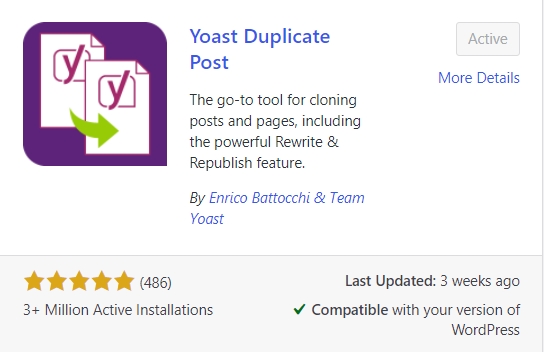
Step 1: Firstly, install and activate the “Yoast Duplicate Post” plugin.
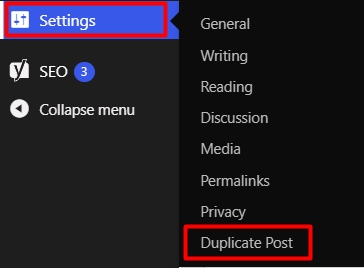
Step 2: Go to the dashboard and click on the settings tab. From the expanded tab click on the duplicate post option.
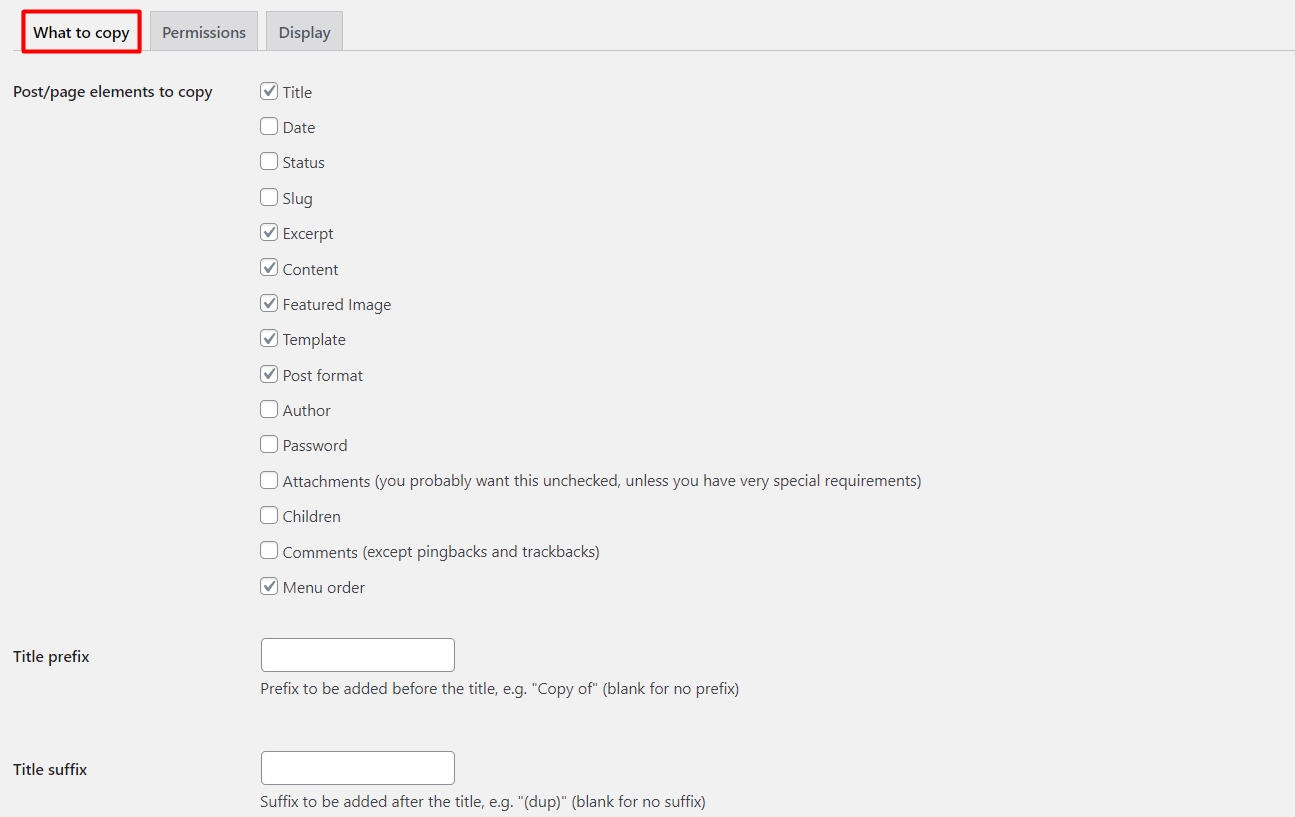
Step 3: Click on the first tab the thing you “Want to copy”. Select the content which you wish to reproduce in the clone post. Then click on the “Save Changes” button.
(You can find some checkboxes and some text fields on this tab. Select and type the data element which you want to copy from posts.)
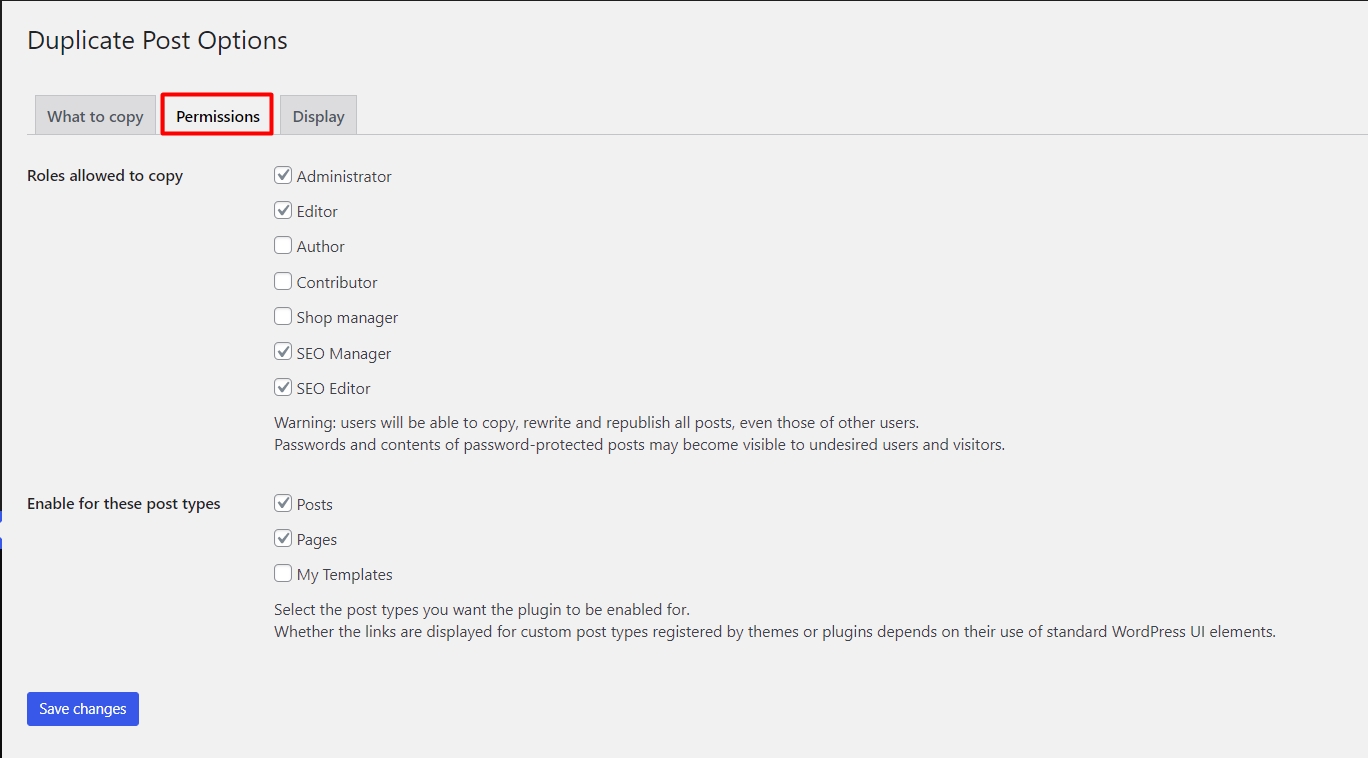
Step 4: After that, click on the second tab, Permissions. Select the types of users and content-type. Then click on the “Save Changes” button.
(This tab will help you to authorize different users. You can see the user list and post types with checkbox in this tab.)
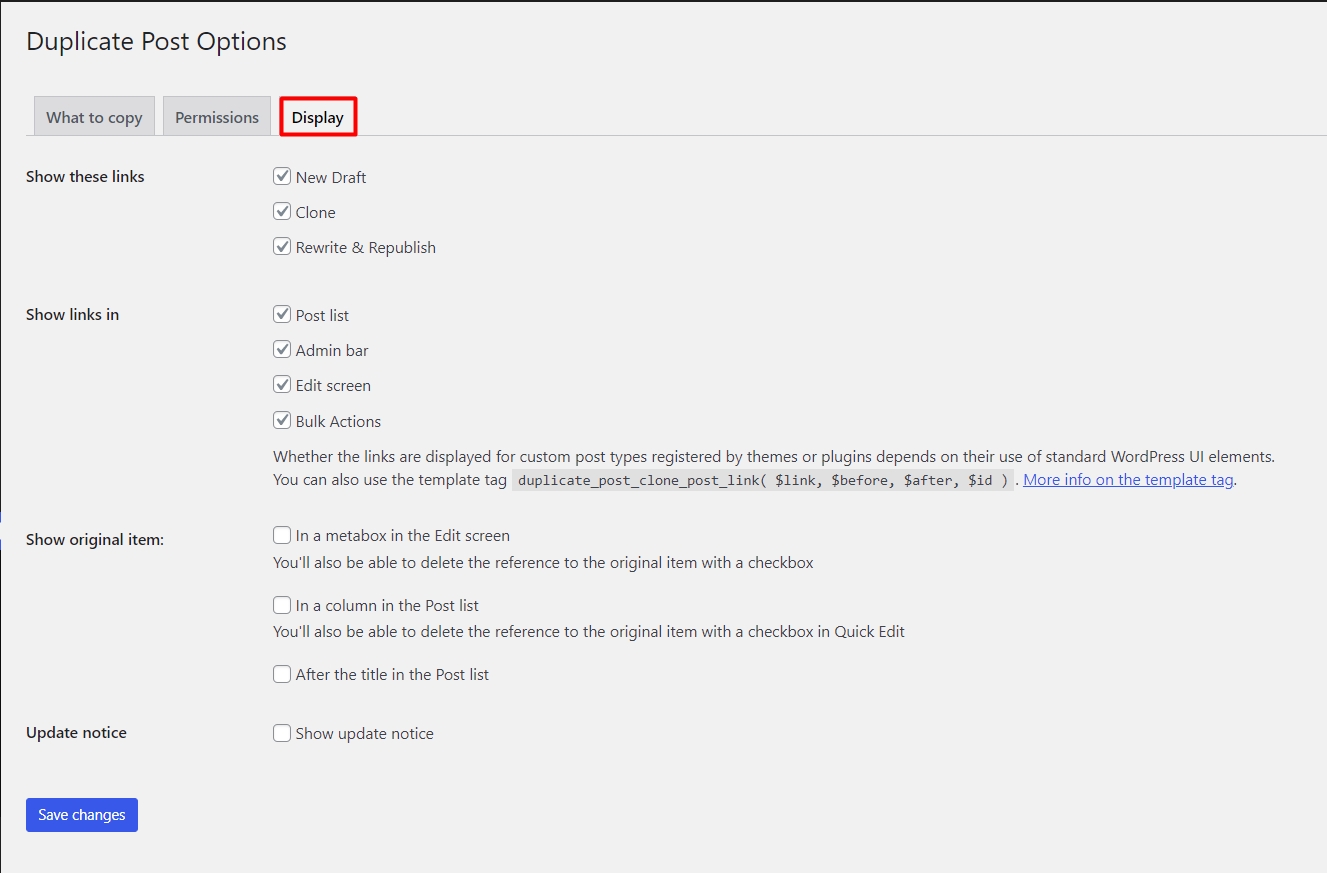
Step 5: Click on the display tab. Select the required settings as per your requirement. Click on the save changes button.
(With the help of this tab, You can configure clone and original post settings.)
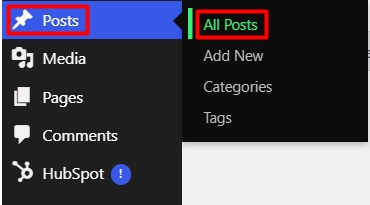
Step 6: Click on the posts/pages tab, then click on all posts.
Step 7: Hover the mouse on the post/page you want to duplicate from the post/page list.
You’ll find option clone below the post name. Click on “Clone”.
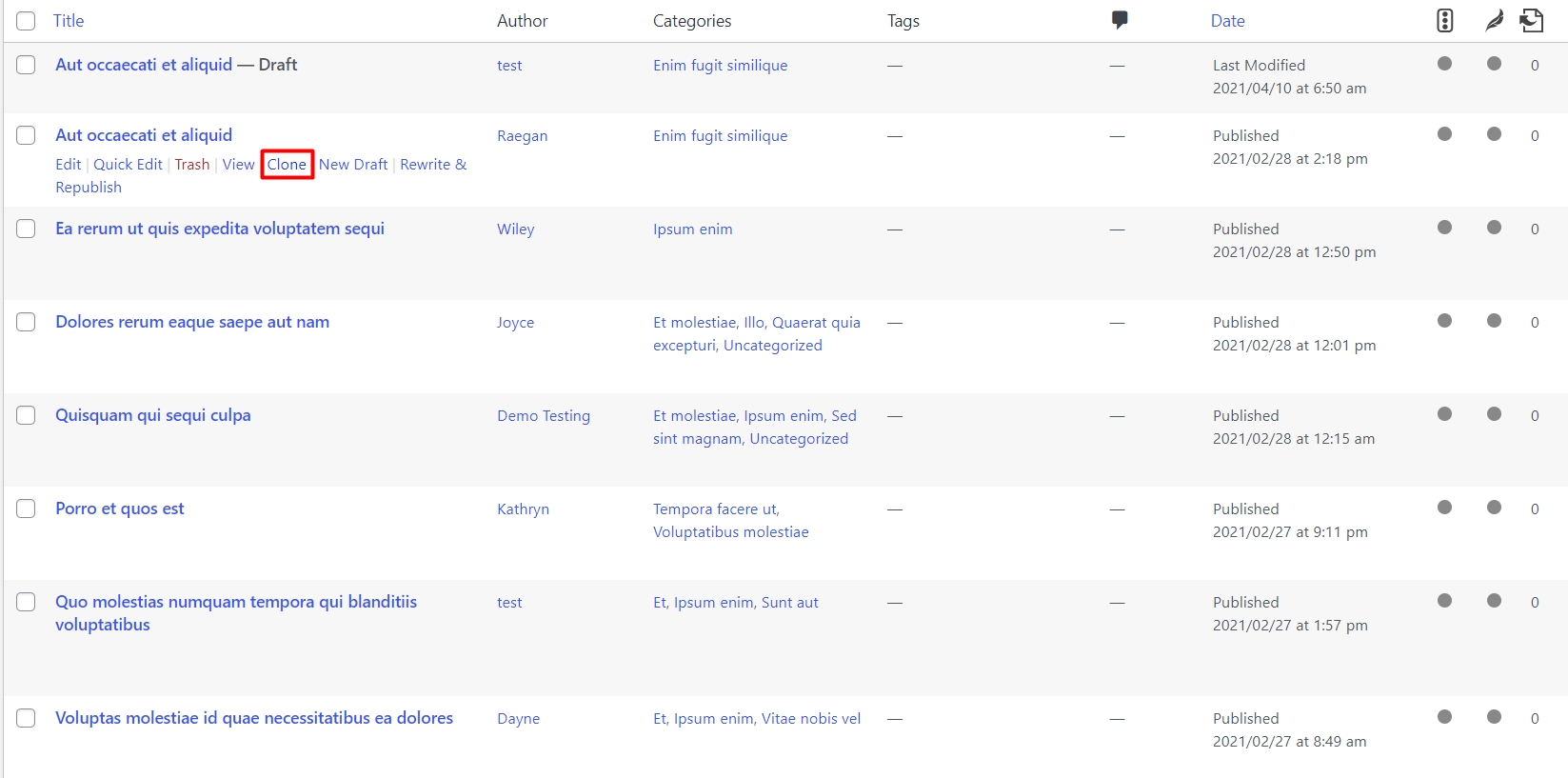
Step 8: Once the page or post is successfully cloned. You will find the clone post with the Draft label.
So, this is how you can install, configure and use the “Yoast Duplicate Posts” plugin in WordPress.
Duplicate Page and Post
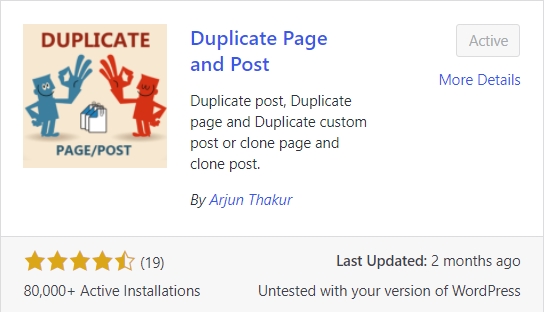
Let’s go for a second plugin called “Duplicate Post and Page”, one of the WordPress library’s useful plugins. This plugin will also help you to create clone posts and pages. This is an essential plugin, and it has not that many features. The reason we discuss this plugin here is that this plugin is very fast and straightforward. While we want to save time, speed is also essential. So let’s see how easily we can install and use this plugin.
Step 1: Install and activate the “Duplicate Page and Post” plugin.
Step 2: Click on the settings tab; Once the tab is expanded, click on the “Duplicate Post” tab.
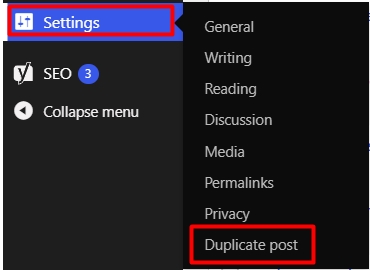
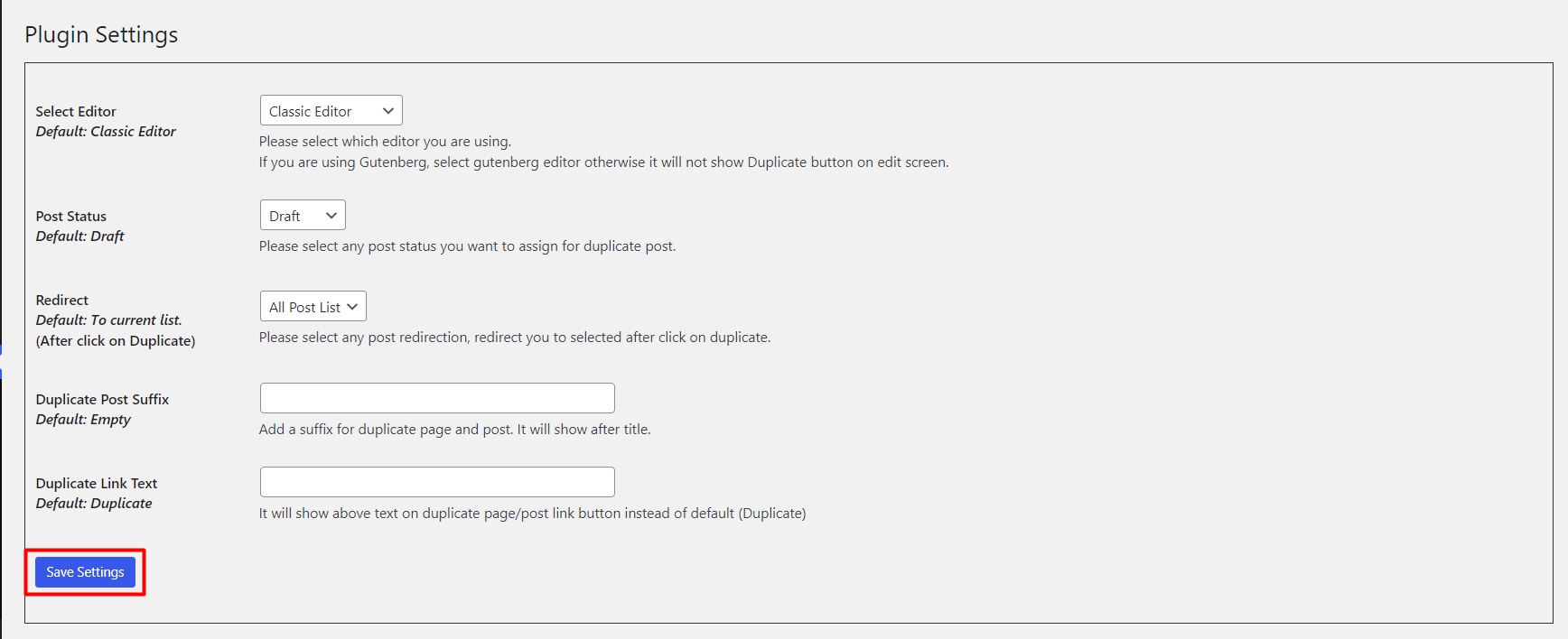
Step 3: You will see some dropdowns and text fields to configure the plugin. Configure the plugin settings as per your requirements. Click on the “Save Settings” button.
Step 4: Then, click on the posts/pages tab. Then click on the all posts/pages tab.
Step 5: Now, hover the mouse on the post/page which you want to duplicate.
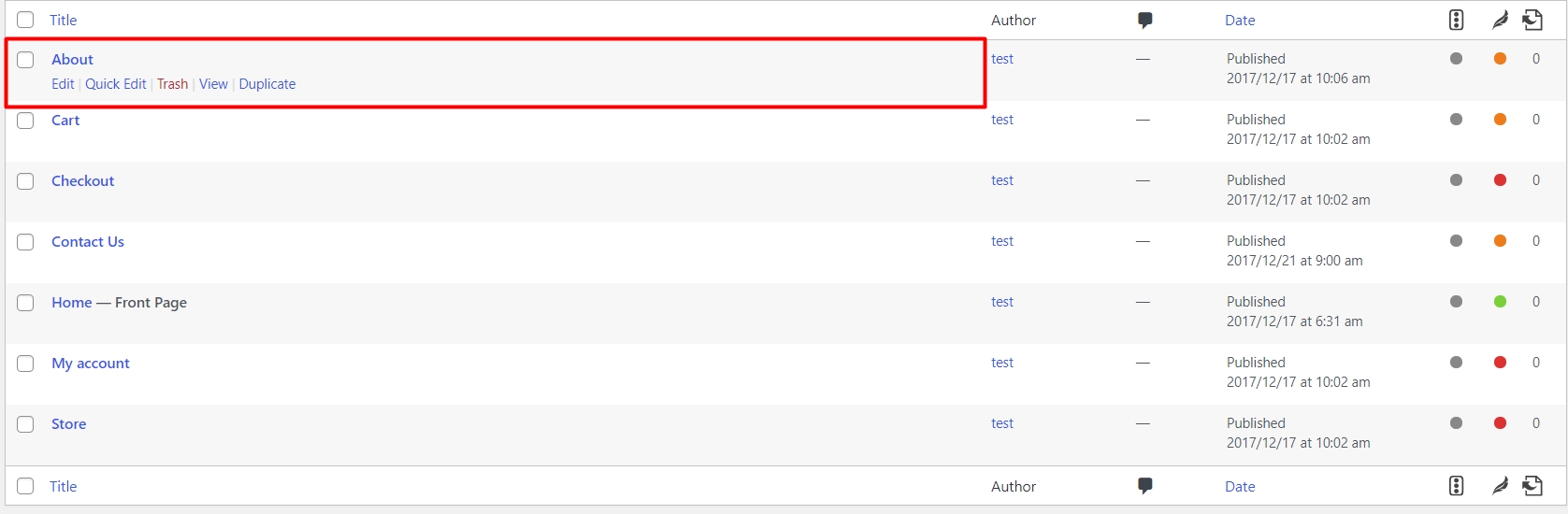
Step 6: You will find an option as “Duplicate” below the post/page name. Click on the duplicate link.
Step 7: As you click on the duplicate link, you will see another post with the same name, but saved in draft.
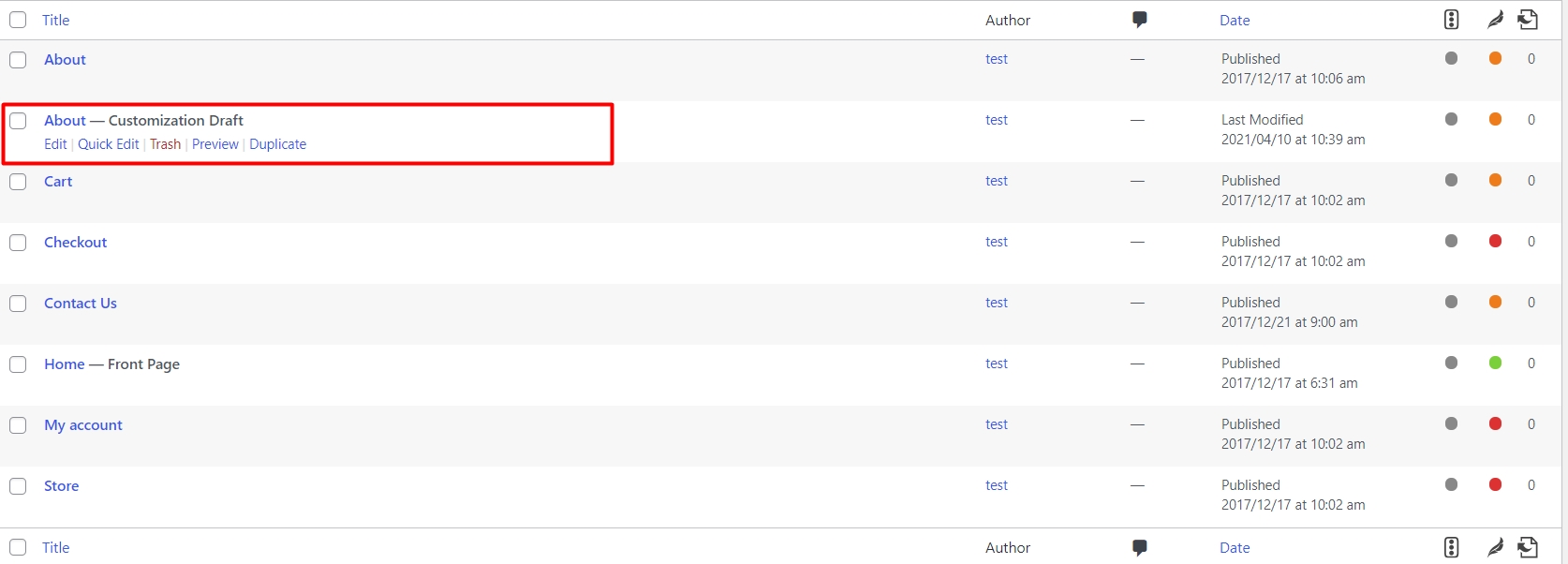
Congratulations, you just duplicated the page. You can also create a copy of recent posts.
Post Duplicator
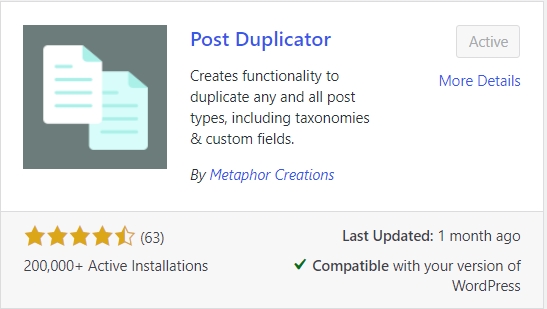
The last plugin in this article is “Post Duplicator”. This plugin will help you to create a clone of any post. Sometimes, we have to update a post daily, like in a trading or share market blog. So, in that blog, there’s only one difference between the daily posts, trading numbers. It can be changed in price, volume, or traded share. So, in this case, the post duplicator can be a great tool. Just create an identical clone and change the data numbers because the post’s structure is already available. So, let’s see how we can easily create a post clone.
Step 1: First, install the plugin on your WordPress site. Then activate the “Post Duplicator” plugin.\
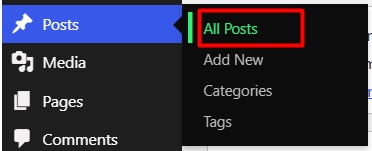
Step 2: Now, click on the Posts tab, then click on All Posts.
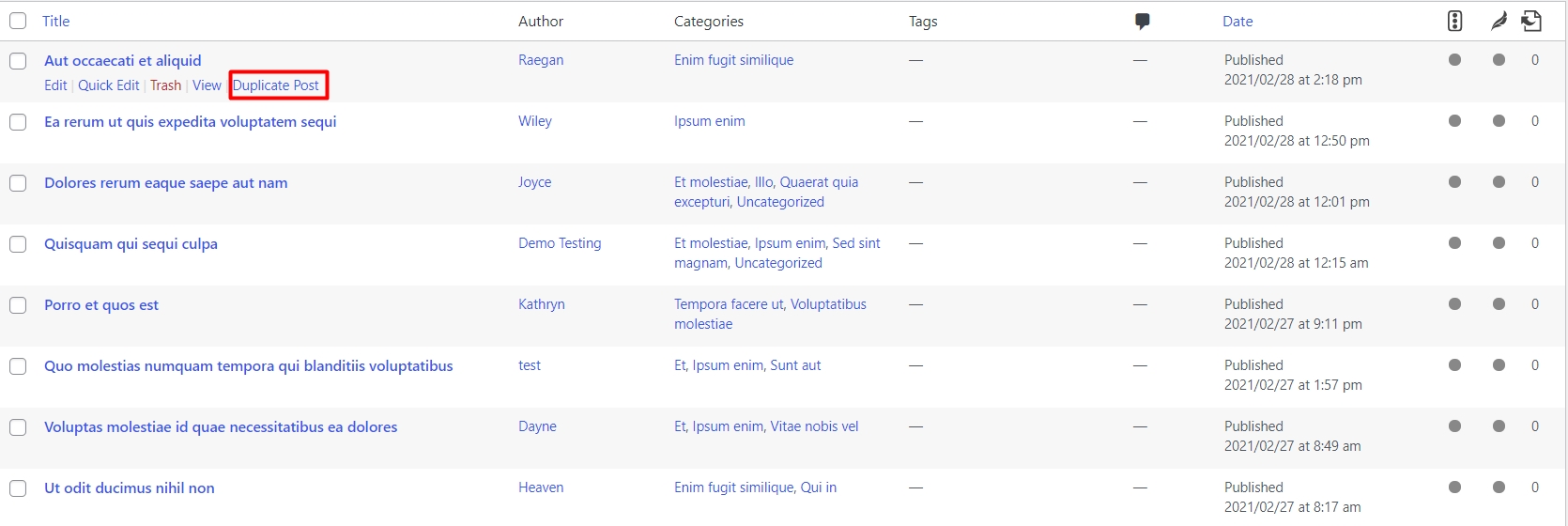
Step 3: Then, hover your mouse on the post list. You will find the option “Duplicate Post” below the post name. Click on duplicate post.
Step 4: After you click on the duplicate post, you will see a new post with the same name and “Copy” Postfix. That post is cloned.
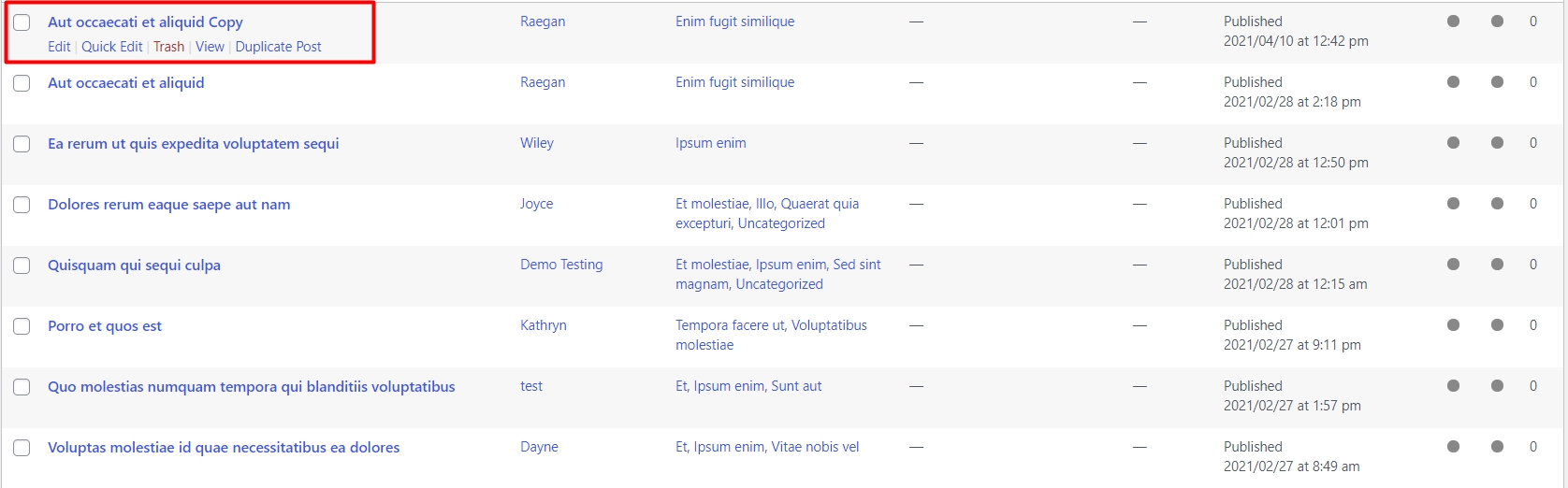
So, this is how you can use the Post Duplicator plugin in WordPress. This plugin is the simplest one from all three plugins we discussed in this tutorial. It is because this plugin does not require you to configure anything. You can just install and activate it to start duplicating posts.
Conclusion: There are tons of plugins available in the WordPress repository and on the Internet for this purpose. However, we decided to include these plugins by considering it’s usage and How easy they are. Usually when you are looking to duplicate a post or a page, you are not looking for advanced features. These plugins will help you clone your posts and pages just with a single click.
If you have questions regarding this topic, please let us know in the following comment section. We are happy to help. If you know better duplicate plugins, please share them in the comment section.
Related guides
7 Common Hosting Mistakes Beginners Make (And How to Avoid Them)
7 common hosting mistakes beginners make in 2026: no backups, ignored updates, bad host choice, weak passwords, single point of failure, no staging. With fixes for each.
WordPressWebsite Migration Backup Checklist: What to Save and How to Test
Prepare a website migration backup: inventory files, databases, email and DNS, check archive integrity, test recovery and plan a safe final synchronization.
WordPressCore Web Vitals in 2026: A Practical Fix Guide for Site Owners
Core Web Vitals 2026: practical fixes for LCP, INP, and CLS. Real root causes, what to measure, common misconceptions, and a priority order of fixes for site owners.
WordPressFixing the WordPress “Death Loop”: When Missing Files slow down your site
You’ve just launched your new WordPress site or pushed a big update. In your staging environment, everything ran perfectly.