
GICT knowledge base
Create a Staging Site from WordPress Dashboard
Published
A website staging environment is an environment which is commonly used for testing something on a website that exactly resembles the production environment. Everyone needs a staging environment to test the working of the website before going it into Live because managing the LIVE website is too risky. It may cause website downtime that results from plugin malfunctions, page crashes or broken code. In this case, we can use this duplicate site to perform testing and make changes in an environment which is completely invisible from the visitors. A WordPress staging site is an offline clone of your website. There is an easy method to clone your website by using a WordPress plugin WP Staging. In this documentation, we are going to discuss how to clone a website using the WordPress plugin.
1) Login into your WordPress Dashboard using your wp username and password.
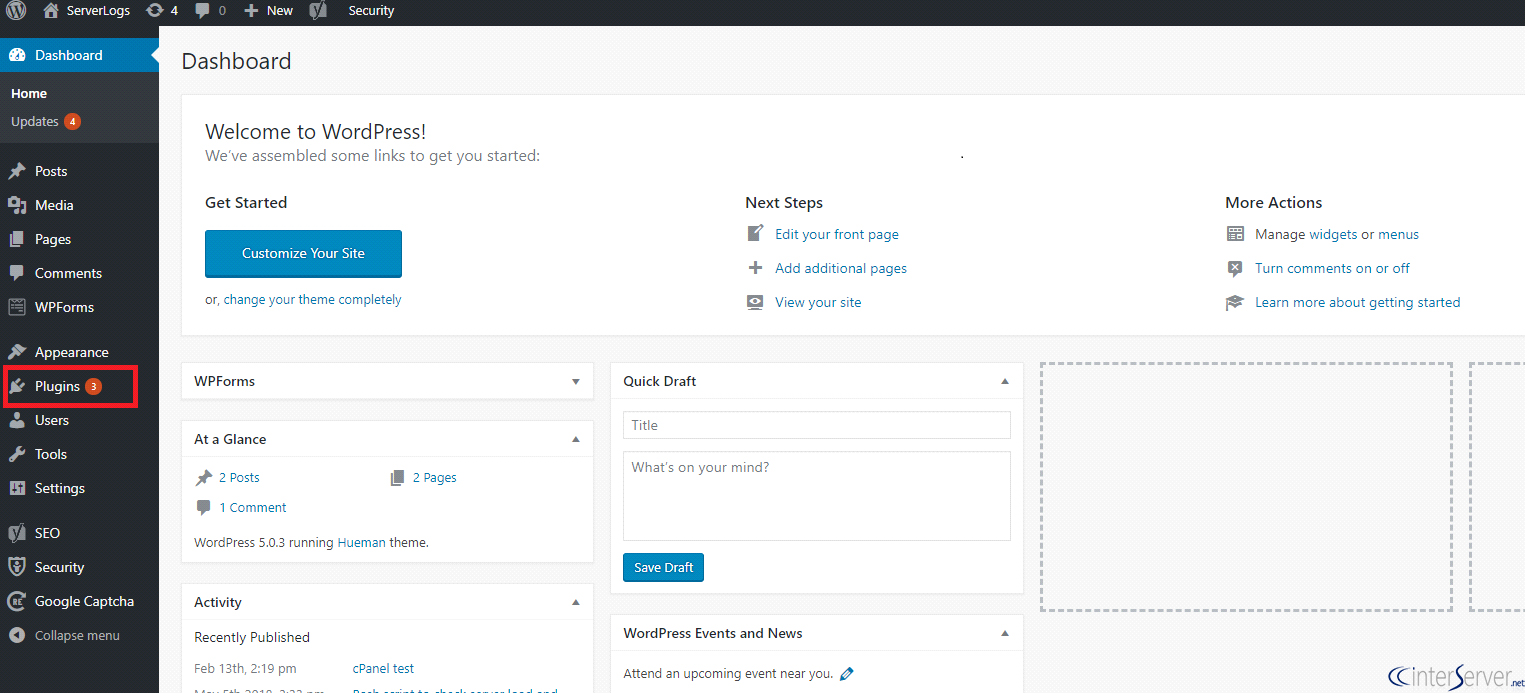
2) Navigate to the “Plugins” option.
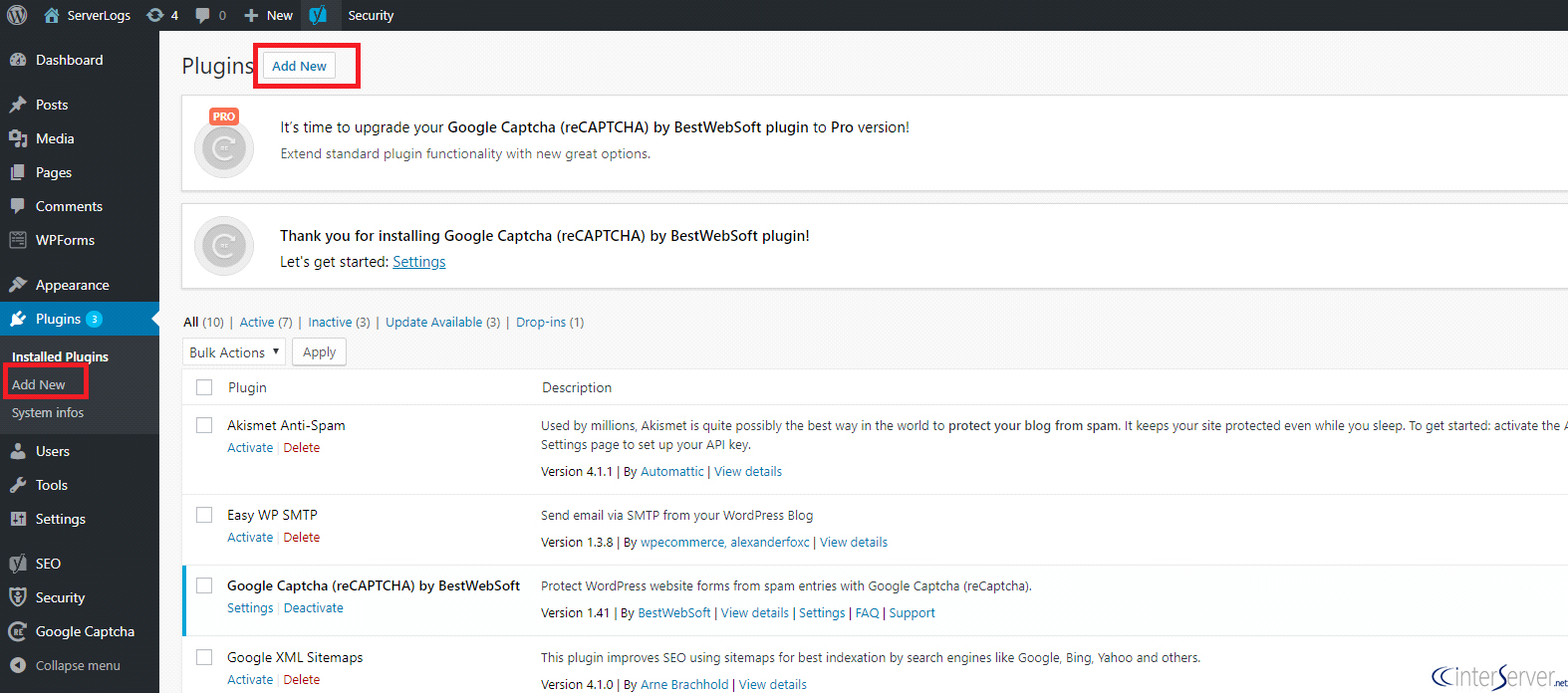
3) Select the “Add New” tab.
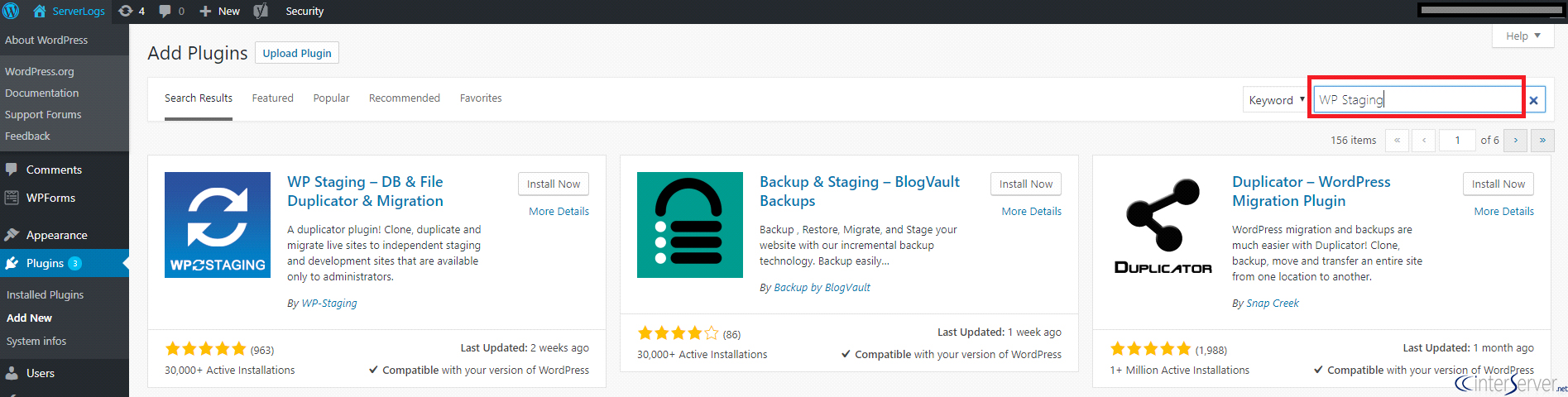
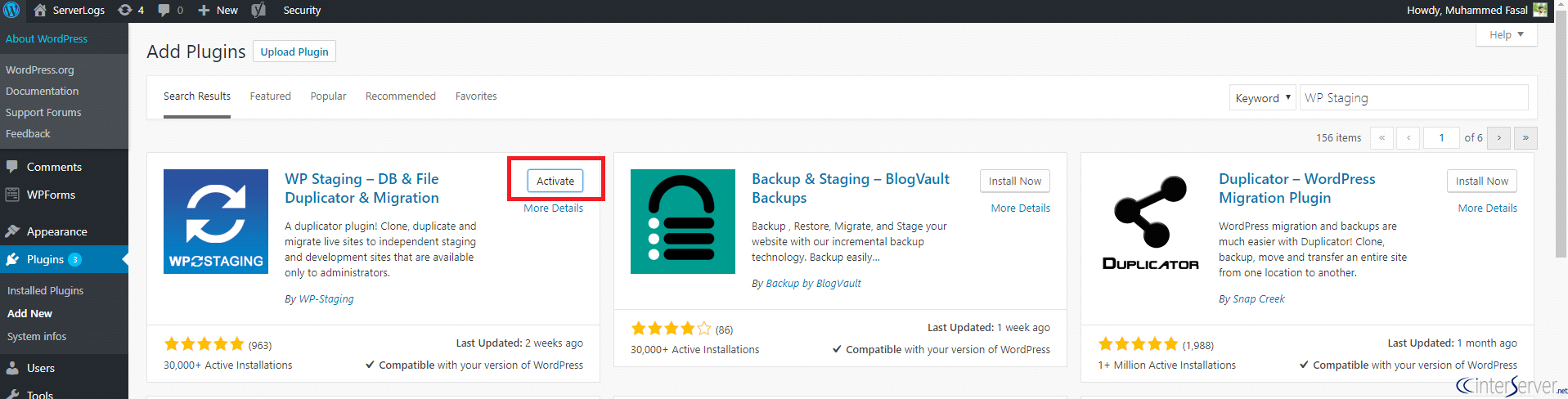
4) Now you can search staging plugin from the “Search” tab in the left-hand side.
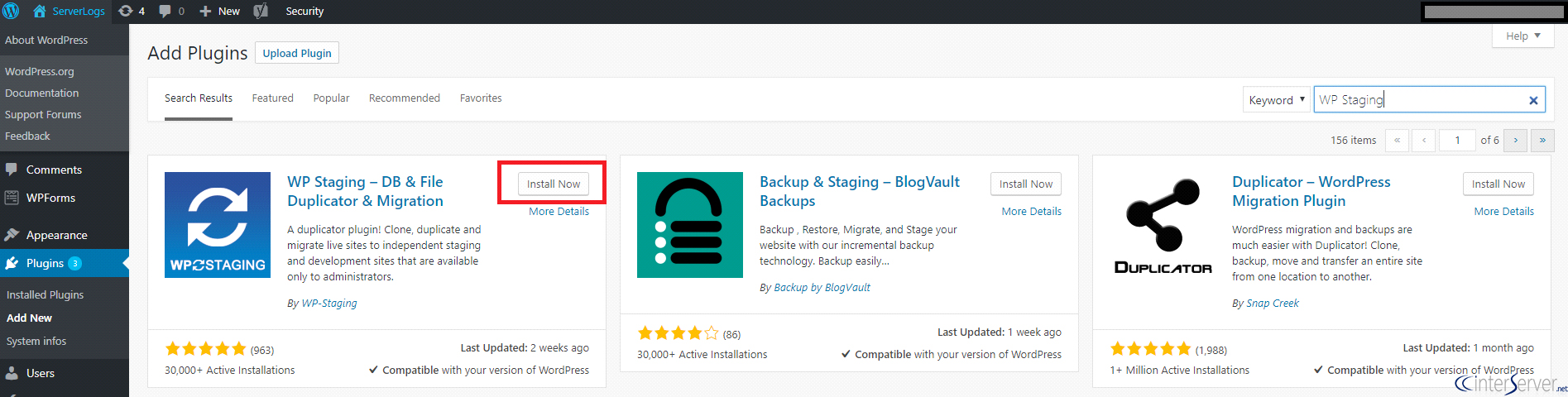
5) You can see the “WP Staging” plugin on the page. Now install the plugin by clicking the option “Install Now”.
6) Once the installation has been completed, activate the plugin by clicking the “Activate” button.
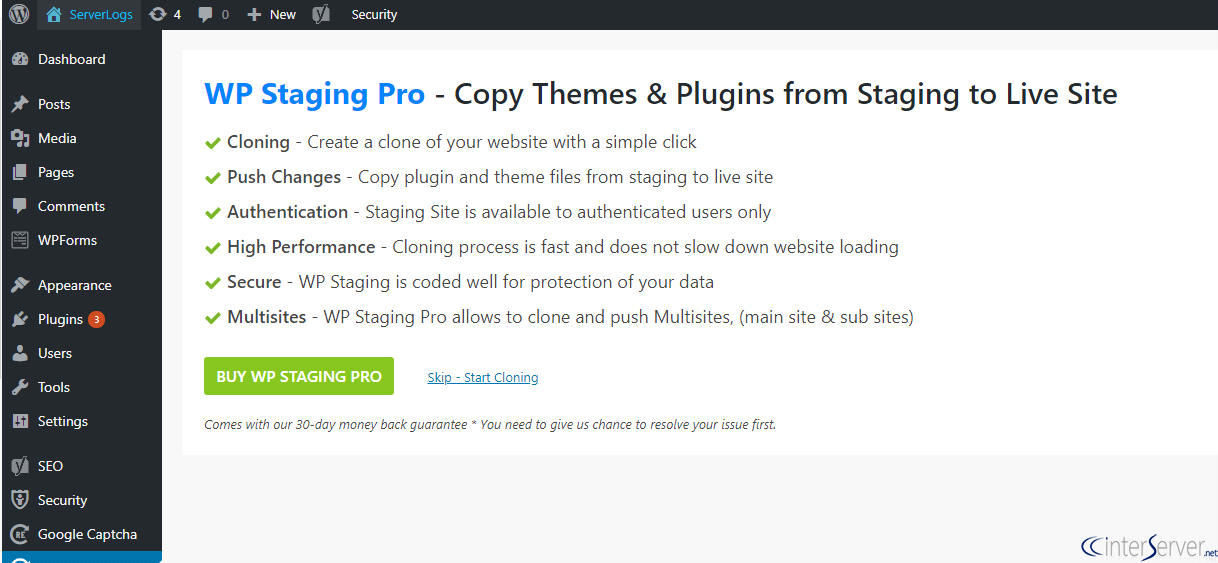
7) If you want to purchase WP staging pro, then you can choose the option “Buy WP Staging Pro” from the page, otherwise, you can choose “Skip-Start Cloning” to use the free version.
8) You can start cloning your website by selecting the option “Create New Staging Site”.
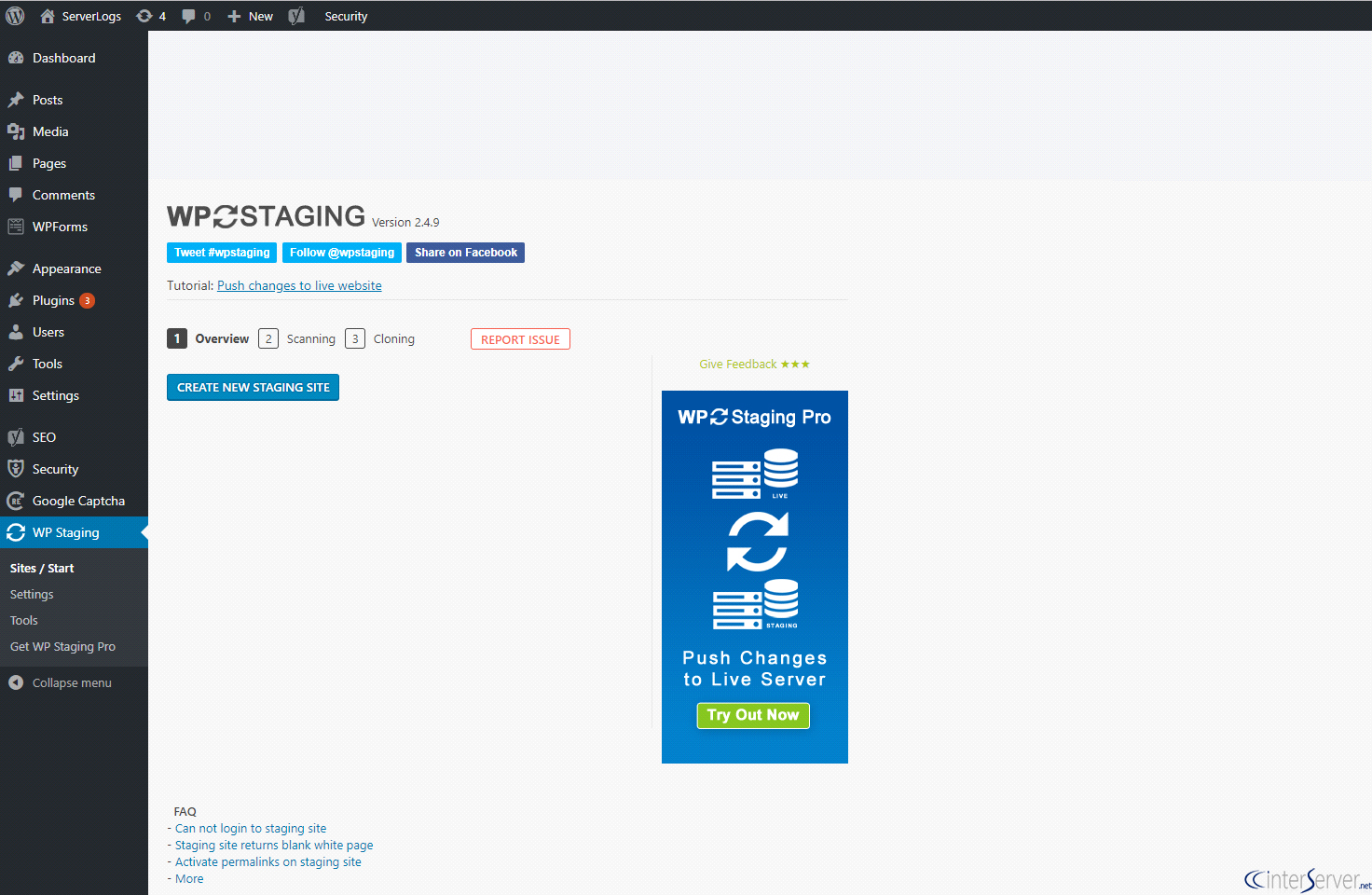
This will lead to another page and there you need to specify your staging site a name and then click “Start Cloning”. It will clone your website.
If you need any further help, please do reach our support department.
Related guides
7 Common Hosting Mistakes Beginners Make (And How to Avoid Them)
7 common hosting mistakes beginners make in 2026: no backups, ignored updates, bad host choice, weak passwords, single point of failure, no staging. With fixes for each.
WordPressWebsite Migration Backup Checklist: What to Save and How to Test
Prepare a website migration backup: inventory files, databases, email and DNS, check archive integrity, test recovery and plan a safe final synchronization.
WordPressCore Web Vitals in 2026: A Practical Fix Guide for Site Owners
Core Web Vitals 2026: practical fixes for LCP, INP, and CLS. Real root causes, what to measure, common misconceptions, and a priority order of fixes for site owners.
WordPressFixing the WordPress “Death Loop”: When Missing Files slow down your site
You’ve just launched your new WordPress site or pushed a big update. In your staging environment, everything ran perfectly.