
GICT knowledge base
cPanel Log Rotation Configuration
Published
In cPanel, most of the events are saved in the log files. The Log files are stored in the location /usr/local/cpanel/logs which stores all kinds of logs like Error log, Access log, backups logs, and much more.
When there is a problem with the server, and we cannot detect the exact issue, the server log will help us to investigate the mean cause of the issue. Sometimes these log files itself cause issues to the server because the server log entries are continuously appending the information which gets unmanageable at some point. Sometimes, the log files might get so large that it would be impossible to store them without adding extra storage to the hosting plan or a VPS.
Log rotation is a feature that fixes these type of issues. Files from the location /usr/local/cpanel/logs can be selected and can be rotated based upon their size. The rotated files will be compressed and stored in /usr/local/cpanel/logs/archive/.
The files names include the month in which they are rotated. Consequently, the file names do not relate in any way to the content of the file being rotated. Files are only rotated when they grow more massive than the Log Rotation Size Threshold setting or the default of 300MB. The archived log files are left in place indefinitely. Files not chosen here will not ever be rotated by cPanel software.
Enable Log Rotation Instructions for Specific Log Files
1) Login to WHM.
2) Navigate to the option ‘Service Configuration’.
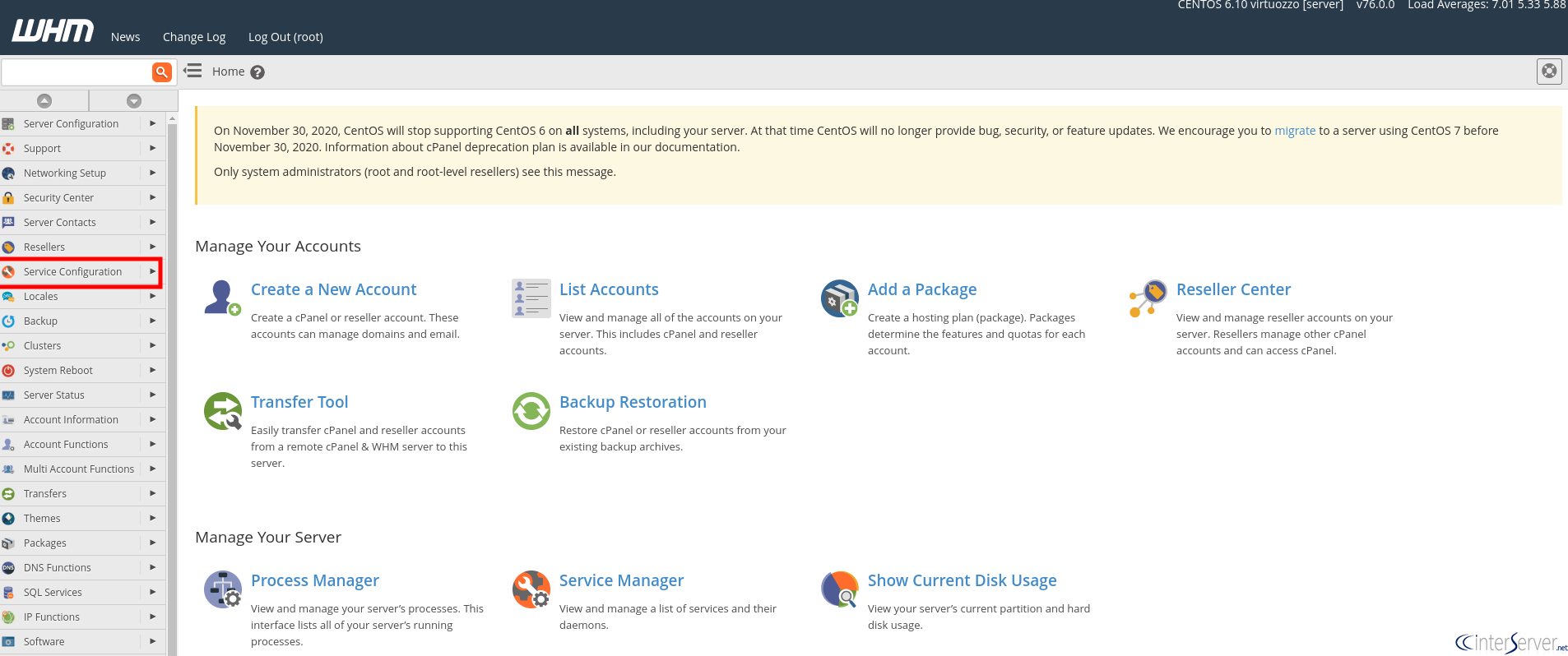
3) Click on the option ‘cPanel Log Rotation Configuration’.

4) Select the appropriate check boxes next to the log files that you wish to store indefinitely.
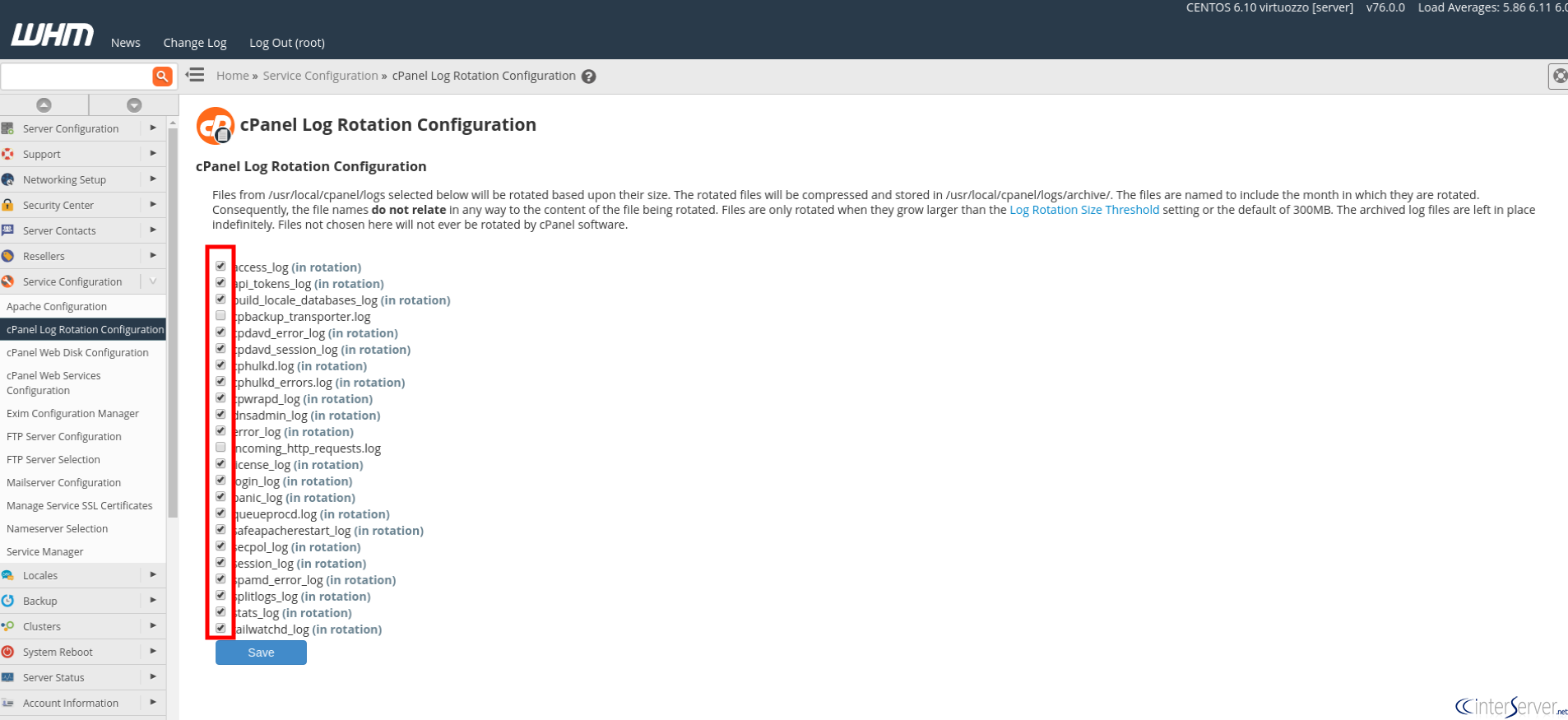
Once you have selected all the files you want to rotate, click on the ‘Save’ button to apply the changes. The system will not delete the compressed log files automatically. You must manually delete any unnecessary log files. The default log rotation size will be set to 300mb; we can specify a custom threshold too, above which the cpanellogd daemon will rotate the log files. You can update these settings from -> WHM >> Home >> Server Configuration >> Tweak Settings.
Let us know if you need more help with log rotation in cPanel. We will help you as soon as possible.
Related guides
Host Additional Domains on an Eligible GICTServer Account
Check your hosting limits, choose a separate site or alias and use cPanel or DirectAdmin with deliberate DNS, content and certificate verification.
cPanelHardening Your cPanel Server: Beyond the Basics After CVE-2026-41940
Security is a moving target. With the recent discovery of CVE-2026-41940, it has become clear that just having a firewall isn't enough anymore.
cPanelcPanel and Plesk notice: Awstats,. Webalizer and Analog stats are being removed
Important Update: cPanel and Plesk Phasing Out Legacy Statistics Tools If you regularly check your website traffic through your hosting control panel, we have an...
cPanelThe dangers of shared licenses (in other words unofficial/cracked licenses)
Why Cracked cPanel Licenses Aren’t Worth the Risk: A Guide for GICTServer Customers When you’re managing a server, every dollar counts.