
GICT knowledge base
cPanel Analytics Feature on the Server Level
Published
The first version of cPanel Analytics Interface Analytics plugin has introduced in cPanel&WHM version 74. Now the cPanel&WHM has released the full system in cPanel & WHM version 78. This cPanel Analytics features gather all the data about how the users are using the cPanel & WHM’s interfaces in which how the users navigate cPanel, WHM, and Webmail from within the interface. It will also collect data about how the hosting providers are configuring the servers. cPanel Analytics feature will keep the data for almost 26 months. Once the expiration has reached, then it will destroy it. In cPanel & WHM version 78 and later, Interface Analytics plugin has installed automatically but it is not enabled by default. We need to manually enable this feature. Because the cPanel Analytics feature is optional. So until the server owner enables the plugin at the server level, it will not gather any data. Also, the user account enables the data collection for their corresponding accounts individually. Otherwise, it will not collect any data for the specific user accounts. In this documentation, we are discussing how to enable or disable cPanel Analytics feature on the server level in cPanel & WHM version 78 and later and also in cPanel & WHM version 74 through 76.
How to enable or disable cPanel Analytics feature on the server level in cPanel & WHM version 78 and later
1) Log into the WHM using the username and password.
2) Navigate to “Server Configuration” on the left-hand side from the Home page.
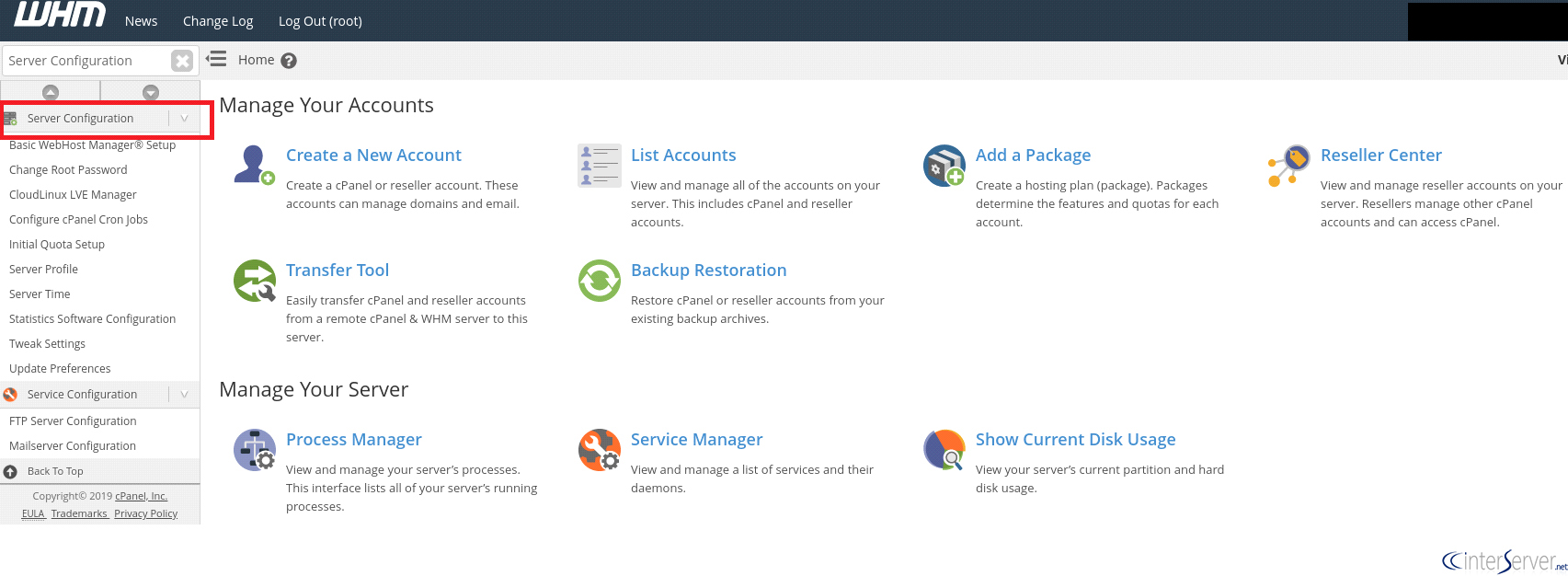
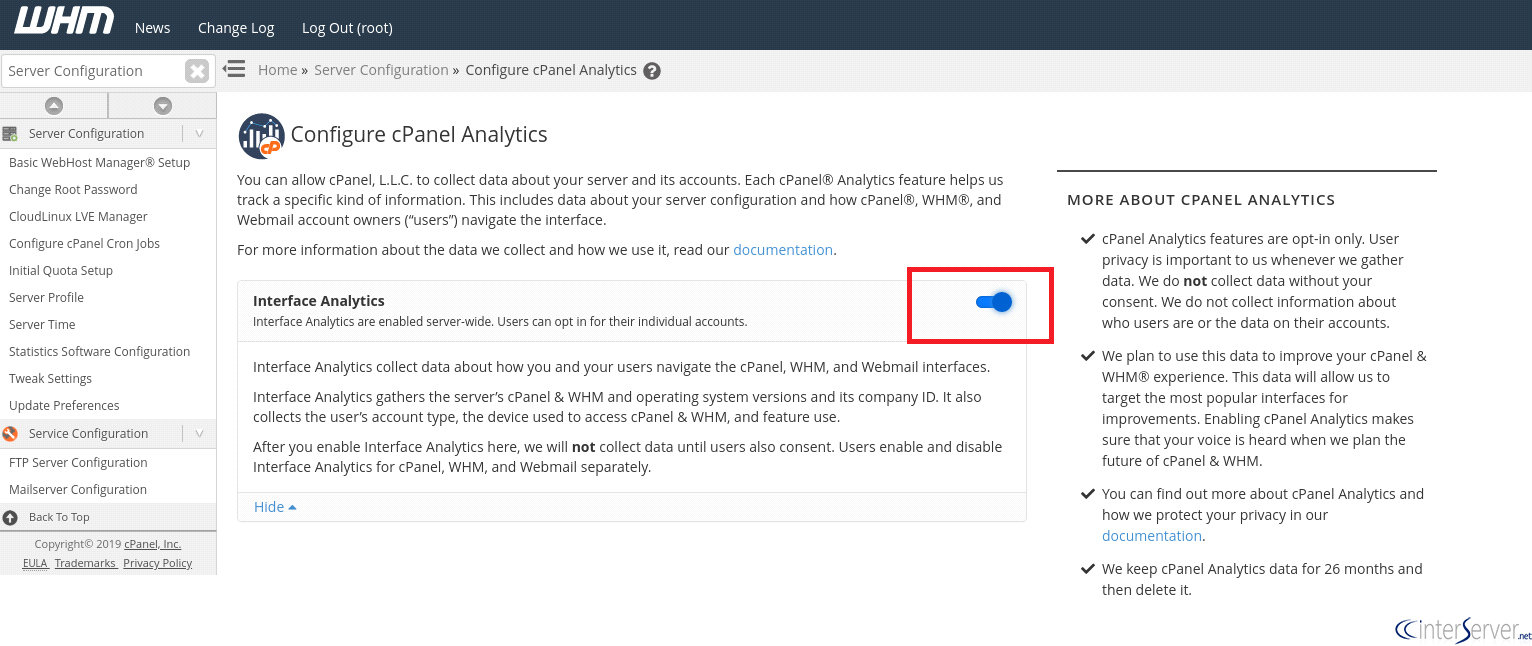
3) From the Server Configuration, go to “Configure cPanel Analytics”.

4) From there, you can enable or disable the cPanel Analytics.
How to enable or disable cPanel Analytics features in cPanel & WHM version 74 through 76 on the server level
1) Log into the WHM using the username and password.
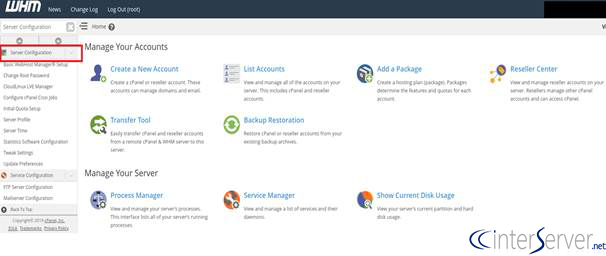
2) Navigate to “Server Configuration” on the left-hand side from the home page.
3) From the Server Configuration, choose the “Tweak Settings” option.
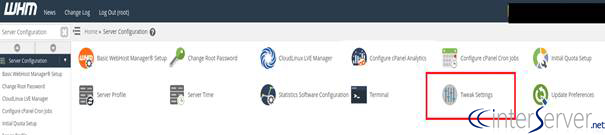
4) Choose the “Support” section under the tweak settings. From the page, you can enable or disable the cPanel Analytics feature.
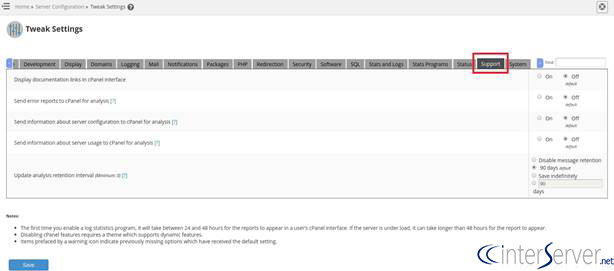
5) If you want to enable interface Analytics at the server-level from the command line, then run the following command as the root user.
# yum install cpanel-analytics
The above command will install the cpanel-analytics plugin.
Once the script /usr/local/cpanel/scripts/maintenance runs, it will check the /etc/yum.repos.d/cpanel-plugins.repo repository. If the repository does not exist on the system, then it will create a repository. This repository contains the cPanel Analytics Interface Analytics plugin as well as other cPanel-provided plugins.
If you need any further help, please do reach our support department.
Related guides
How to Install and Uninstall JetBackup for cPanel
How to Install JetBackup for cPanel. JetBackup is one of the leading backup solutions for cPanel & WHM that offers a user-friendly GUI. It provides
WHMSetup SendGrid on your cPanel VPS/Server
Setup SendGrid on your cPanel VPS/Server. SendGrid provides a cloud-based service for reliable transactional and marketing email.
WHMChange cPanel Nameserver Software to PowerDNS Carefully
Review WHM nameserver selection, resolver dependencies, cluster compatibility and DNSSEC requirements before a planned PowerDNS service change.
WHMTroubleshooting Jailed Shell on OpenVZ
cPanel/WHM providing Jailed shell environment for users, this feature giving high-level security for users when doing ssh access to their server.