
GICT knowledge base
Configure The General Settings of PhpMotion
Published
Configure The General Settings of PhpMotion
With the phpMotion application, you will be able to build a beautiful and fully functional website for video, audio, and picture sharing between the registered users of your website in few clicks after you install the application. You can set limitations on the media files and can be able to configure how the videos should be played. You can perform all these stuff from the admin area and all the settings come under the ‘General Settings’. From the general settings, you will be able to configure all of the settings you need for your website to work properly. To do this, please follow the below given steps:
1) Login to the admin area.
The login page is located under /siteadmin, you can access it by adding it along with the URL. Example http://domain.com/siteadmin
2) Once you logged in you can access general settings from settings >> General Settings.
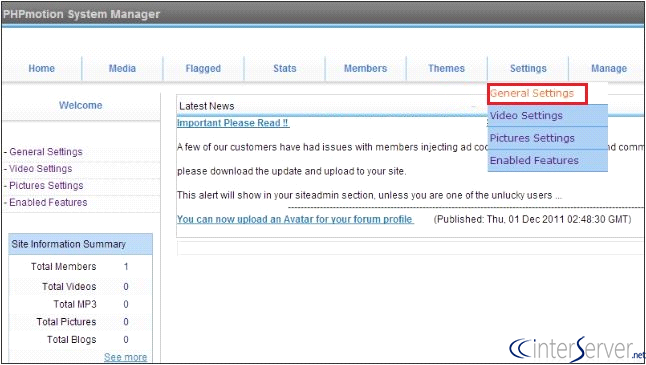
3) These functions allow you to fine-tune your phpMotion conversion settings and also to change your site basic settings.

4) The next section is the path of the services which your phpMotion website will be using.

5) In the third section, you can enable the audio features, conversion Log and debug mode

6) In the fourth, section you can able to configure how the videos should be played.

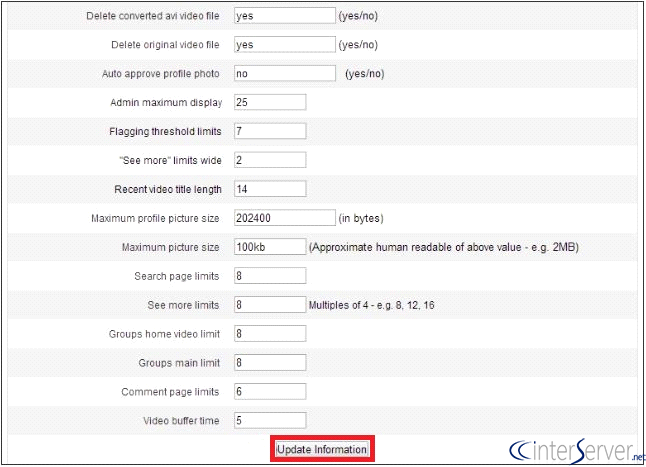
7) In the last section, you can set limitations for media files. You can save all the edited setting using the option “Update Information”.
If you need any further assistance please contact our support department.
Related guides
How to Restrict an SSH Key to One Command
Restrict an SSH key to one command with authorized_keys options. Protect the command and check that unwanted shell and forwarding access are denied.
Linux and CommandsSelf-Hosted Video Processing With FFmpeg: A Practical Guide
Learn how to self-host video processing on a VPS using FFmpeg, with practical commands for conversion, compression, thumbnails, and automated workflows.
Linux and CommandsHow to use nohup: Commands in Linux That Survive Terminal Closes
Keep commands running after you close the terminal. nohup examples with wget, Python, rsync, and Docker on any VPS.
Linux and CommandsHow to Fix “Too Many Open Files” Error on Linux Servers
Learn how to fix the "Too Many Open Files" error on Linux servers by understanding file descriptors, adjusting limits, and diagnosing leaks effectively.