
GICT knowledge base
Change the Number of Failed Login Attempts on CSF
Published
The ConfigServer Security firewall known as CSF is an open source software and most commonly used to configure the advanced firewall in Linux servers such us Login detection, SSH login notifications, etc. CSF provides the wide range of protection on your Linux servers. By default, CSF firewall will be blocked IP address when entering wrong username or password in more than 5 times in the last 3600 seconds. Also, you can find the reason why the IP has been blocked on the server from LFD log file. LFD stands for Login Failure Daemon is a process that is a part of the CSF that checks periodically for potentials threats to a server. The CSF is working with LFD. CSF checks the LFD logs for failed login attempts at a regular time interval and is able to find most unauthorized attempts to gain access to your Linux server. The following applications can configure in CSF firewall.
IMAP, Devcot, POP3D
openSSH
cPanel, WHM, Webmail(in cPanel Server)
Pure-ftpd, vsftpd, Proftpd
Password protected areas on the website.
Mod_security.
Suhosin failures.
Exim SMTP AUTH
By default, CSF firewall will be blocked IP address when logging into the control panel, email, or a password protected area on the website with entering wrong username or password in more than 5 times in the last 3600 seconds. We can change this failed attempts values in CSF configuration file. in this tutorial, we will discuss how to change this values in csf config file via both WHM and command line(CLI).
Edit csf configuration via command line(CLI)
1) Login to Server as a root user.
2) Open the csf config file using the text editor like vi, vim.
vi /etc/csf/csf.config
3) Then find the following entries.
To change FTP login failed attempt value.
LF_FTPD = “10”
To change the value failure detection of SMTP AUTH connections.
LF_SMTPAUTH = “5”
To change login failure detection value of courier pop3 connections.
LF_POP3D = “5”
To change login failure detection value of courier imap connections
LF_IMAPD = “10”
To change login failure detection value of cPanel, webmail and WHM connections.
LF_CPANEL = “5”
4) Then save this config file after changing these values.
5) You have to restart csf and lfd services.
csf -r
service csf restart.
service lfd restart.
Edit csf configuration via WHM
1) Login to WHM as a root user.
2) Go to Plugins >> ConfigServer Security & Firewall.

3) Click on “Firewall Configuration”.
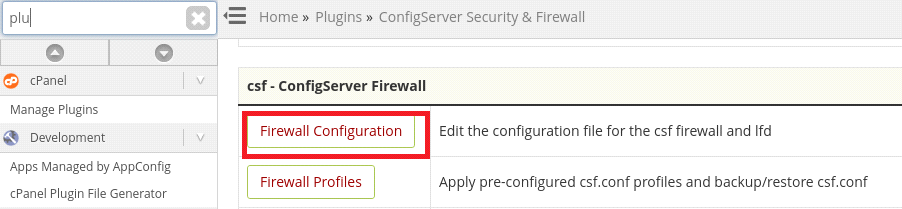
From here you can change the same above values.
Please note that to increase these values will decrease your server security.
Related guides
How to Find Services That Need a Restart After Updates with needrestart
Find services using outdated libraries with needrestart on Ubuntu. Read restart reports, review automatic restart policy and plan maintenance safely.
Firewall and SecurityHow to Connect Two Servers Privately with WireGuard
Connect two servers with WireGuard and keep PostgreSQL on the tunnel. Verify peer traffic, private database access and denied public connections.
Firewall and SecurityGICTServer HIPAA Hosting: BAA and Shared Responsibilities
Review GICTServer HIPAA hosting responsibilities and download the BAA and provisioning checklist. Request service-specific coverage through a support ticket.
Firewall and SecurityHow to Sign and Verify Files with Minisign
Sign release files with Minisign, share an authenticated public key, verify downloads, and stop processing when signatures fail.