
GICT knowledge base
How to Add Tax Rates in Zen Cart?
Published
There are more than 200 countries in this world. And there must be more than thousand different places with different tax rules. It is very hard to manage the tax rates manually if you run your E-commerce store in multiple locations. That is why, ZenCart provides us an interface to manage different tax rates for different zones in your store. If you don’t know the meaning of a zone, You can Read our tutorial on managing zones in ZenCart.
As the name describes, “Tax rate” is a number in % that describes how much tax you should charge in a specific zone. You can set different tax rates in different zones. This system allows you to deal with location and tax issues with efficiency. In this tutorial, I will show you How to create tax rates in ZenCart.
Add tax rates in ZenCart
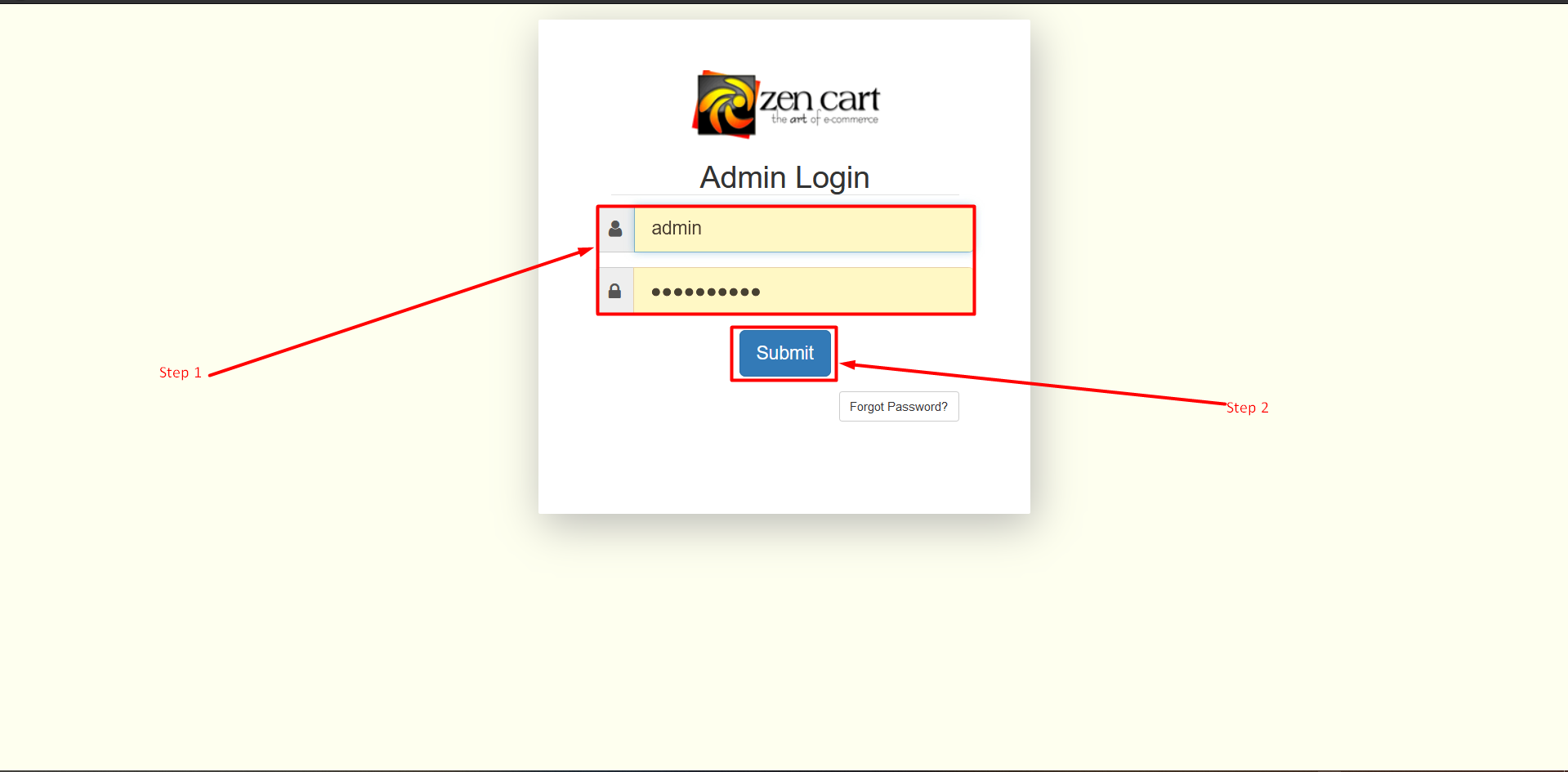
Step 1: Open the login page for the ZenCart Administration panel. Type your Username and Password in the login form.
Step 2: Now click on the Submit button.
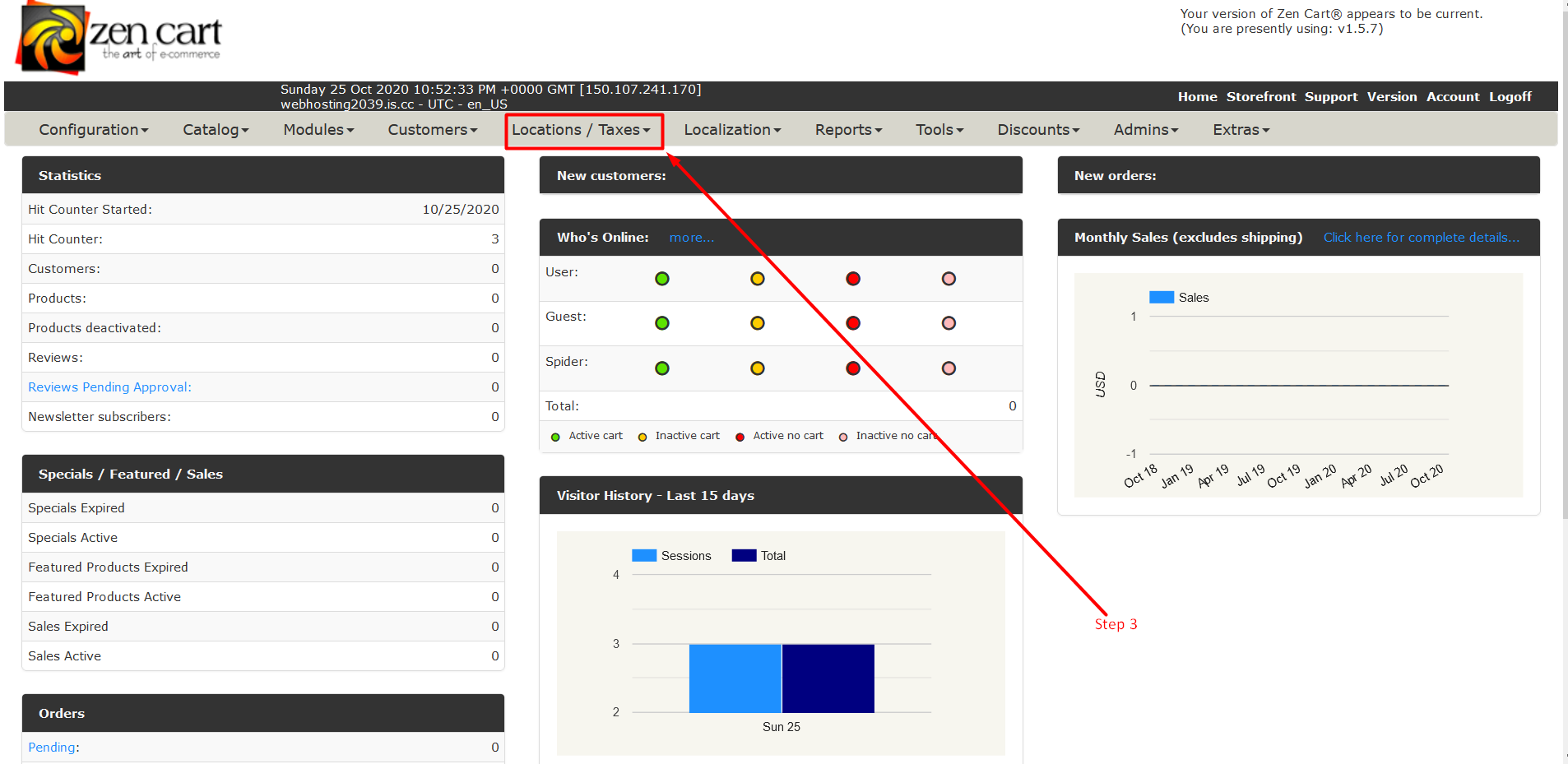
Step 3: Now Find a tab section and find the Location /Taxes tab and click on the Triangle to expand that tab.
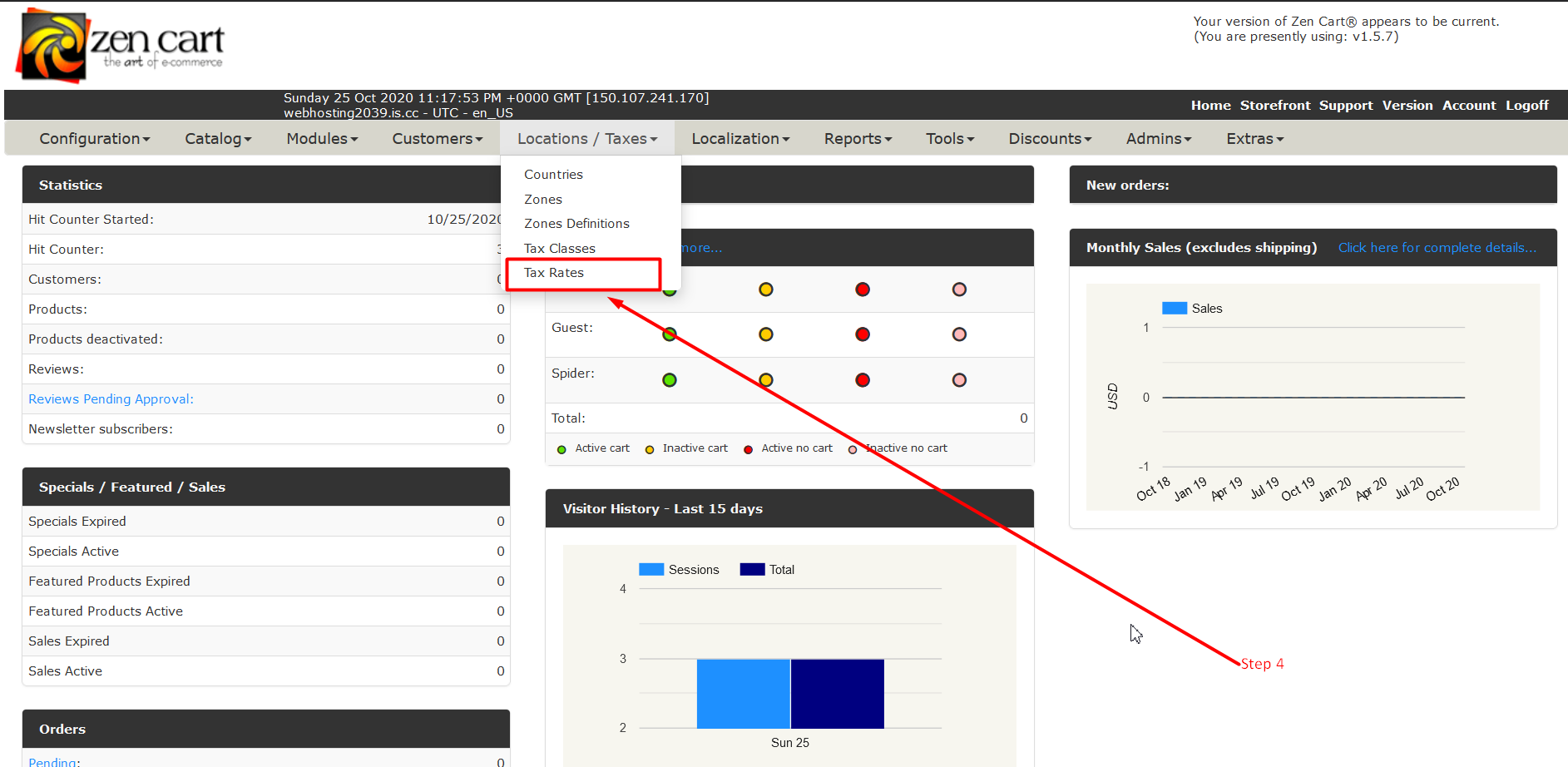
Step 4: Now Click on Tax Rates.
Step 5: Now click on the New Tax Rate to add a new tax rate on your website.
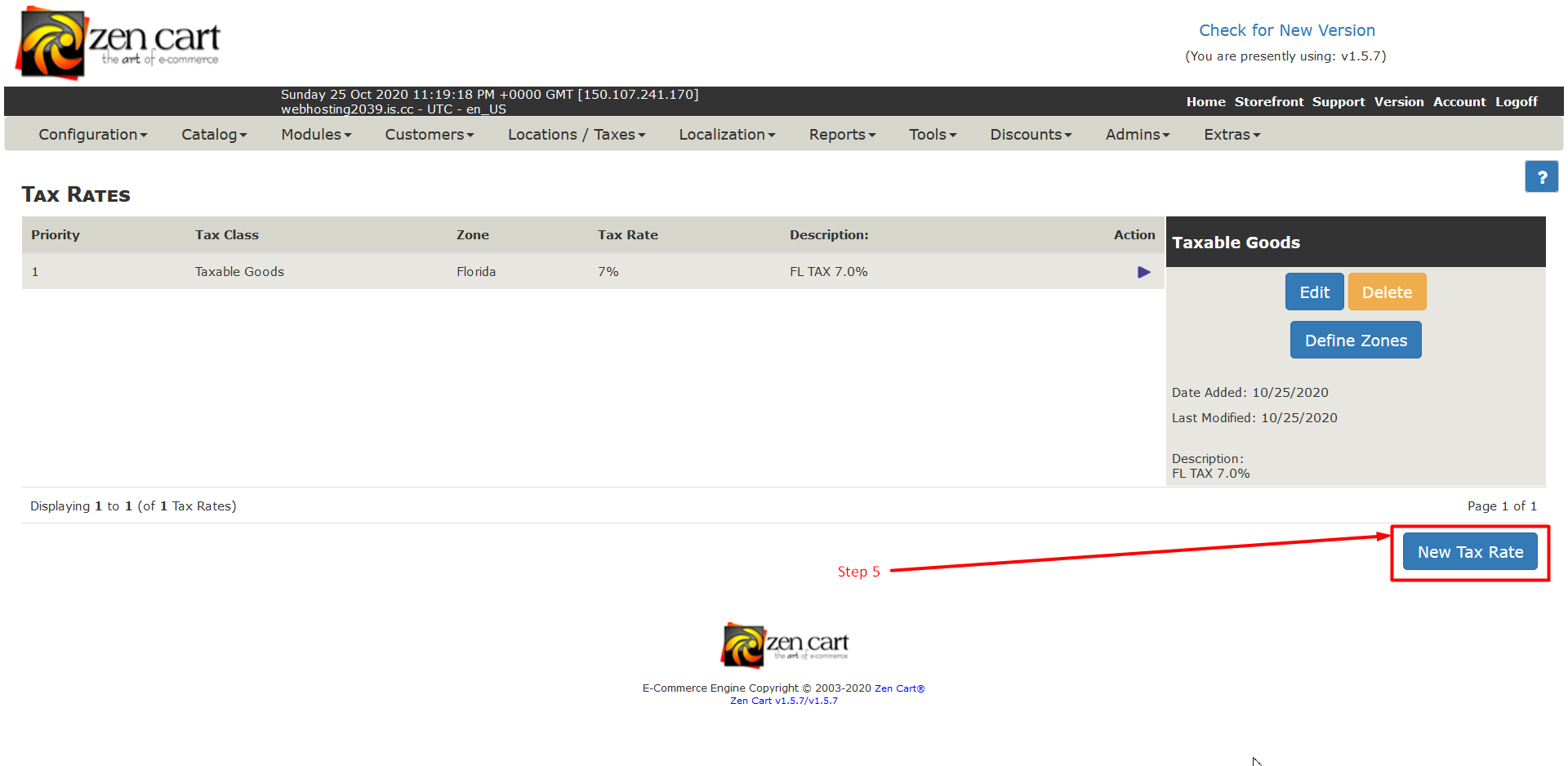
Step 6: When you add tax rates to zen-cart the inserted tax rate will show up here just like the below image.
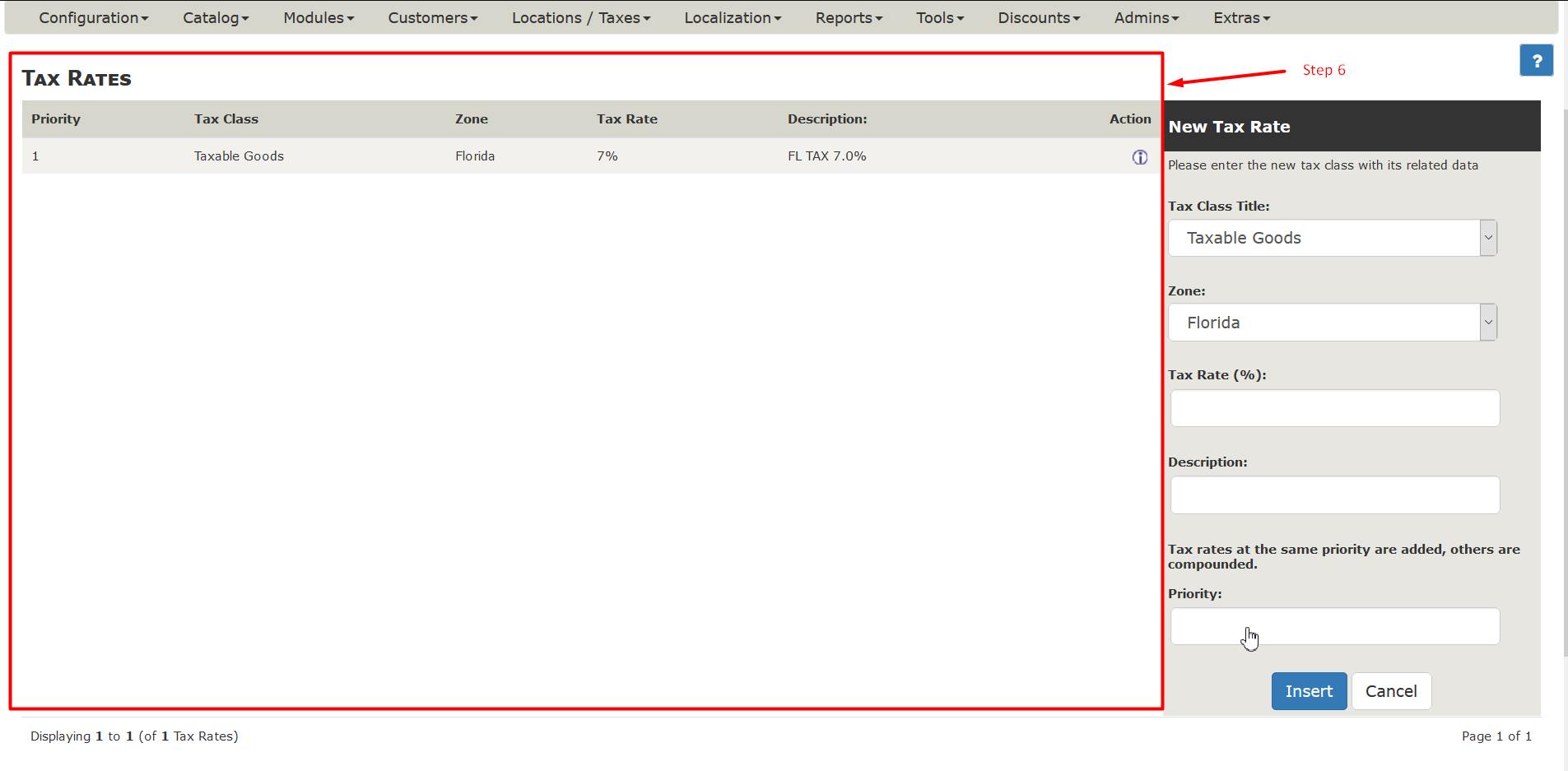
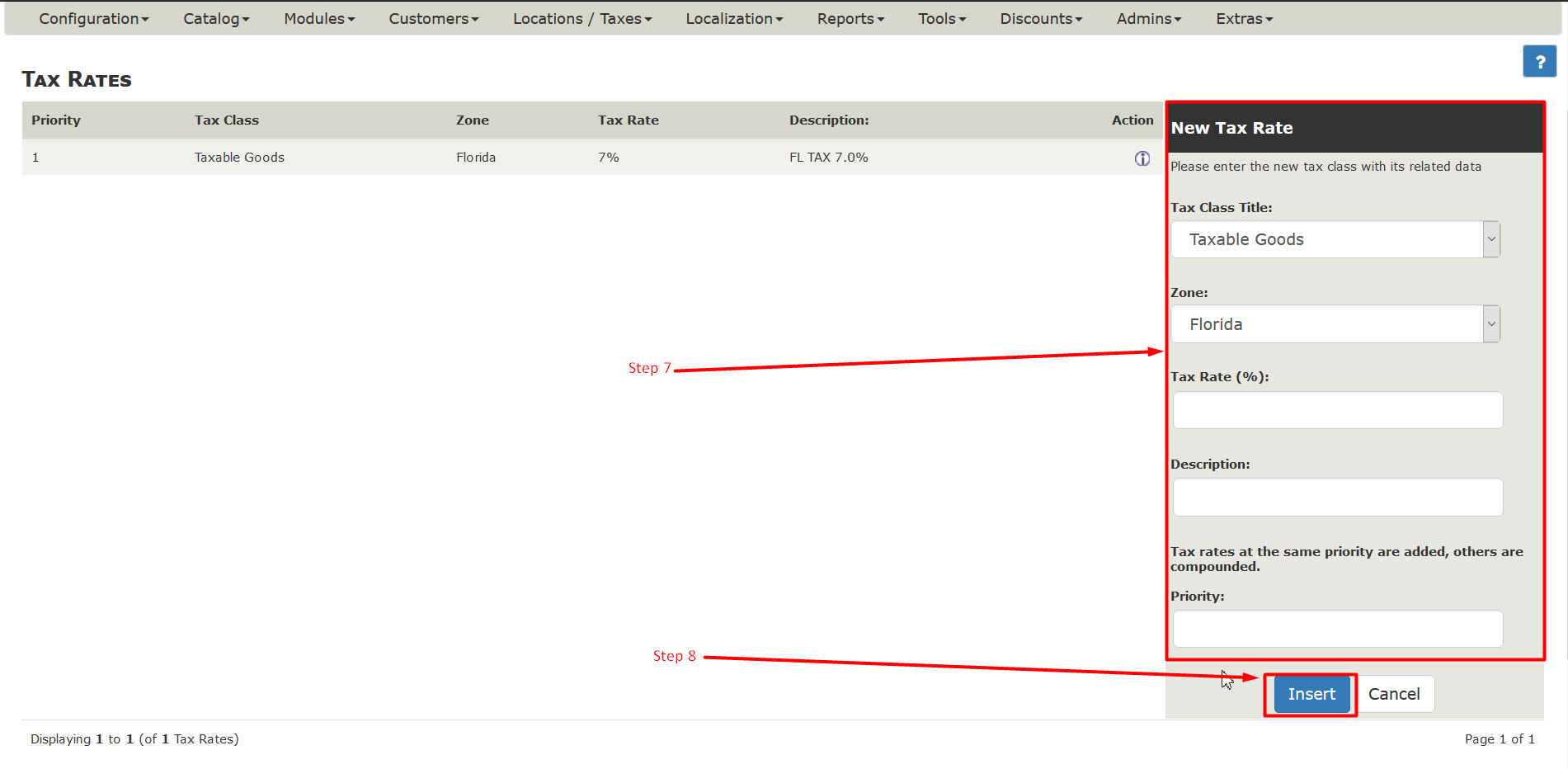
Step 7: Now on The Right-Side of your screen find The box as New Tax Rate. Fill those fields with appropriate data.
Step 8: Then click on Insert Button to insert the Tax Rate.
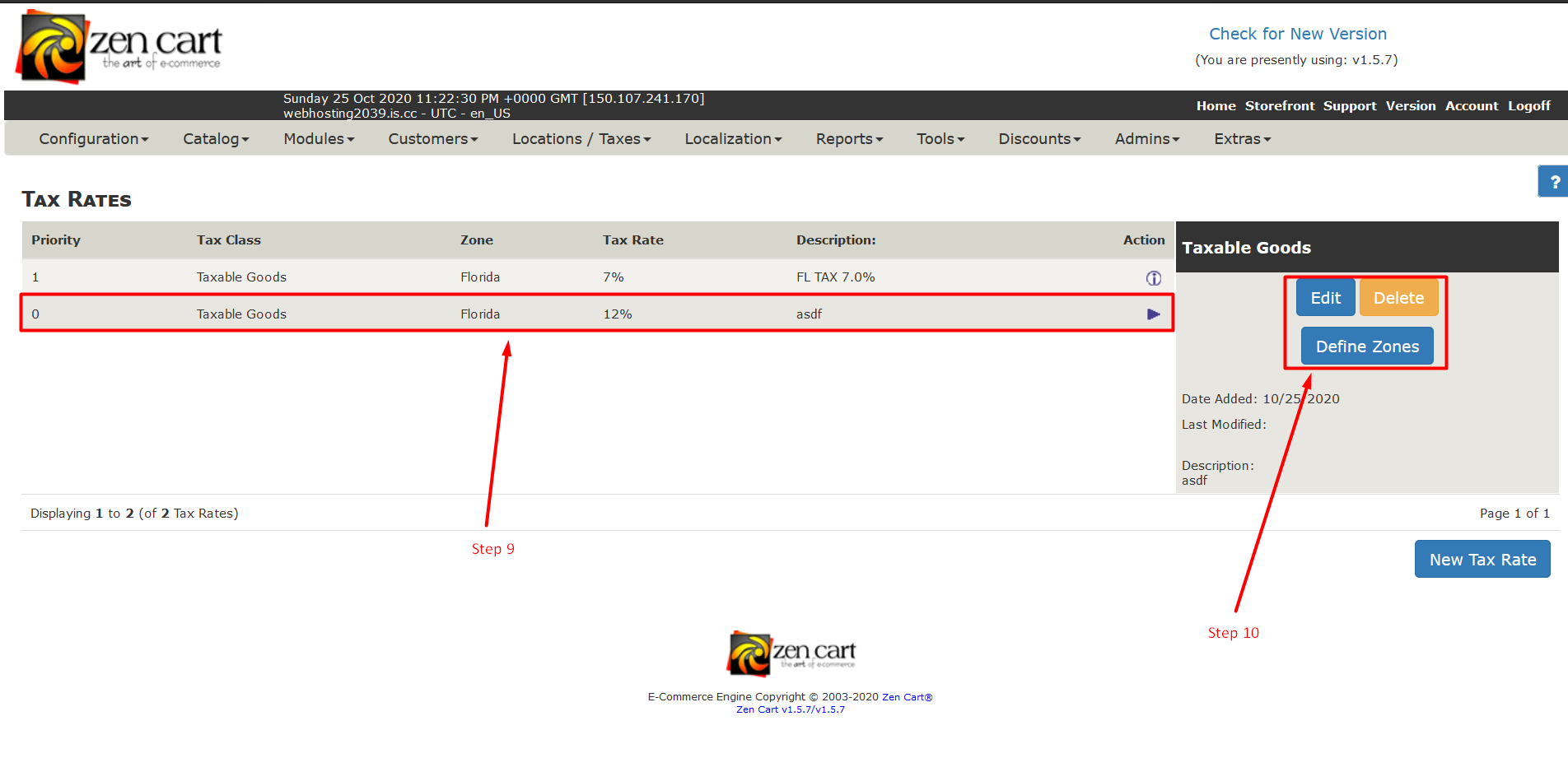
Step 9: You can see your inserted Tax rate in the list of all Tax rates.
Step 10: If you want to Edit or Delete Tax Rates Click on Edit or Delete Button. If you want to define the Tax rate based on zones then click on Define Zones.
So, this is how you can create tax rates in Zencart.
Related guides
Top 10 Best Content Management Systems in 2021!
Follow this list to learn in detail about the 10 most popular content management systems available in the market.
E-CommerceWooCommerce vs Shopify : The best E-commerce platforms
WooCommerce and Shopify are the two most popular E-commerce platforms. Follow this tutorial to learn more about both of them.
E-CommerceBest Applications to Run E-commerce Websites
E-commerce Hosting:E-commerce is the process of selling and buying of goods or services over the world wide web. It is also known as electronic commerce or
E-CommerceEasy Digital Downloads Plugin for WordPress
Easy Digital Downloads (EDD) plugin is the second most well-known WordPress eCommerce plugin, after WooCommerce. EDD plugin is used to create an eCommerce