
GICT knowledge base
How to add HTML to a WordPress Page or Post?
Published
WordPress is the most powerful content management system available on the internet. It is very flexible and we can use WordPress to create almost any type of web application. By default, WordPress is a blog management system. However, We can use free or paid plugins and themes to create any type of website using WordPress.
WordPress provides Visual and Text options to edit your articles or content. In visual mode, you do not have to write the tutorial in HTML. While in the Text mode, you have to manually type the basic HTML to create the content. However, WordPress does not provide us an option to enter HTML snippets in the content. You can use the basic HTML in Text mode but it is not recommended to use it for complex or custom HTML snippets.
In this tutorial, I will show you how to input any type of HTML snippets in content. We will use a plugin called Insert HTML Snippet to create HTML snippets and insert them into the content using short codes. So, Let’s get started with the tutorial.
Add HTML to a WordPress Page or Post
First of all, log in to the admin panel of your WordPress site. Then, click on the Plugins -> Add New from the left sidebar. In the search bar, search for Insert HTML snippet. Once found, Install and Activate the plugin.
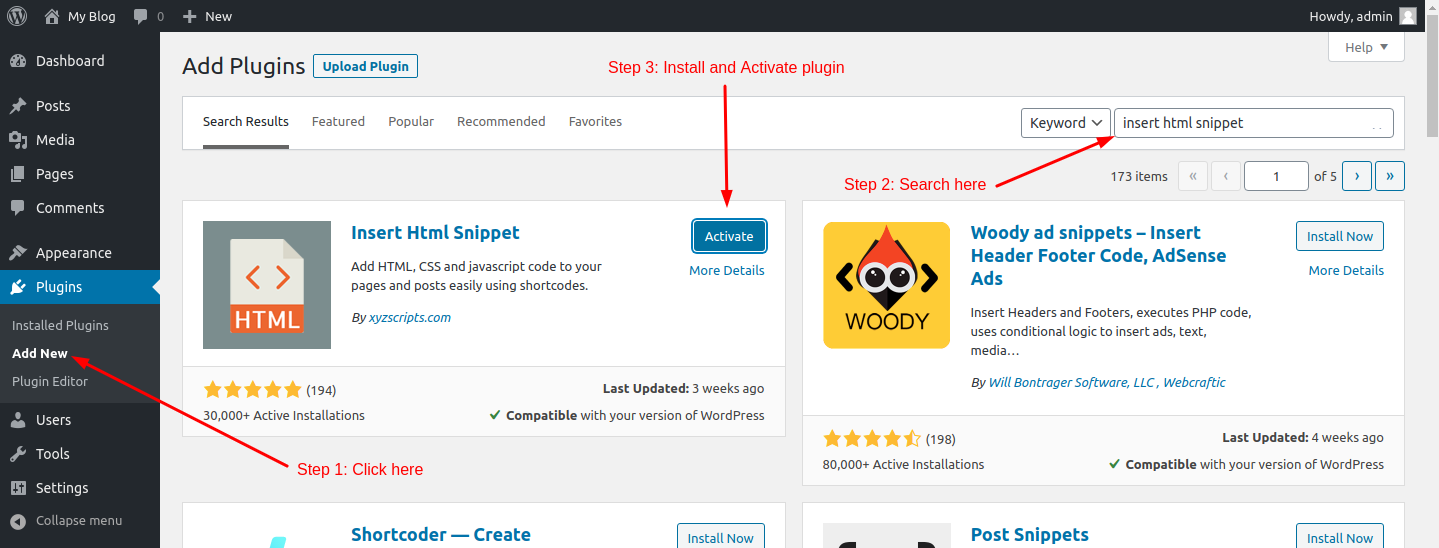
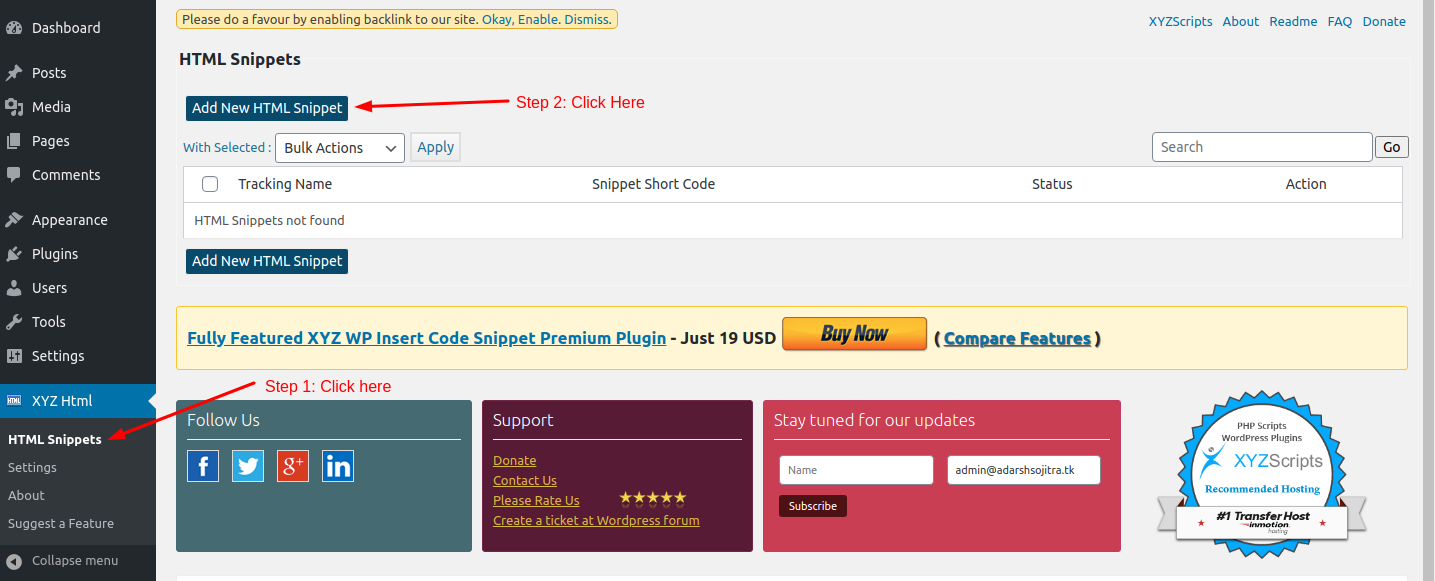
After the plugin is active, click on the XYZ HTML -> HTML Snippets from the left sidebar. On this page, you will see a list of snippets available in your WordPress installation. Then, click on the Add New HTML snippet to create a new snippet.
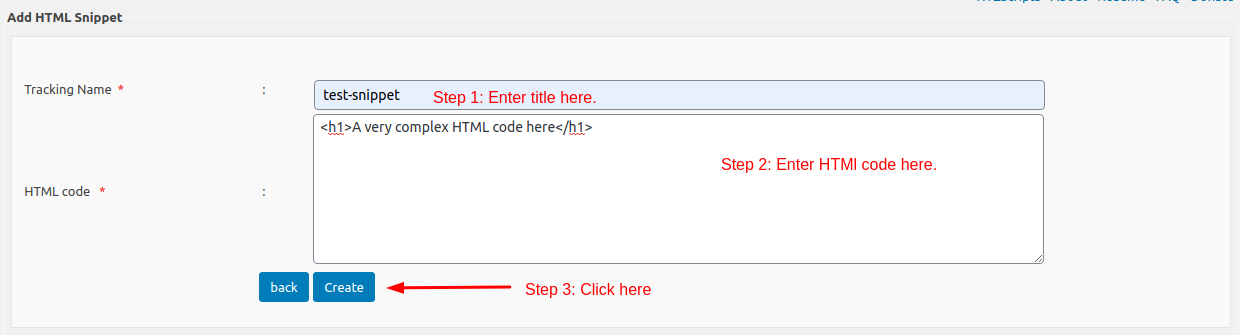
On this page, you will see a title field and the content textarea. Enter the title in title field. Then, create or paste your HTML code in the textarea. Once done, click on the Create button given at the bottom of the form.
Now, you will see your new HTML snippet in the list of available snippets. Under the Snippet Short Code column, you will find a short code for that snippet. You can simply copy and paste that short code in your WordPress Page or Post to display that snippet.
You can use this plugin to create snippets for banners, Adsense code or any other advertising code too! So, this is how you can solve the problem. We hope you liked this tutorial. If you have any questions, Please let us know in the comment section given below.
Related guides
7 Common Hosting Mistakes Beginners Make (And How to Avoid Them)
7 common hosting mistakes beginners make in 2026: no backups, ignored updates, bad host choice, weak passwords, single point of failure, no staging. With fixes for each.
WordPressWebsite Migration Backup Checklist: What to Save and How to Test
Prepare a website migration backup: inventory files, databases, email and DNS, check archive integrity, test recovery and plan a safe final synchronization.
WordPressCore Web Vitals in 2026: A Practical Fix Guide for Site Owners
Core Web Vitals 2026: practical fixes for LCP, INP, and CLS. Real root causes, what to measure, common misconceptions, and a priority order of fixes for site owners.
WordPressFixing the WordPress “Death Loop”: When Missing Files slow down your site
You’ve just launched your new WordPress site or pushed a big update. In your staging environment, everything ran perfectly.