
GICT knowledge base
Add Booking Forms to Your WordPress Site with Appointment Hour Booking Plugin
Published
Appointment Hour Booking Plugin is one of the effective and feature-rich booking plugins for WordPress sites. You can easily add booking forms or appointment forms on your site using this plugin. The plugin is available in the WordPress plugin directory for free. Also, it provides shortcodes to embed the booking forms anywhere on your site. It helps you create booking forms for appointments with a start time and a defined duration over a schedule.
Your user’s start time is visually selected from a set of start times calculated based on the “open” hours and service duration. The duration or schedule is defined in the “service” selected by the customer. Each calendar can have multiple services with different duration and prices. You can use this plugin for various purposes like booking medical services, personal training sessions, reserving language sessions, etc. Also, you can block the booked time once the booking is completed. You can easily configure and manage the scheduling of booking calendar forms using this plugin. It allows you to set working dates, invalid or holiday dates, and special dates you want to define specifically. Additionally, Booking forms are integrated with multiple payment gateway options such as PayPal Standard, PayPal Pro, Stripe, Skrill, Authorize.net, TargetPay/iDEAL, Mollie or iDEAL, SagePay, Redsys.
Also, the plugin lets you customize the email notifications for administrators and users. The booking plugin provides form validation and built anti-spam captcha protection. Moreover, your users can select multiple services on each booking. It allows you to add services with multiple capacities. The plugin also automatically manages available times to avoid double-booking. It allows you to add multi-page calendars. You can also have a printable appointments list.
Additionally, the plugin comes with blocks for Elementor and Gutenberg. It has automatic price calculation. Thus, it automatically calculates the prices while getting confirmation from the end-users. The plugin is free to use. However, it does have a premium version with advanced options. The plugin’s premium version comes with multiple add-ons for integration with external services: reCaptcha, MailChimp, SalesForce, WooCommerce, and others. So, let’s discuss the basic features of this plugin in brief,
Features
- The appointment Hour booking plugin is the responsive booking plugin. The installation and setup process of the plugin is very straightforward and user-friendly.
- The plugin allows you to manage and create the booking calendar forms on the front end of your site.
- This plugin can be used for various purposes such as medical services, personal training sessions, booking rooms for events, and many more.
- You can enable the start time visually, which will be selected by the end-user from a set of start times calculated based on the “open” hours and service duration.
- Also, the schedule is defined in the “service” selected by the customer. Each calendar can have multiple services with different duration and prices.
- The plugin has easy to use visual configuration. Also, you will have a live preview editor so you can easily see the changes while editing.
- Moreover, you can also customize the email notifications for administrators and users.
- It comes with the form validation and builds its anti-spam captcha protection feature as well.
- Also, the calendar in the plugin is available in 53+ languages. It also provides a multi-page calendar. It supports multiple date formats as well.
- Additionally, you will have blocks for Gutenberg and Elementor.
- Moreover, Booking forms are integrated with multiple payment gateway options such as PayPal Standard, PayPal Pro, Stripe, Skrill, Authorize.net, TargetPay/iDEAL, Mollie or iDEAL, SagePay, Redsys.
- The payment received by users will be SCA-ready (Strong Customer Authentication). Also, it is compatible with the new Payment services.
- The plugin comes with multiple add-ons for integration with external services: reCaptcha, MailChimp, SalesForce, WooCommerce, etc.
Pricing Details
Appointment Hour Booking is a free booking plugin for WordPress sites. You can install it from the WordPress plugin directory for free. Also, the plugin provides a premium version as well, along with advanced features. It offers three paid plans – Professional, Developer, and Platinum. Also, the professional plan costs $5.79 per month and includes a visual form builder, multiple payment integrations, Google calendar API, and many more. The developer plan retails at $13.89 per month and consists of additional add-ons. This plan provides licenses for up to 5 websites. The Platinum plan costs $20.84 per month and comes with a license for up to 25 sites. The premium version has multiple payment integrations such as PayPal, PayPal Pro, Stripe, SagePay, and many more. You can upgrade to the premium version if you want to unlock the plugin’s advanced features, add-ons, and payment gateway options.
How to Install and Activate Appointment Hour Booking Plugin
The installation process is Straightforward. You can follow the simple steps mentioned below to install and activate the plugin.
Step 1: First, you need to log in to the WordPress admin dashboard.
Step 2: Now, you will see the option “Plugins” on the left-hand side panel of the WordPress dashboard. Click on “Plugins,” then select “Add New.”
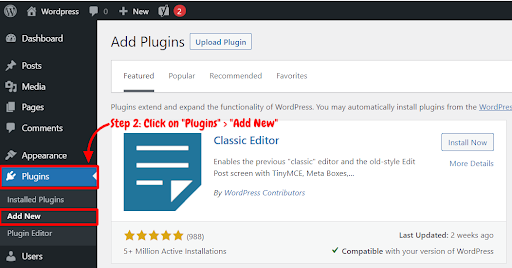
Step 3: You will see a search bar on the top right-hand side corner of the dashboard. Now, Search “Appointment Hour Booking Plugin”.
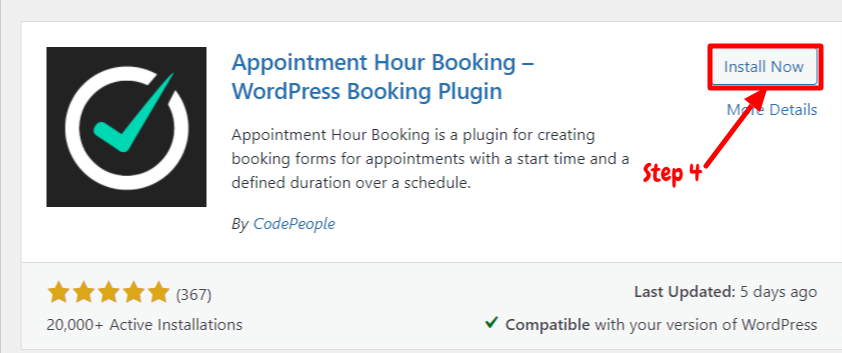
Step 4: After that, you need to click on “Install Now.”
Step 5: After installation, you will need to activate the Appointment Hour Booking Plugin to use it on your site. Now, click on “Activate.”
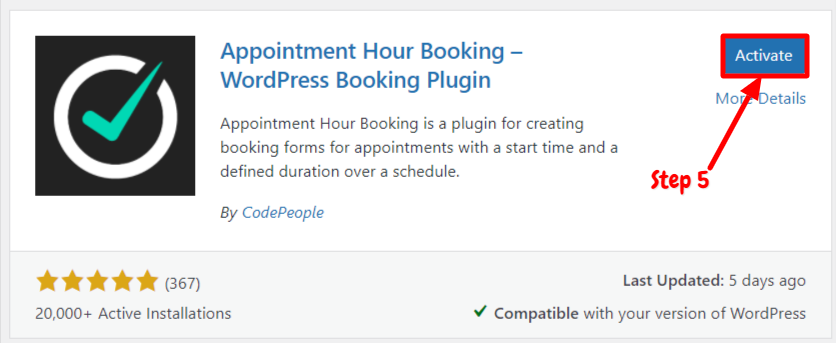
Now you have successfully installed and activated the plugin. You can easily add and customize booking calendar forms.
How to Do General Settings for Specific Booking Calendar form Using Appointment Hour Booking Plugin
To set up the appointment plugin, you can follow the steps mentioned below,
Step 1: First, go to the “Appointment Hour Booking plugin” option on the left-hand side panel of the WordPress dashboard. Then select “Appointment Hour Booking Option.”
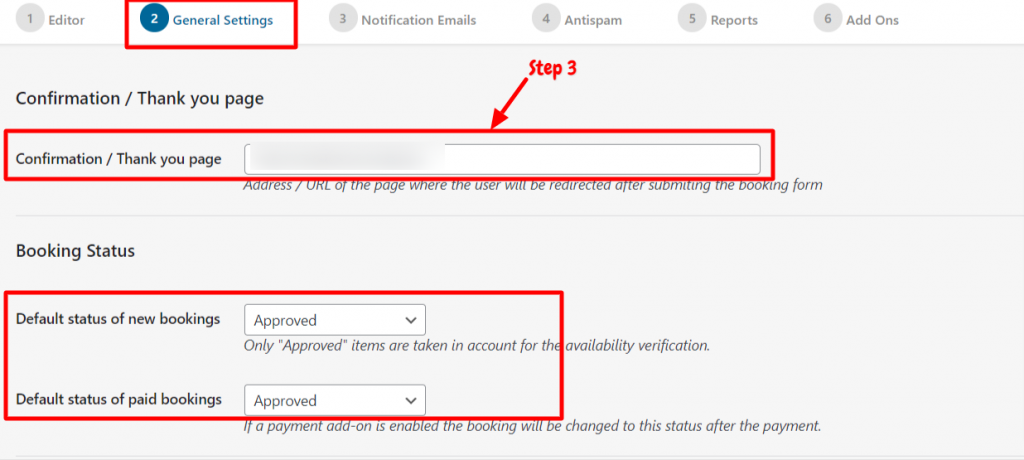
Step 2: Now, click on any form. Then go to the editor. Select the “General Settings” option.
Step 3: In the “General Settings” section, you can redirect your users to any web page of your site for confirmation or Thank you page. You can also set the booking status.
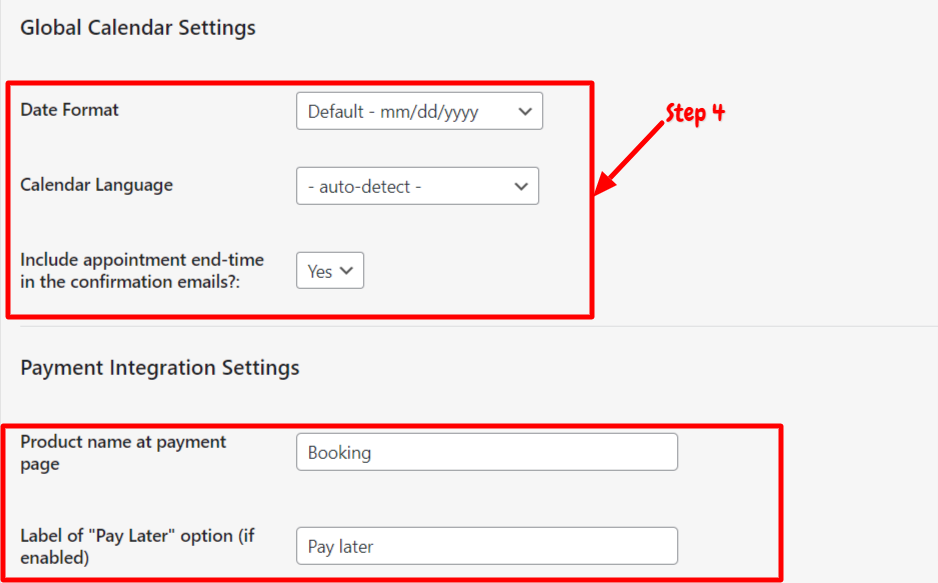
Step 4: Now, scroll down to the “Global Calendar settings” section. In this section, you can edit the date format, calendar language, and payment integration options. Once you are done with the settings, you can click on the “Save and Publish” option. This way, you can set up the general settings for a specific booking calendar form.
How to Add Booking Calendar Form Using Appointment Hour Booking Plugin
After activating the plugin on your site, you can start using this plugin on your site. You can set up the plugin easily with just a few clicks. We have explained step by step guide below on how to use Appointment Hour Booking Plugin,
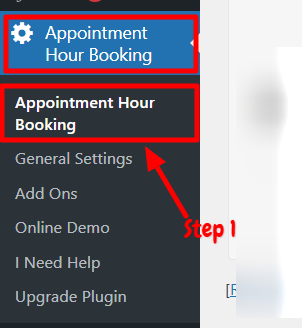
Step 1: First of all, go to the “Appointment Hour Booking” option on the left-hand side panel of the WordPress dashboard. Then select the “Appointment Hour Booking” option.
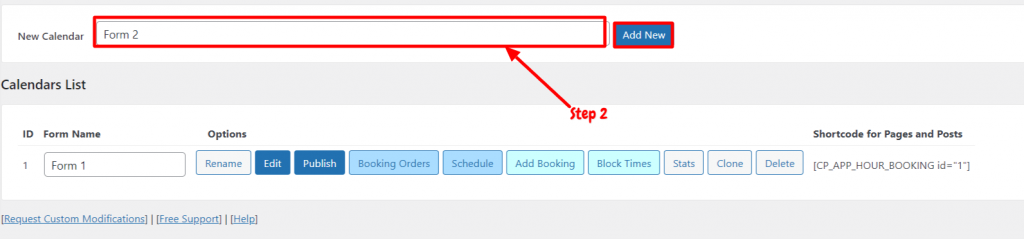
Step 2: You will have to add a new calendar name and then click the “Add New” option. You will see the booking form editor.
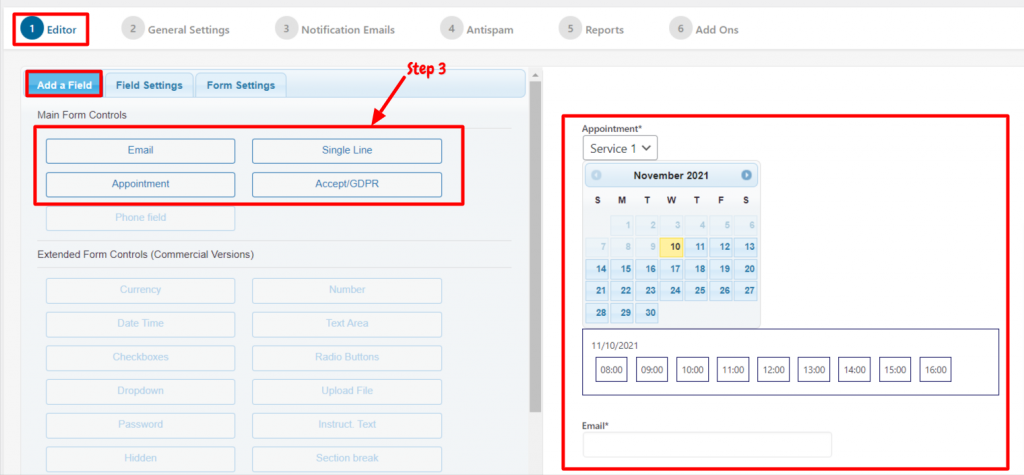
Step 3: You can modify various sections like editor, general settings, notification emails, spam, and add-ons. Select the “Editor” section. In this section, you can add new fields by the Drag and Drop feature of the plugin. However, you will have only a few fields in the free version of the plugin, such as Email, appointment, Single line.
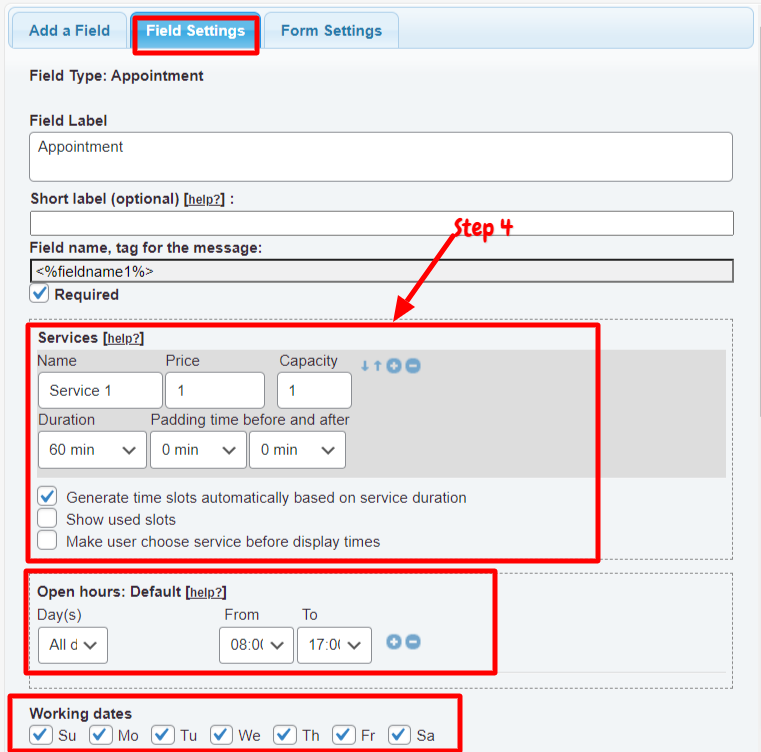
Step 4: If you want to modify the settings of the specific field, then you can go to the “Field settings” option. In this section, you can edit labels, service, working days, and many other elements.
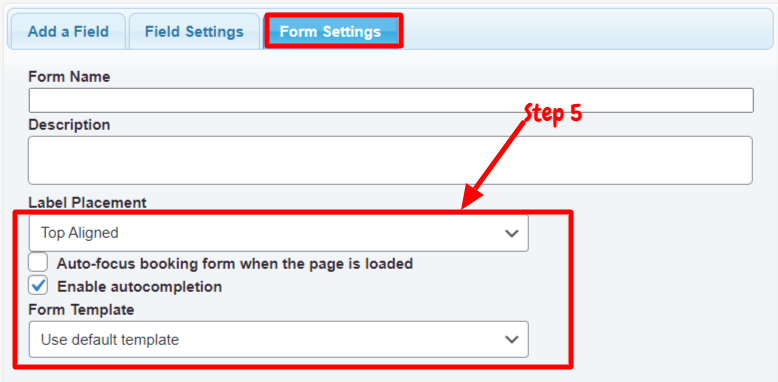
Step 5: In the “Form Settings” section, you can modify the name, description, and templates of the form. Once you are done with the editing, click on the “Save Changes and Continue editing” option. You will have a live preview so you can see the changes while editing.
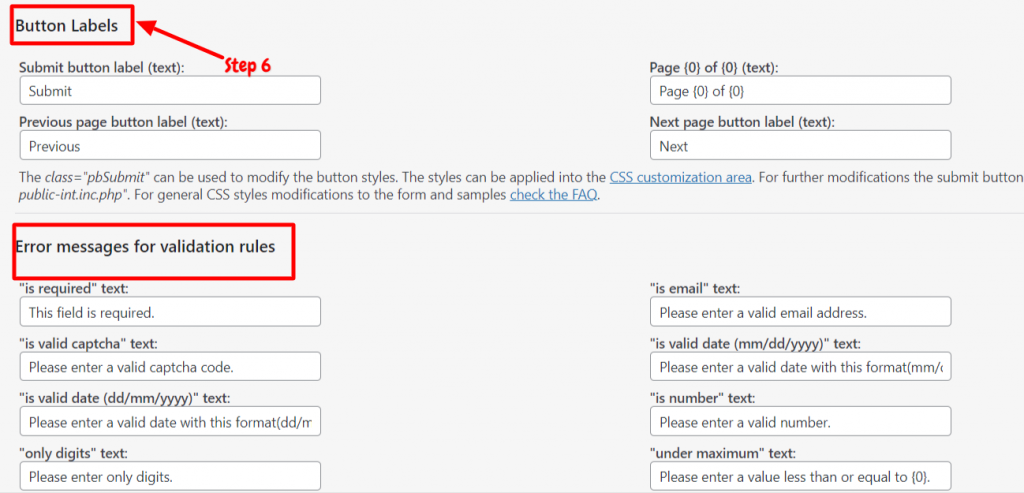
Step 6: After that, scroll down to the “Labels and Texts” section. This section can modify the submit button texts, previous button texts, and next button texts. It also allows you to edit error messages for validation rules. Once you are done with settings, you can click on the “Save and Publish” button. This way, you can easily add a booking calendar form on the site’s front end using this plugin.
Conclusion
Appointment Hour Booking Plugin is one of the best booking plugins for WordPress. Also, you can create and manage the booking calendar form using this plugin. You will have various customization fields and options to create a booking calendar form. The plugin is free to use and available in the WordPress plugin library. However, it also offers a premium version. The premium version has multiple add-ons and payment gateway options. You can unlock the advanced options by purchasing the premium version of the plugin. Also, the calendar in the plugin is available in more than 53 languages.
The installation and the setup process are very straightforward. You can follow the steps mentioned below to install and activate the plugin. Also, we have explained step by step guide on how to set up this plugin. We hope this article will help you create and customize the booking calendar forms on your site using the Appointment Hour Booking Plugin.
Related guides
7 Common Hosting Mistakes Beginners Make (And How to Avoid Them)
7 common hosting mistakes beginners make in 2026: no backups, ignored updates, bad host choice, weak passwords, single point of failure, no staging. With fixes for each.
WordPressWebsite Migration Backup Checklist: What to Save and How to Test
Prepare a website migration backup: inventory files, databases, email and DNS, check archive integrity, test recovery and plan a safe final synchronization.
WordPressCore Web Vitals in 2026: A Practical Fix Guide for Site Owners
Core Web Vitals 2026: practical fixes for LCP, INP, and CLS. Real root causes, what to measure, common misconceptions, and a priority order of fixes for site owners.
WordPressFixing the WordPress “Death Loop”: When Missing Files slow down your site
You’ve just launched your new WordPress site or pushed a big update. In your staging environment, everything ran perfectly.