
GICT knowledge base
How To Create Quiz Using WP Quiz WordPress Plugin
Published
WP Quiz plugin is one of the powerful quiz plugins for WordPress. You can easily create and customize the quizzes using this plugin. The plugin allows you to build quizzes quickly, and the results are engaging, professional, and dynamic. You can create unlimited quizzes using this plugin. The plugin provides responsive examinations. Thus, each user can take part even from their mobile handsets as well as their tablets.
It allows you to add and customize the quizzes just in a few clicks. The plugin setup and installation process are very straightforward. It will enable you to add the results, questions, and answers along with the explanation and images. Also, you can add any random questions to the quiz as well. The plugin will let you customize the styling option in each quiz. You can edit the font color, background color of the questions. Also, you will have the shortcode to display the quizzes anywhere on your sites, like widgets, posts, or pages. You can also share the quizzes with your friends via social media platforms.
WP Quiz plugin has various customization options like layouts and styles. You can create multiple types of quizzes like Trivia, Personality, and a Flip Quiz. The plugin also provides the demo data of quizzes to help you with the initial setup. Moreover, it allows you to import the demo data with just one click. Also, it will let you modify the texts and insert the videos and images along with the descriptions. You can adjust the quiz on a single page or stretch it across multiple pages if too many questions. So, let’s discuss the basic features of this plugin in brief,
Features:
● The plugin will let you customize the quizzes with various advanced options like insert images or videos.
● The installation and setup are very straightforward. The plugin also provides demo data of each quiz so you can easily do the initial setup.
● Moreover, you can also import the demo data with just one click.
● The plugin will let you create multiple quizzes such as Trivia, Personality, and a Flip Quiz.
● The plugin has a straightforward and easy-to-use interface.
● There is a restart option for questions if a user feels like retaking the quiz.
● Social media buttons are built in to make it very easy for visitors to share quiz results with their friends on social media.
● Also, you can enable the automatic quiz scroll to the next question.
● Moreover, you can edit the background colors, font color, and font styles.
● Additionally, A progress bar is displayed for your visitors to help them know their Quiz status. You can change the color of the progress bar.
● You will have shortcodes to embed the quizzes anywhere on your site.
● It also allows you to display the social media buttons. So, you can share the quizzes with your friends.
● You can show the quiz results in the popups, enabling pay-to-play options. However, you will need to purchase the premium version of the plugin to unlock the advanced features.
● The plugin is free to use. However, the free version comes with very limited features. You can purchase the premium version to unlock the pro features of this plugin.
Pricing Details:
WP Quiz is free to use the Quiz plugin for WordPress sites. You can install it from the WordPress plugin directory for free. Mythemeshop designed the plugin. So, you will get multiple theme options along with other premium plugins and add-ons. You will have two paid plans – A single product and extended membership. The single product costs $19-39 per year. Also, the extended membership will cost around $199 per year. It includes 80 premium WordPress themes and 17 WordPress premium plugins.
How to Install and Activate WP Quiz Plugin
The installation process is Straightforward. You can follow the simple steps mentioned below to install and activate the plugin.
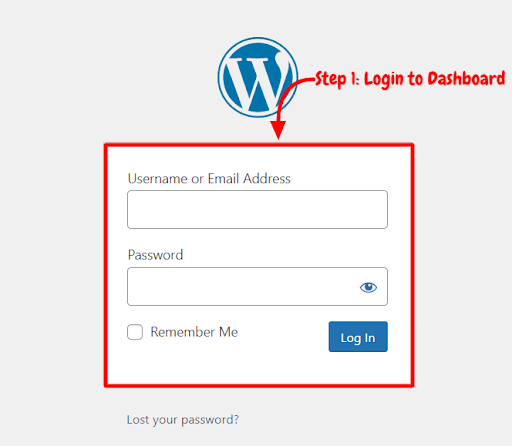
Step 1: First, you need to log in to the WordPress admin dashboard.
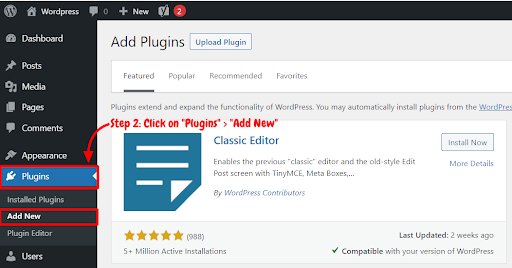
Step 2: Now, you will see the option “Plugins” on the left-hand side panel of the WordPress dashboard. Click on “Plugins,” then select “Add New.”
Step 3: You will see a search bar on the dashboard’s top right-hand side corner. Now, Search “WP Quiz Plugin”
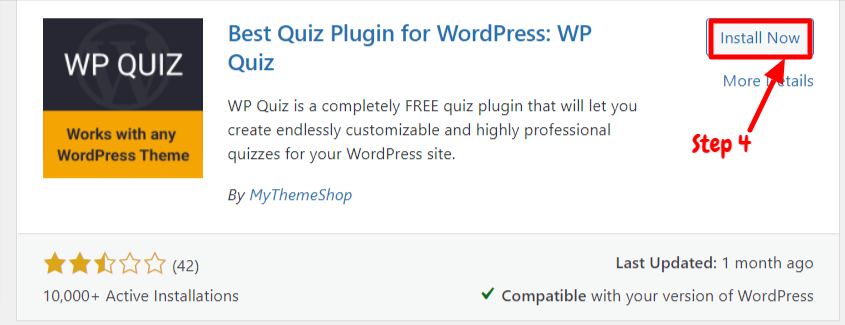
Step 4: After that, you need to click on “Install Now.”
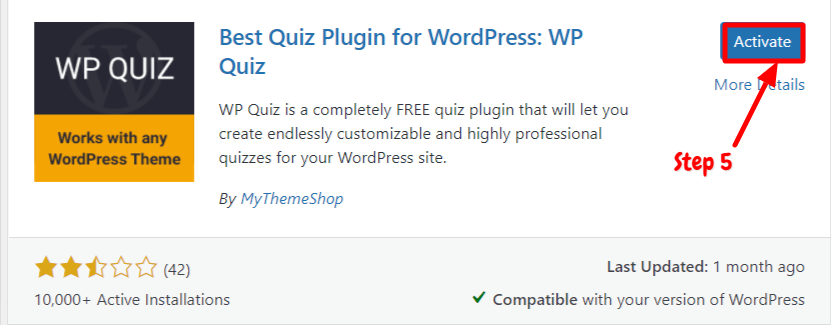
Step 5: After installation, you will need to activate the WP Quiz Plugin to use it on your site. Now, click on “Activate.”
Now you have successfully installed and activated the plugin. You can easily create and customize various quizzes using this plugin.
How to Add Quiz on Your Site Using WP Quiz Plugin
After activating the plugin on your site, you can start using this plugin on your site. You can set up the plugin easily with just a few clicks. We have explained step by step guide below on how to use WP Quiz Plugin,
Step 1: First, go to the ‘WP Quiz’ option on the left-hand side panel of the dashboard. Then select the “Add New Quiz” option.
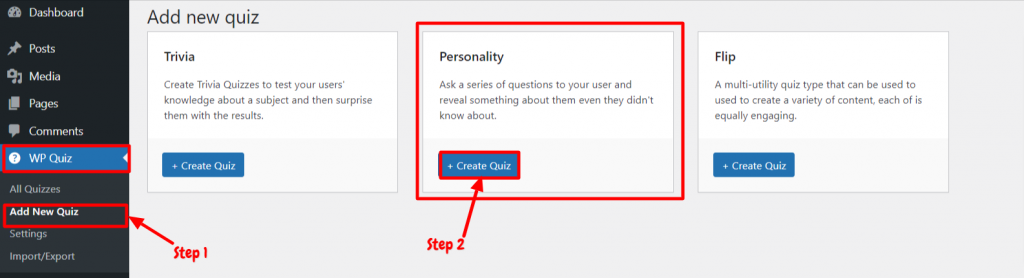
Step 2: You can add three types of quizzes – Trivia, Flip, and Personality. So, choose any one type and click on the “Create Quiz.
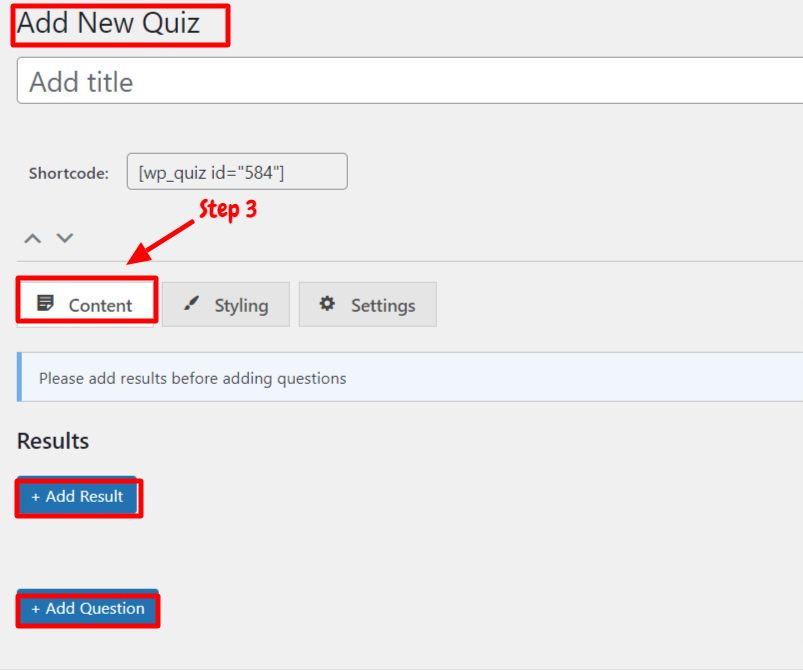
Step 3: First, enter the title of the quiz. Then scroll down to add questions and answers. You can customize three sections in the quiz editor – Content, Styling, and settings. So, first, click on the “Content” tab. In this section, you can add results and questions. There will be three sections to add results, questions, and answers. It also lets you upload the images and enter the answer explanation.
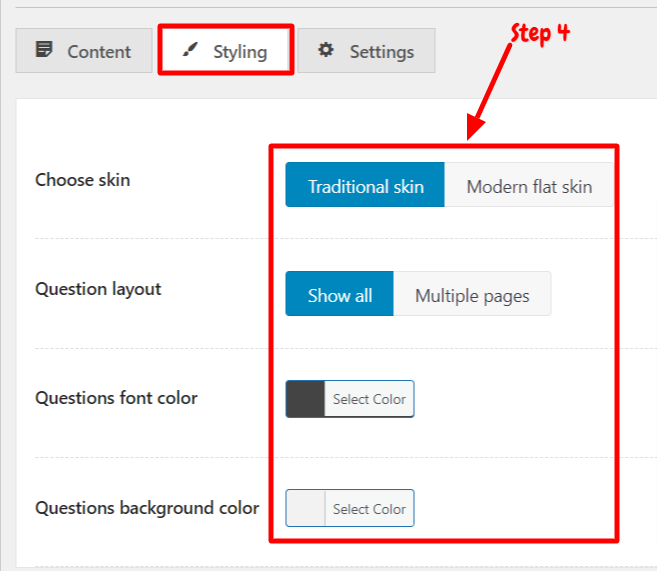
Step 4: After that, you can edit the styling tab. In this section, you can change the question layout, background color, and font color.
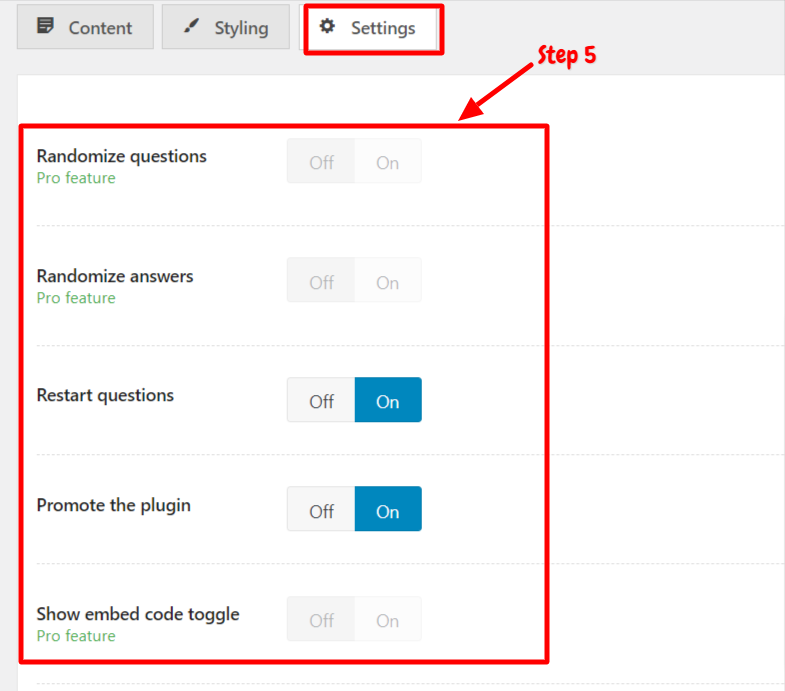
Step 5: Now, go to the “Settings” tab. In this section, you can enable many options such as restarting questions, promoting plugins, sharing buttons, and pay-to-play. You can also share your quiz with your friends on social media platforms. It allows you to show the results in popups. Moreover, you can also show ads and embed code toggles. You can also set the featured image for the quiz.
Step 6: Once you are down with the settings and editing, you can publish it. The plugin also provides shortcodes to embed the quiz anywhere on your site. This way, you can easily create multiple quizzes using WP Quiz Plugin.
How to Display the Quiz on Your Site Using Shortcode
To show the quizzes on your site, you will have shortcodes in the quiz editor. You can follow the steps mentioned below to display the quiz anywhere on your site.
Step 1: Once you create the quiz and publish it, you can display the quiz anywhere on your site. First of all, go to all the quizzes; you will have a list of quizzes.
Step 2: Copy the shortcode of the quiz. Then you will need to create a post or page or existing page.
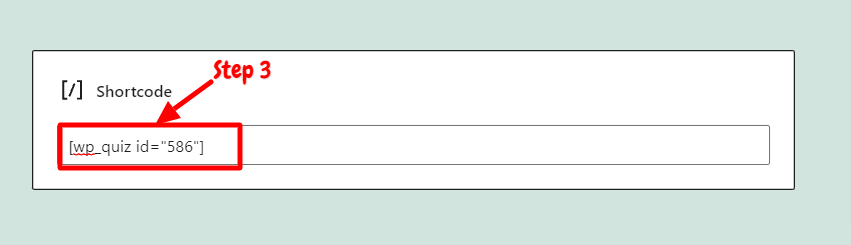
Step 3: After that, you can go to the WordPress block editor. Click on the “+” sign in the block editor and search for the shortcode block. Now, paste the copied shortcode in the box. You can publish the post after that. This way, you can easily display the quizzes anywhere on your site.
Conclusion
The WP quiz is one of the effective quiz plugins for WordPress. It will let you easily create and customize multiple types of quizzes using this plugin. You can find this plugin in the WordPress plugin directory for free. The plugin allows you to create three types of quizzes in the free version- Personality, flip, and Trivia. You can easily add results, questions, and answers. Also, you can easily set up the plugin with a few clicks. Moreover, the plugin comes with styling customization as well. In the styling section, you can edit the font color and background color of the question.
The premium version allows you to show the timers, restart questions, and result in popups. The free version comes with very limited features to create a practical quiz. You can upgrade to the premium version to use the advanced options of this plugin. The installation and the setup process are very straightforward. You can follow the steps mentioned below to install and activate the plugin. Also, we have explained step by step guide on how to set up this plugin. We hope this article will help you create and customize the quizzes on your site using the WP Quiz Plugin.