
GICT knowledge base
Understanding Permalinks for SEO Optimization
Published
A permalink is simply the web address (URL) for a specific blog post or webpage. It’s what you type into your browser to visit a particular page.
The term “permalink” comes from “permanent link,” which means it’s a web address that is meant to stay the same over time. These links are designed to be clear and easy to understand, both for visitors and search engines.
If your permalinks are not set up correctly, it can cause problems like broken links and higher bounce rates. In this article, we’ll go over what permalink structure is, why it’s important, and how you can optimize it.
Permalink Structure and Examples
A permalink is made up of two main parts: the website’s domain and the page slug. Here’s an example of a well-structured permalink: https://www.yourdomain.com/website-ideas/
Here’s a breakdown of the structure:
- The website’s domain name: https://www.yourdomain.com
- The page slug: /website-ideas/
A good permalink should be simple and clear. Here are some examples of bad permalinks:
- https://www.yourdomain.com/how-to-start-a-successful-online-business-for-beginners-in-2023/
- https://www.yourdomain.com/article183
These links are either too long or don’t clearly show what the page is about.
How Important Is a Permalink?
Permalinks are an important factor to consider when managing a blog or website. They affect how easy your site is to use. Clean, simple, and readable permalinks are more likely to get clicked than long or confusing ones.
A good permalink helps readers understand the content of your page right away. It also makes your posts seem more trustworthy. Since permalinks are permanent, they make it easier for people to bookmark your content.
Additionally, permalinks help with your website’s structure and improve SEO. A well-organized page layout makes it easier for users to navigate and for search engines to crawl your site.
Also, URLs play a role in ranking on Google. A well-structured permalink can help your content rank higher in search results.
How to Create a Custom Permalink in WordPress
By default, WordPress uses a permalink structure that isn’t great for SEO. It typically uses a number from your website’s database like this: https://www.yourdomain.com/?p=164.
If you’d like to create a more SEO-friendly URL, you can change the permalink settings by following these steps:
- Go to your WordPress dashboard.
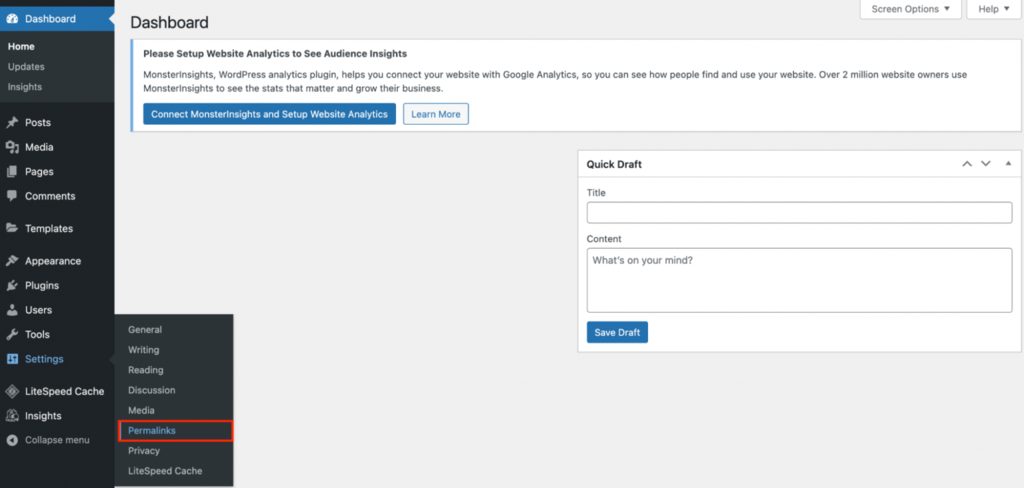
- In the sidebar, hover over “Settings” and then click on “Permalinks.”
- Under “Common Settings,” choose “Custom Structure” and enable the %category% and %postname% tags. You can pick other options depending on your website’s needs.
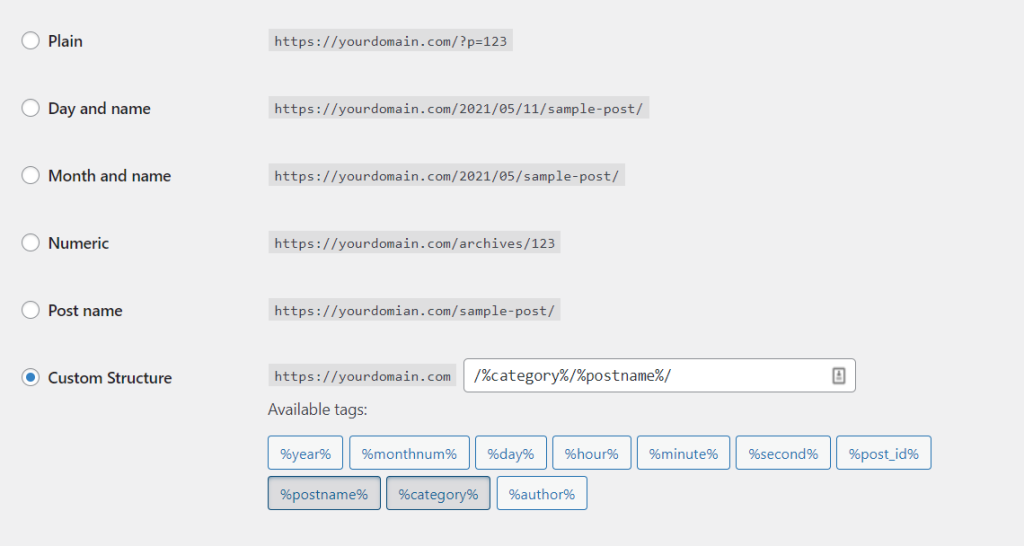
- Scroll down and click “Save Changes.”
Now, your URLs will include the category and post name, making them more readable and SEO-friendly. For example: https://www.yourdomain.com/tutorials/how-to-install-wordpress/
How to Optimize Permalinks for SEO
The first thing you need to do when creating an SEO-friendly permalink is to choose the right structure tag for your site. This helps keep your URLs consistent across the entire website. Here are a few common structure tags to consider:
- Post Name: This structure works well for websites with blogs that post unique or evergreen articles. It creates simple and easy-to-remember URLs.
The format looks like this : https://www.yourdomain.com/wordpress-post/
- Category and Name: This helps organize your website by categories, adding the category name to the URL along with the post title.
The format looks like this : https://www.yourdomain.com/blog/what-is-a-blog/
- Day and Name: Great for busy news sites that post several articles each day. It includes the full date followed by the article title.
The format looks like this : https://www.yourdomain.com/2025/03/01/news-of-the-day/
- Month and Name: Ideal for sites that might need to update their content later, with the permalink displaying the year and month.
The format looks like this : https://www.yourdomain.com/2025/03/website-statistics/
When creating a slug for a URL, here are some SEO-friendly tips to follow:
- Make sure it clearly explains what the page or post is about.
- Keep it short and easy to remember.
- Use SEO keywords or terms people commonly search for.
- If the slug has multiple words, separate them with hyphens (e.g., /what-is-a-permalink/).
- Avoid unnecessary words like “the,” “a,” “but,” “is,” “and,” “my,” or “your.”
These permalink tips are just one part of your website’s overall SEO plan.
How to Change a Permalink in the WordPress Editor
You can also change a permalink in WordPress directly from the Posts or Pages editor. This works for content that is still a draft and hasn’t been published yet.
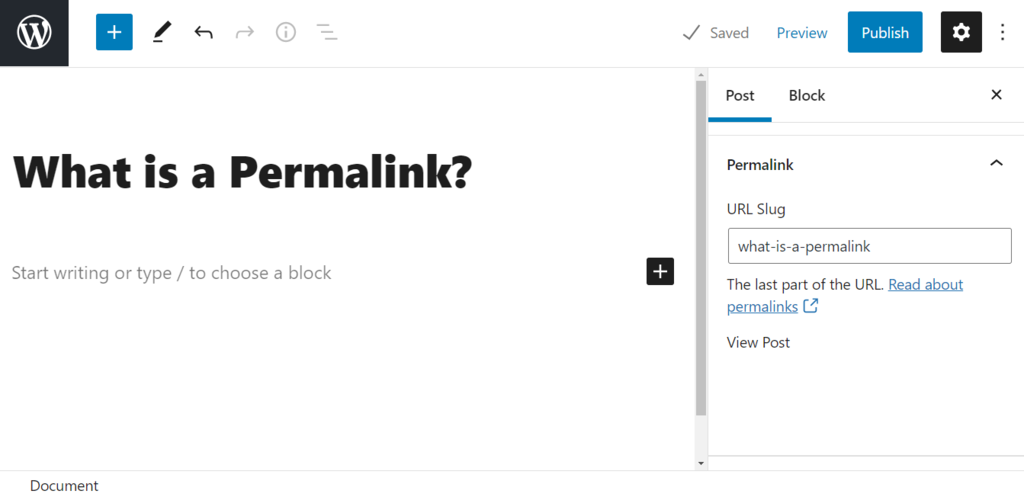
If you’re using the Gutenberg editor, click the Settings button at the top-right of the post to open the sidebar. Scroll down to the Permalink section to update the URL.
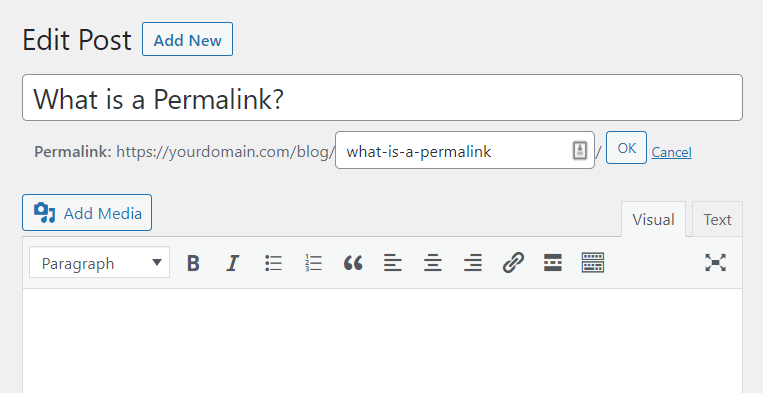
For those using the Classic editor, you’ll find the permalink preview above the visual and text editor, or just below the title of the post or page. To edit it, click the Edit button, enter the new URL, and hit OK.
If you’ve already set up your permalink structure in WordPress, you may not need to manually change every link. However, it’s a good idea to review the URL before you publish to make sure everything looks right.
Should You Change a Permalink?
Once a blog post or article is published, its permalink should stay the same. Changing it can cause issues with both internal and external links that lead to the page.
However, there are times when updating permalinks may be necessary, such as when:
- The default permalink structure isn’t good for SEO or doesn’t match the content.
- You’ve taken over an existing website and want to rebrand it.
- You decide to change the focus of your site, like shifting from a blog to a news site.
Even with these reasons, it’s important to make permalink changes carefully.
Tips to Change a Permanent Link without Hurting SEO
If you need to change a permalink, it’s important to set up a 301 redirect. This tells search engines that the page has moved to a new link.
Without 301 redirects, your website will have broken links, leading visitors to error pages. This can increase your bounce rate as users will quickly leave your site. Search engines won’t want to send people to broken links, which can lower your site’s ranking.
This not only hurts your SEO but can also result in losing traffic and potential income. Too many broken links could even cause your site to be penalized.
WordPress has plugins like 301 Redirects, Redirection, and Yoast SEO Premium that can help you set up 301 redirects.
Conclusion
A permalink is a permanent link to a specific page or post on your website. When search engines crawl your site, they check the URL of each page. Visitors also look at the permalink to determine if the page is reliable and has the content they need.
Because of this, it’s important for a permalink to be both user-friendly and SEO-friendly. Since it’s a permanent link, it should not be changed without careful thought. If you must change an old permalink, be sure to set up 301 redirects to prevent problems.
By following good SEO practices for permalinks, you can boost your site’s traffic and improve its ranking in search results.
Related guides
301 Moved Permanently Error: Understanding and Implementing Redirects
Learn about the 301 Moved Permanently error, its causes, SEO implications, and effective strategies for implementing and managing redirects to optimize user experience...
SEOWhy Every Web Developer Needs a Portfolio
Discover why every web developer needs a standout portfolio and learn the essential elements that make it impressive.
SEOThe Ultimate Guide to Multilingual SEO: Expand Your Global Reach
Discover best practices for multilingual SEO to enhance your global visibility.
SEOSEO Has Changed – How to Do Keyword Research That Actually Works in 2025
Discover effective keyword research strategies for 2025. Learn how to understand search intent, utilize the best tools, and optimize your content for better visibility...