
GICT knowledge base
Transfer File from local system to Remote Desktop
Published
Transferring files
Click on Windows Button  from your local system.
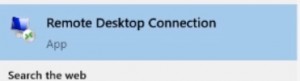
Now type Remote Desktop and click on it.
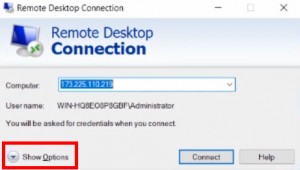
This will pop up a new window, now click on show options.
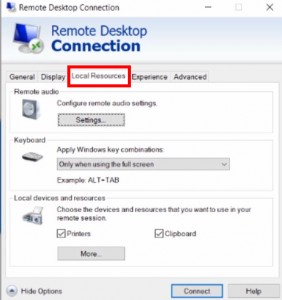
Now click on the third tab Local Resources.
And click on More Button.
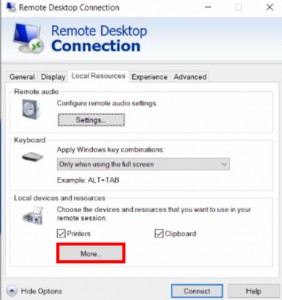
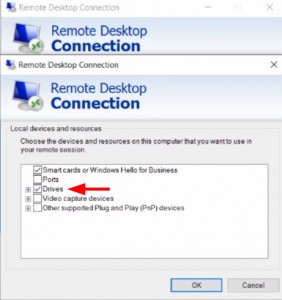
Click on the check box that shows Drivers and click on OK.
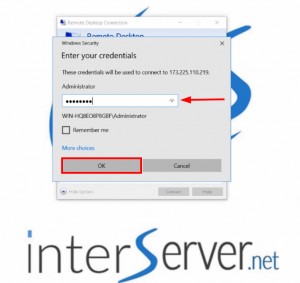
Now enter your Virtual Machine Password and click on OK.
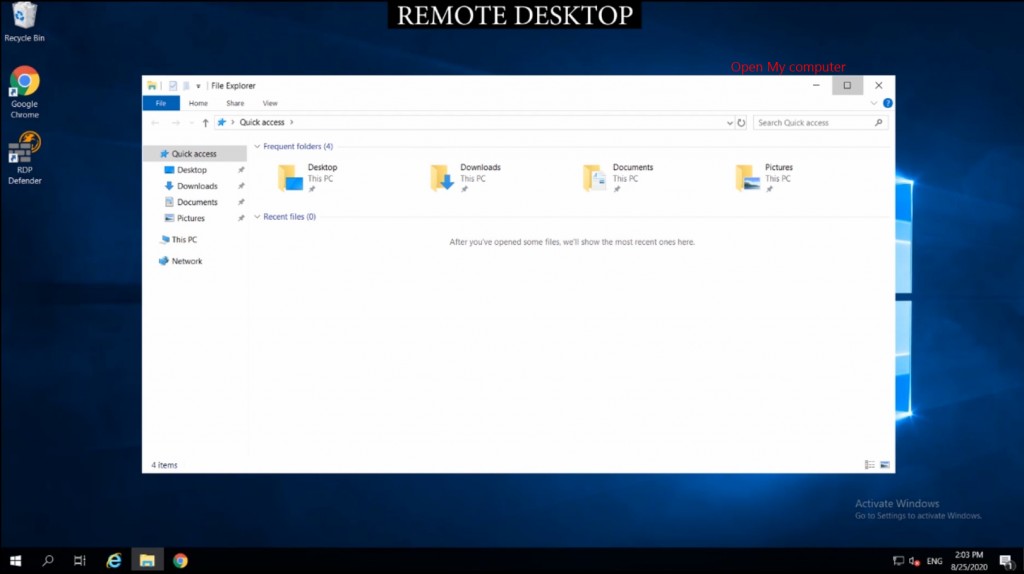
Once you are logged into VM open My Computer.
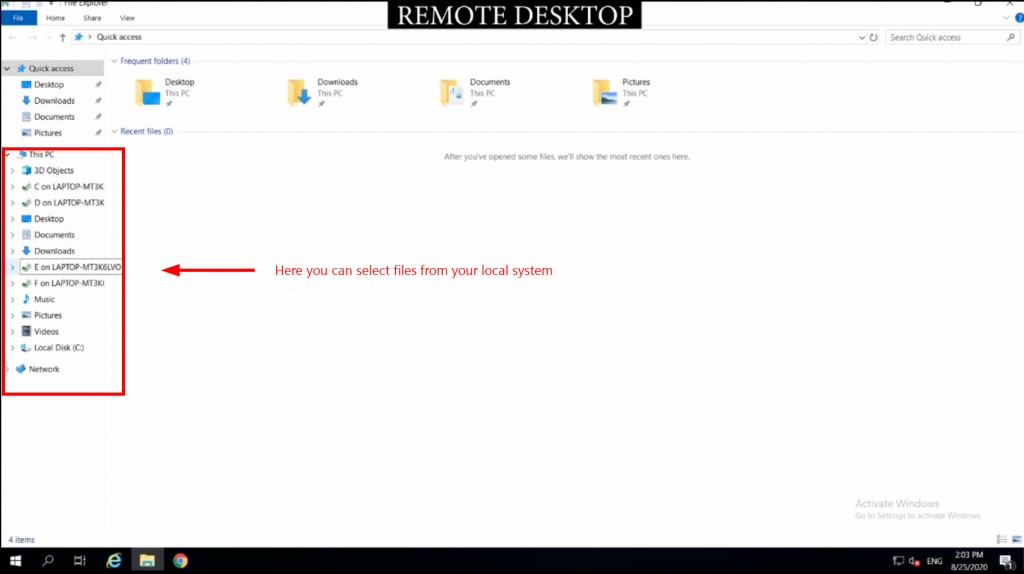
Towards your left hand side you can access your local system drives.
Now you can copy the file/content from your local system still being connected to Remote Desktop.
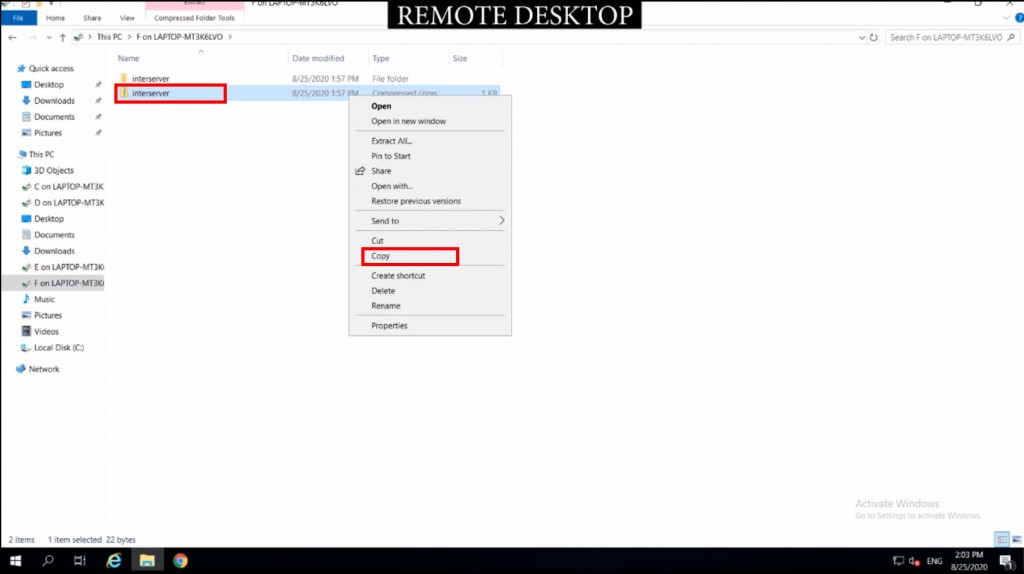
Now paste the copied content to your VM.
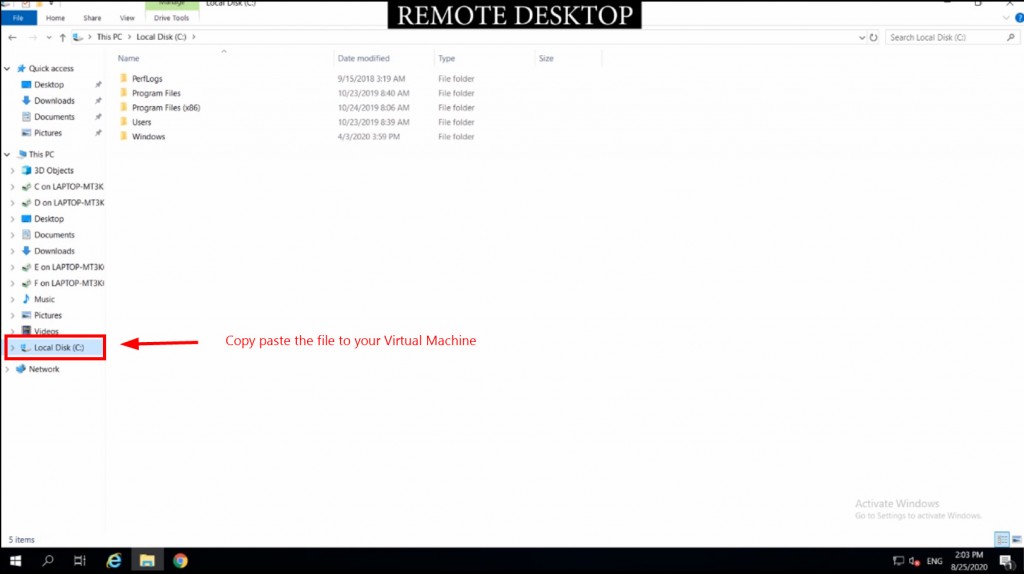
Now the file has been transferred from your local system to your VM.
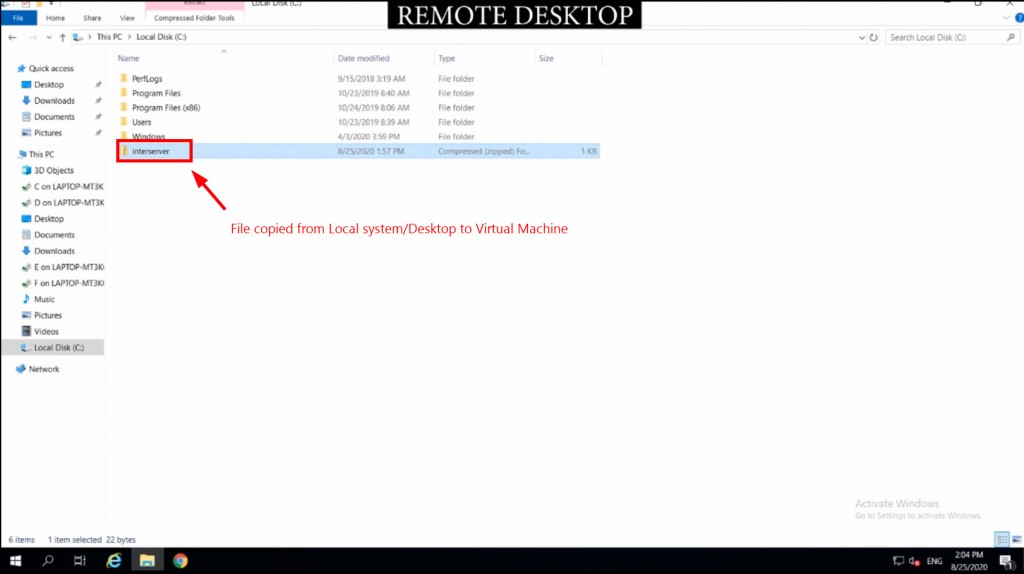
These are the steps that will help us to transfer files form local system to Remote Desktop.
If you need any further help please contact our support department.