
GICT knowledge base
MySQL Management in Direct Admin
Published
In this documentation, we can check how to manage MySQL in Direct Admin.
1) Login to Direct Admin panel.
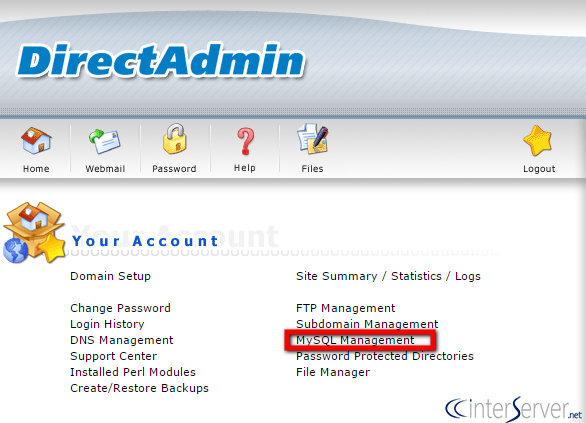
2) Click the button ‘MySQL Management’ from the section ‘Your Account’.
3) We can create new database by clicking the button ‘Create new Database’.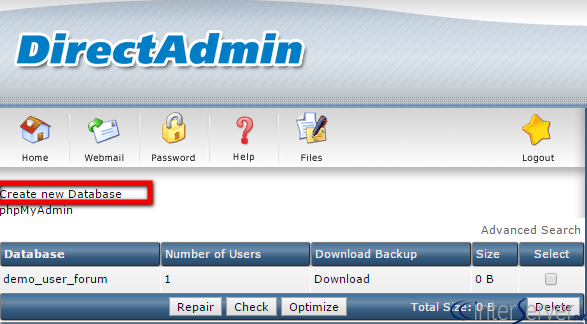
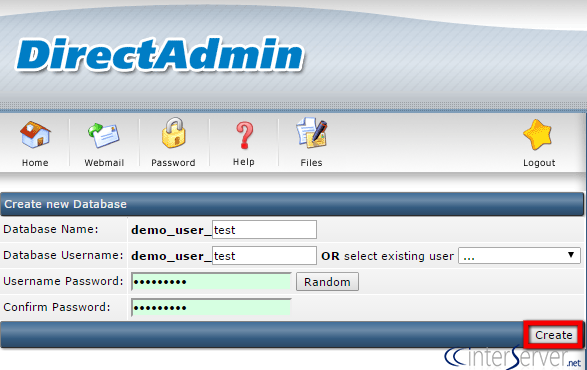
4) Enter the new database details and click the button ‘Create’.
5) If you want to delete the database, select the database and click the button ‘Delete’.
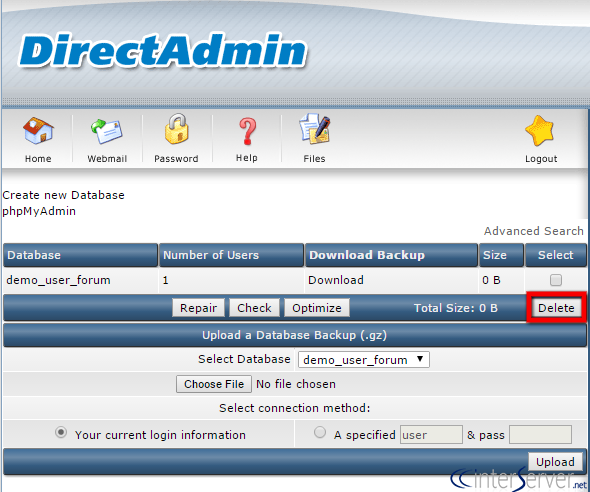
6) Same way you can repair, check and optimize the database by clicking the corresponding buttons.
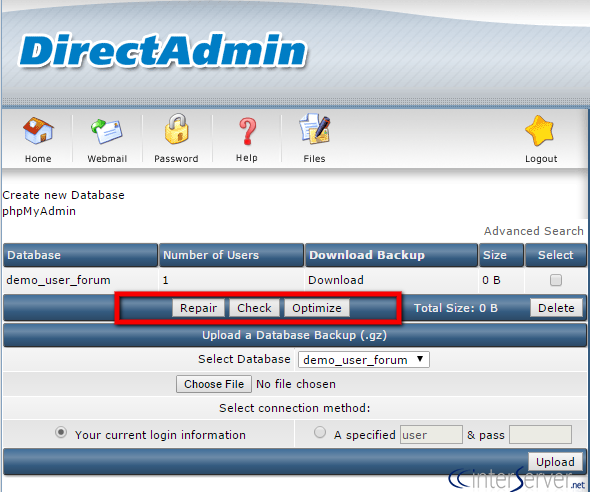
7) We can use the option ‘Upload a Database Backup’ to upload database backup.
- Select the database from the drop-down menu.
- Choose the file location.
- Select the connection method.
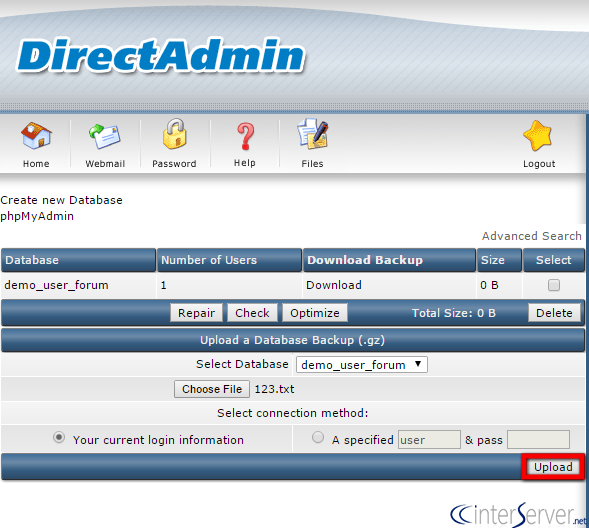
- After entering the details, click ‘Upload’ button to upload the database backup.
That is how we can manage MySQL in DirectAdmin.
If you need any further help please reach our support department.
Related guides
Check MariaDB Versions and Compatibility on Shared Hosting
Check your actual MariaDB/MySQL server version, maintenance coverage and application requirements before requesting a shared-hosting upgrade or move.
MySQLHow to Monitor MySQL Database Server Performance
Learn how to monitor MySQL performance with 4 essential Linux command-line tools.
MySQLHow to secure MySQL connections with SSL on Ubuntu
MySQL allows remote connections and we must protect data transfer happeneing between servers with SSL. Follow this tutorial to learn how.
MySQLHow to set up High Availability WordPress with HyperDB
HyperDB is a drop-in plugin that allows you to set up High Availability WordPress site that can work with multiple database servers at once.