
GICT knowledge base
How to manage MySQL databases and users in cPanel
Published
MySQL is the most popular open-source database management system. If you are using cPanel, your database management system is MySQL. cPanel makes it very easy to manage MySQL databases and MySQL users on your hosting account or the server. In this guide, I will show you how to efficiently manage MySQL databases and users in cPanel.
Before we start with the guide, let us learn more about how databases, users, and privileges work in MySQL. It makes it easier to understand how to effectively manage databases and users in MySQL using cPanel. So, let us learn what is a database, what is the role of MySQL user and what are the privileges in MySQL.
What are the MySQL databases?
MySQL is a relational database management system. A database management system allows us to manage databases and access to the databases. It also handles many operations under the hood, like linking one table with another and storing the data contained in the database securely.
In simple words, A database is a group of tables that contain the actual data. For instance, let us assume that we want to create a task management system. The simplest task management system will contain two tables. The names of those two tables would-be users and tasks.
The users table will contain information about users. The columns in the table will define the type of information on a user, like First name, last name, email, password and much more.
The tasks table will contain information about the tasks. The columns in this table will define different types of information about tasks, like title, description, due date and other information like that.
In our example database, we will have these two tables. Similarly, when you install WordPress on your server, It will create multiple tables in your WordPress database to store your posts, comments, settings, users and everything it needs to store. And, it will store the data in that database tables.
What are MySQL users?
Let us assume that we already have a MySQL database. But, our MySQL database is still inaccessible. It means that you or your website cannot operate on the database, yet. It is because we need a username and password to access the database.
MySQL users are like normal users with username, password, and host. However, they have privileges (See the next section) to access the database. In MySQL, we can give privileges to users to manage data in the database. There are many types of privileges that we can give to a specific MySQL user on a specific MySQL database.
In short and sweet language, We have to create MySQL user and allow it to manage data in the database by giving it the necessary privileges. Now, let us learn what exactly are the privileges.
What are the privileges in MySQL?
As I told you in the previous section, To manage data in our MySQL database, we have to create a MySQL user and assign it specific privileges. Now, There are different types of privileges that you can assign to a specific user to perform actions on a specific database. You can also assign a single user to manage multiple MySQL databases with different privileges.
I am going to list some privileges that you can assign to a MySQL user to give you a better idea.
- CREATE
- DELETE
- INSERT
- DROP
- SELECT
- UPDATE
- many more…
For instance, If a MySQL user has CREATE privilege on a specific database, it can create new tables in the database. Similarly, If a MySQL user has DROP privilege on a specific database, it can drop tables and the database itself. Now, as we have a clear idea of how everything works with MySQL, we can move on to the actual tutorial.
How to manage MySQL databases in cPanel
In this section of the guide, we will learn how to create, rename and delete a MySQL database in cPanel. First of all, Let’s learn how to create a database.
How to create a MySQL database in cPanel
Log in to your cPanel account and find the Databases section. In the database section, click on the MySQL Databases option, just like the following image.

On the new page, Enter the name of the database you want to create. After that, click on the Create database button given after the database name field.
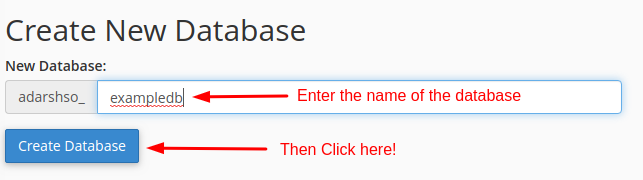
Now, Our database is ready. It is time to learn how to rename it, just in case.
How to rename MySQL database in cPanel
In the cPanel, find the databases section and click on the MySQL Databases option. On that page, you will get a list of all the databases you have on your server. The list will look like the following.

Now, Click on the Rename option under the Actions column and enter the new name of the database. Once done, Your database will be displayed with the new name.
Renaming a database is a potentially risky thing to do. So, back up your database before you rename it.
How to delete a MySQL database in cPanel
As usual, go to the MySQL databases section. On that page, navigate to the list of the database and you will find a table containing all the databases you have on your server.
Now, Click on the Delete link corresponding to the database and confirm. Congratulations, you have learned how to manage MySQL databases using cPanel. Now, let us learn how to manage MySQL users and privileges in MySQL using cPanel.
How to manage MySQL users and privileges using cPanel
In this section, we will learn how to create and manage MySQL users and How to assign a specific user to a specific database with specific privileges. First of all, let’s learn how to create a MySQL user in cPanel.
How to create a MySQL user in cPanel
Open up the cPanel, scroll down to the Databases section and click on the MySQL databases option. On that page, scroll down a bit and you will find a form that allows us to create new MySQL users. It looks like this.
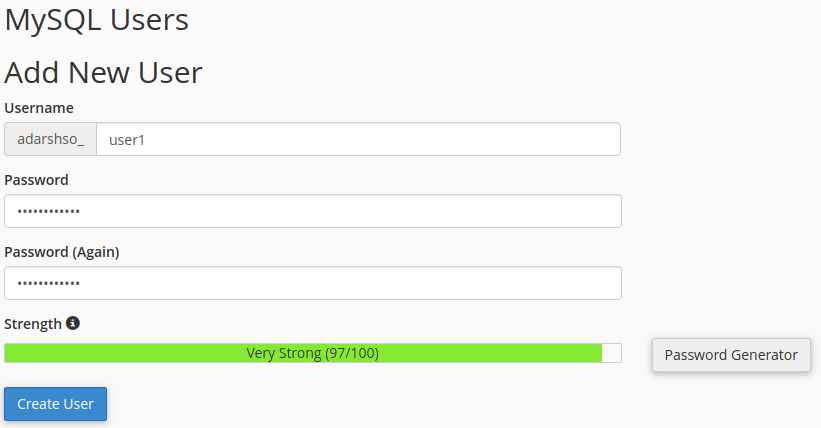
Enter the information according to your requirements and hit the Create user button to create a new MySQL user. Right now, this MySQL user cannot access any database. We have to assign our MySQL user to our MySQL database to allow our users to operate on our database.
How to assign a MySQL database to a MySQL user in cPanel
On the same MySQL Databases page, After a user creation form, you will find a section with the title Add user to database. It will contain two drop-down menus, one for available MySQL databases and another for available MySQL users. Just like the following image.
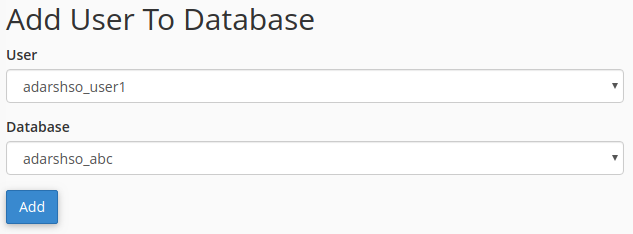
Select a MySQL database and a MySQL user from drop-down menus. Then, click on the Add button. You will be redirected to a new page in which you have to select the privileges you want to give to the user on the database.
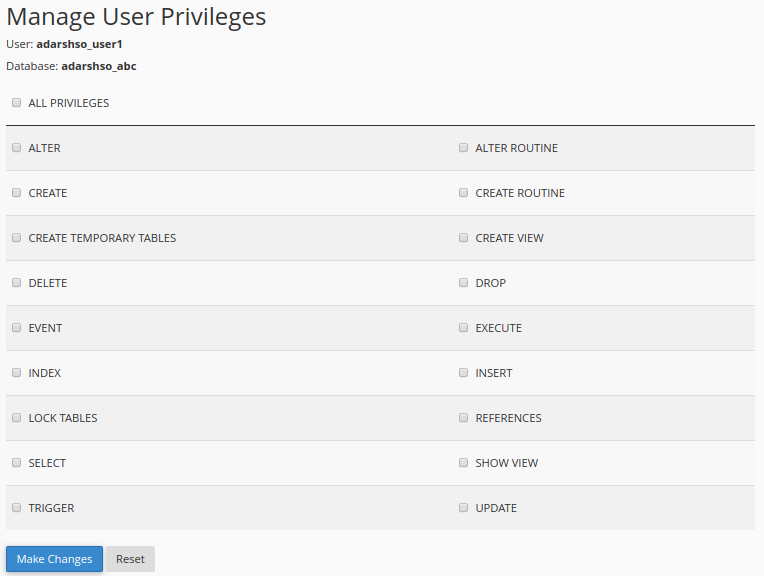
You can select the privileges you want to give to the user on the database. If you do not know what privileges to assign, Just click on the All privileges and hit the Make changes button.
Now, the MySQL user can access the MySQL database. You can enter the Database name, username, and password in your web application, API or a WordPress site.
How to change the password of MySQL user in cPanel
On the same MySQL Databases page in cPanel, Scroll down to the bottom of the page and you will find a list of MySQL users you have in your account. It will look like the following image.
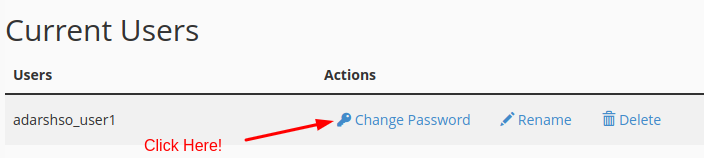
On the new page, Enter the new password twice and click on the Change Password button to save the new password.
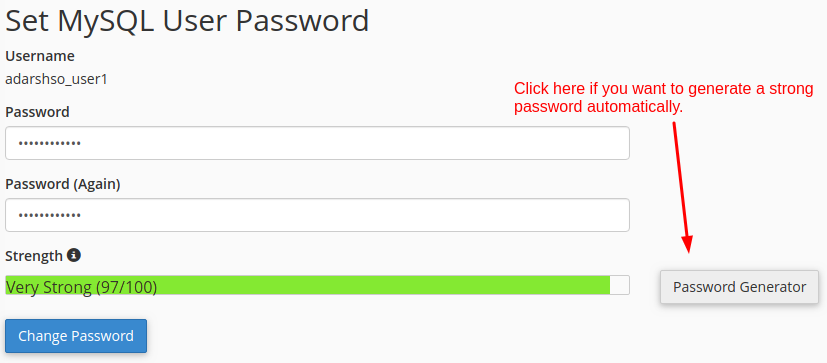
So, this is how you can change MySQL user password in cPanel. Finally, Let’s learn how to rename and delete a MySQL user and conclude this guide.
How to rename and delete MySQL user in cPanel
In the same MySQL databases section of your cPanel, Scroll down to the bottom of the page to find a list of all the MySQL users on your server.
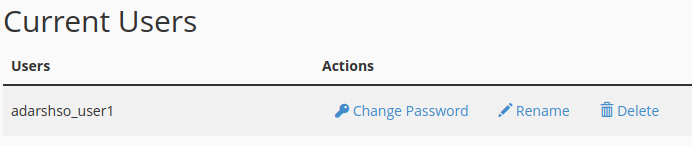
In this list, under the Actions column, you have options to Rename and delete your MySQL user. To delete a user, simply click on the Delete button and confirm the action.
In the case of rename, You will find a pop-up with a field to enter the new username of the MySQL user. Enter the new username and click on the Proceed button on the popup to finally rename the MySQL user in cPanel.
Conclusion: In this guide, we have covered everything you need to learn about managing MySQL databases and MySQL users in cPanel. Here are some tips, you can assign multiple databases to a single user if you want a single user to manage multiple databases. And, It is also possible to create a user with limited privileges like SELECT. In that case, a user can only see data in the database, it cannot INSERT, UPDATE, DELETE or perform any other actions in the database. If you are not using cPanel, We also have guides covering MySQL database and user management with the command line interface.
- Manage MySQL databases in the command-line interface
- Manage MySQL users in the command-line interface
Let us know if you want to learn more about this topic. Also, let us know if you are stuck at some point and need our help. You can write down your questions and queries in the comment section given below. We are happy to assist you.