
GICT knowledge base
Manage Coupons in OpenCart
Published
People on the internet love coupon codes. Each successful campaign to promote a coupon code can result in increased recurring customers. Coupon codes allow new customers to try out your store for the first time while getting a good discount. If someone is getting a product at lower costs on your store using the coupon code, he/she will give more priority to your store. And if he/she enjoys shipping from your store, you have a new recurring customer.
Coupon codes are a great way to promote your store. It makes it easier for you to reach new eyeballs on the internet. As the coupon codes are important in the eCommerce market, almost all the eCommerce management platforms provide a section to manage coupon codes efficiently. In OpenCart too, you get an interface to manage coupon codes on your store. You can also easily create new coupon codes along with different conditions as per your choice.
In this tutorial, I am going to show you how to create and manage coupon codes in the OpenCart store. So, let’s get started with the tutorial.
Manage Coupons in OpenCart
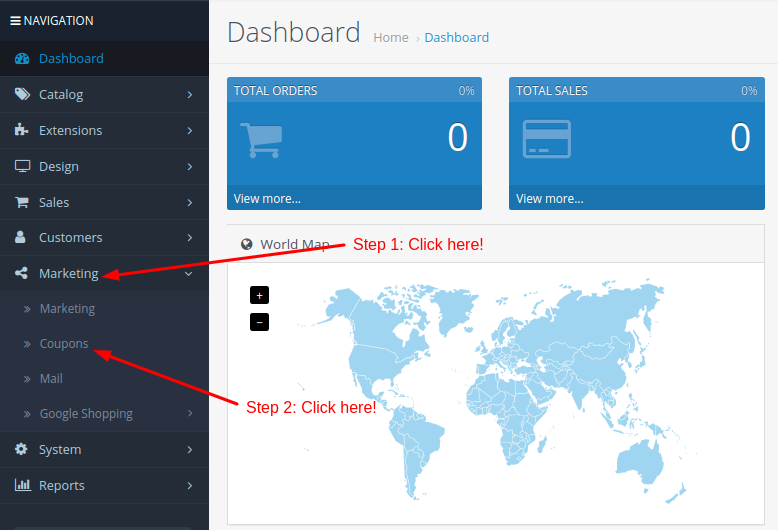
First of all, Let’s see how to edit and delete existing coupon codes in the store. To do so, log in to the admin panel of your store and click on the Marketing -> Coupons option from the left sidebar just as highlighted in the following screenshot.
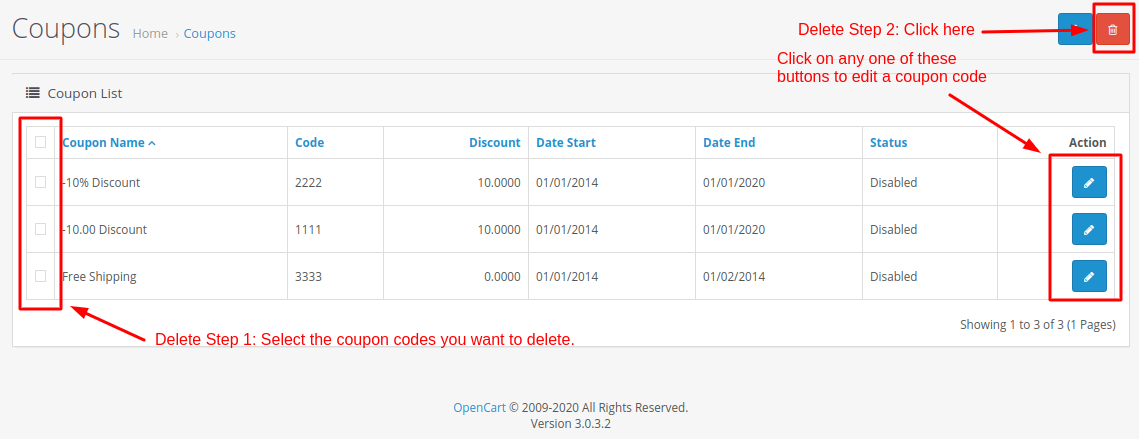
On this page, you can update a specific coupon code or delete coupon codes you do not want. To edit a specific coupon code, click on the Edit icon corresponding to the coupon code you want to edit. If you want to delete one or more coupon codes, check the coupon codes and click on the Trash icon given on the top-right corner of the page.
Refer to the following screenshot to understand the edit and delete process in OpenCart.
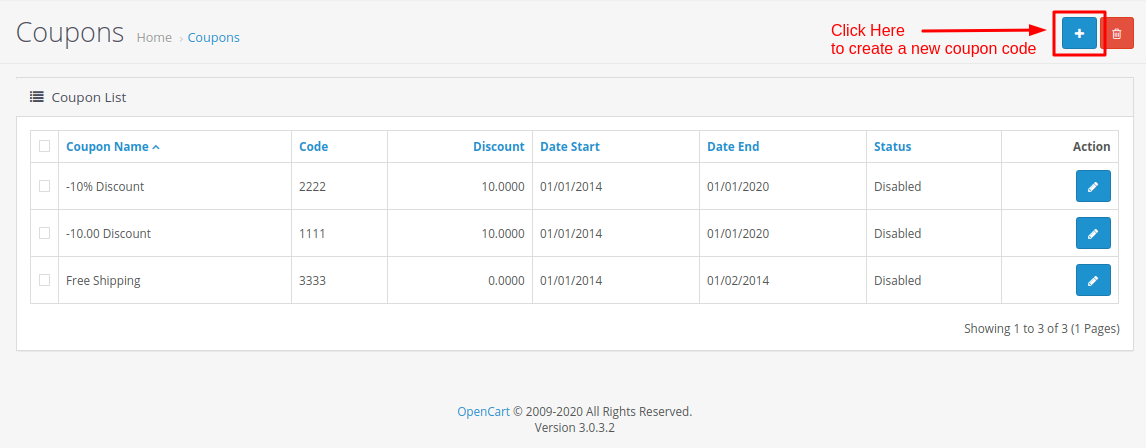
So, this is how you can Edit and Delete coupon codes in OpenCart. Now, let’s see how to create a new coupon code in OpenCart. To create a new coupon code, click on the “+” button given on the top-right corner of the page.
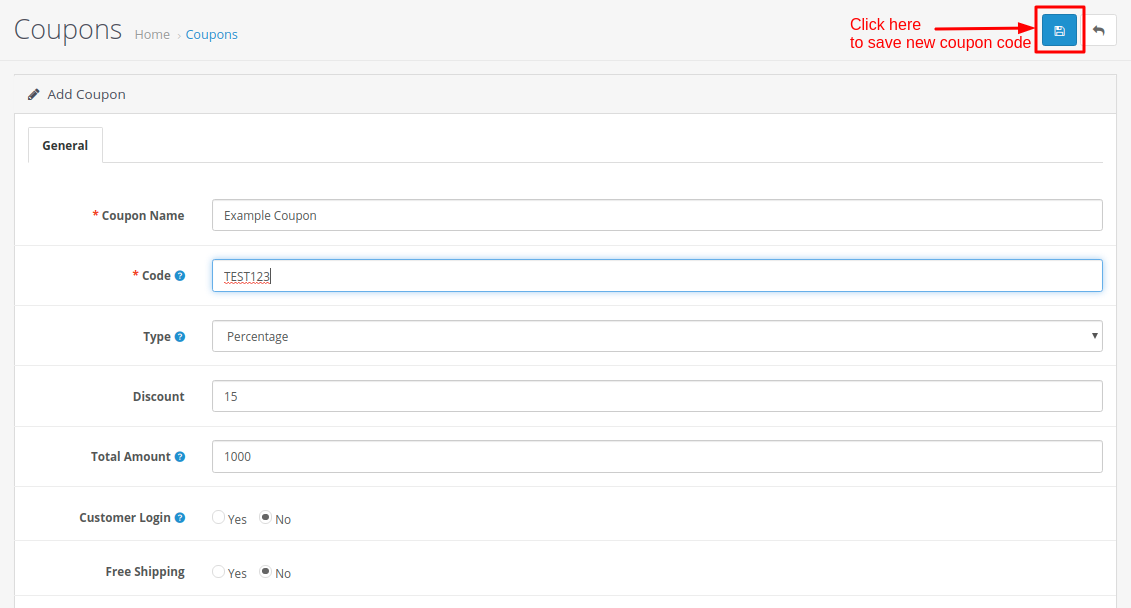
It will redirect you to a new page containing a form to enter coupon code information. Enter all the required information and click on the Save button given on the top-right corner of the page, just like the following image.
So, this is how you can create and manage coupons in OpenCart. If you have any questions regarding coupon code management in OpenCart, please let us know in the comment section given below. We will get back to you with the solution or answer as soon as possible.
Related guides
Top 10 Best Content Management Systems in 2021!
Follow this list to learn in detail about the 10 most popular content management systems available in the market.
E-CommerceWooCommerce vs Shopify : The best E-commerce platforms
WooCommerce and Shopify are the two most popular E-commerce platforms. Follow this tutorial to learn more about both of them.
E-CommerceBest Applications to Run E-commerce Websites
E-commerce Hosting:E-commerce is the process of selling and buying of goods or services over the world wide web. It is also known as electronic commerce or
E-CommerceEasy Digital Downloads Plugin for WordPress
Easy Digital Downloads (EDD) plugin is the second most well-known WordPress eCommerce plugin, after WooCommerce. EDD plugin is used to create an eCommerce