
GICT knowledge base
Manage Banners in OpenCart
Published
Banners are a great way to showcase new products, exciting news and awesome discounts. If you have an E-commerce website, You already know the importance of displaying banners. You can also make money by showing advertisements as Banners. If you are an Opencart user, you can easily manage banners in your OpenCart store. You do not need any additional plugins or extensions to use this feature.
OpenCart allows you to create, Edit, Enable/Disable and delete banners from your site. It provides an interface where you can manage all your banners and see the list of them in the admin panel.
Note: If you are using older versions of OpenCart, You have to go to “System -> Design -> Banners” option from the top-menu bar with black background. Step 2 of this guide is not applicable for older versions of OpenCart.
Create and Manage Banners in OpenCart
Step 1: Log in to your OpenCart store using the Administrator credentials.
Step 2: Click on the “Design -> Banners” option from the left sidebar of the admin panel.
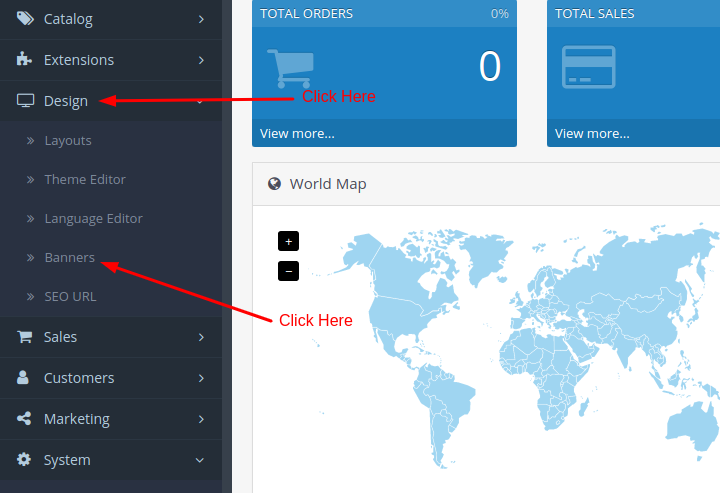
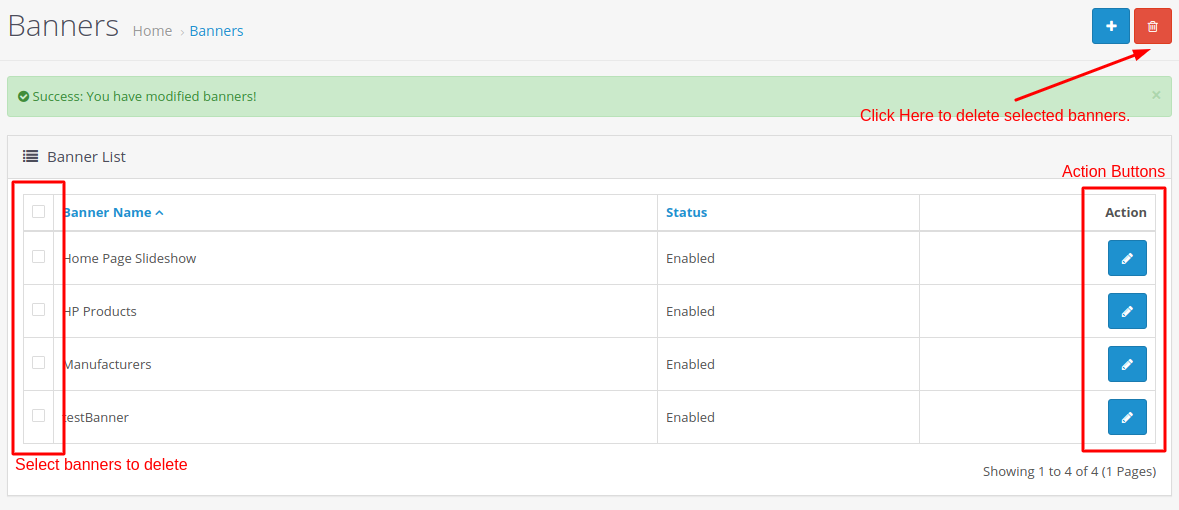
In this section, you will see a list of banners with all the action buttons you need to manage banners on your site.
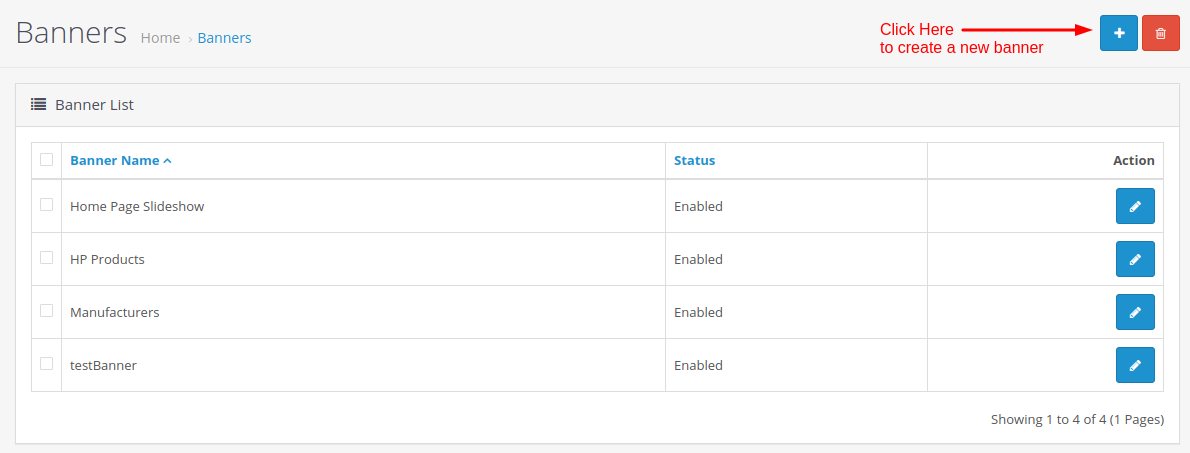
Step 3: To create a new banner, click on the “+” button given at the top-right corner of the page.
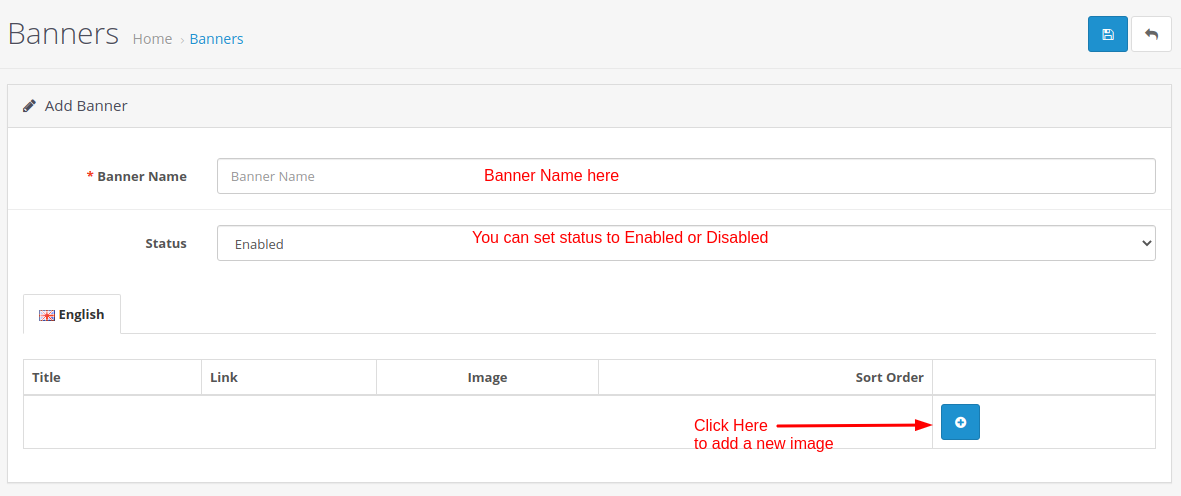
Step 4: Enter the banner name and status. Then, Add the images you want to add to this banner.
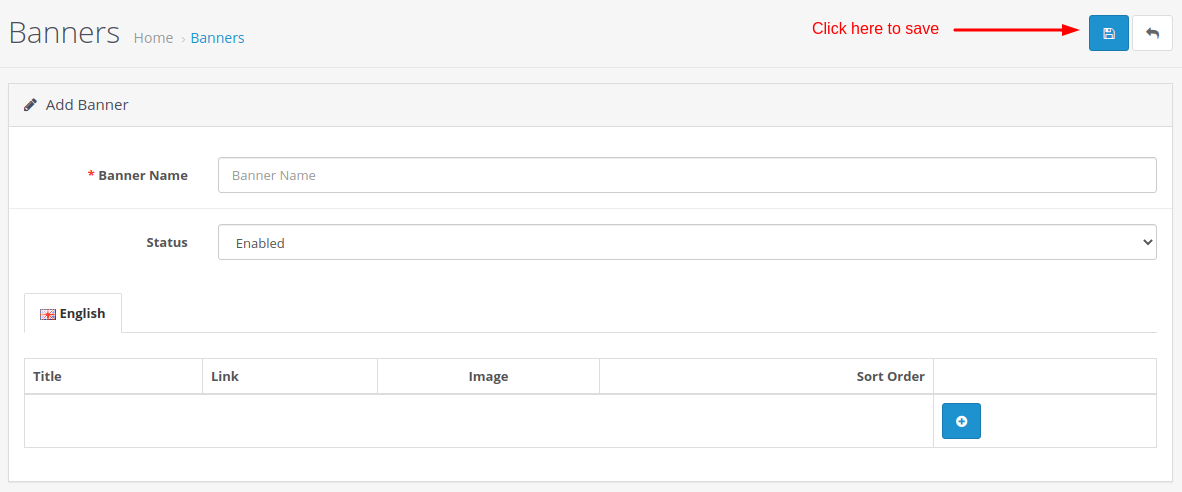
Step 5: Once your banner is ready, click on the “Save” button given at the top-right corner of the page.
To manage banners, you can follow the steps to the 2nd step. On the banner index page, you will find action buttons to modify or delete banners just like the following image.
So, this is how you can manage banners in OpenCart. It is a very powerful feature to attract users to specific pages on your site. We hope this tutorial was helpful for you. Please use the comment section if you have questions to ask.
Related guides
Top 10 Best Content Management Systems in 2021!
Follow this list to learn in detail about the 10 most popular content management systems available in the market.
E-CommerceWooCommerce vs Shopify : The best E-commerce platforms
WooCommerce and Shopify are the two most popular E-commerce platforms. Follow this tutorial to learn more about both of them.
E-CommerceBest Applications to Run E-commerce Websites
E-commerce Hosting:E-commerce is the process of selling and buying of goods or services over the world wide web. It is also known as electronic commerce or
E-CommerceEasy Digital Downloads Plugin for WordPress
Easy Digital Downloads (EDD) plugin is the second most well-known WordPress eCommerce plugin, after WooCommerce. EDD plugin is used to create an eCommerce