
GICT knowledge base
Linux VPS OS Re-installation
Published
Here are the steps to re-install OS for Hyper-V using the information you provided:
Go to https://my.GICTServer.net/home and log in to your account.
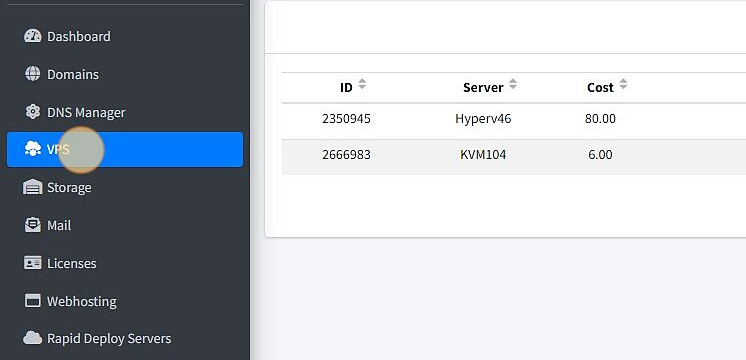
Navigate to the VPS section and find the VPS that you want to reinstall the OS for.
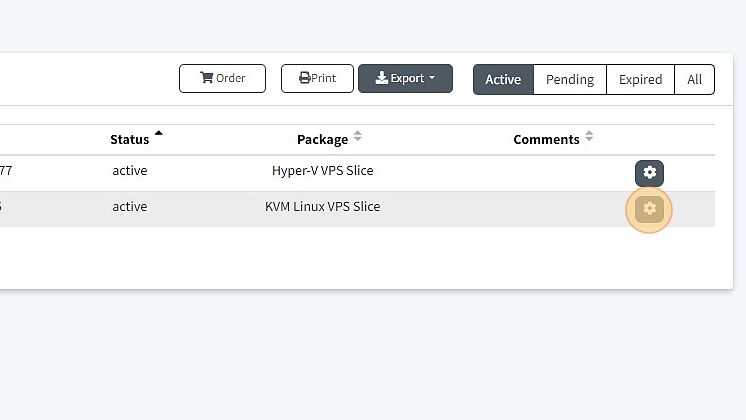
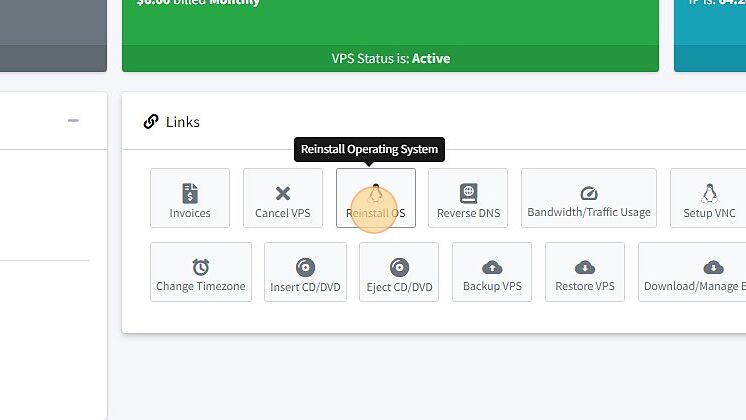
Click on the gear icon next to the VPS and select “Re-install OS”.
In the “Operating System Distribution” section, select the operating system that you want to install, including the architecture and version.
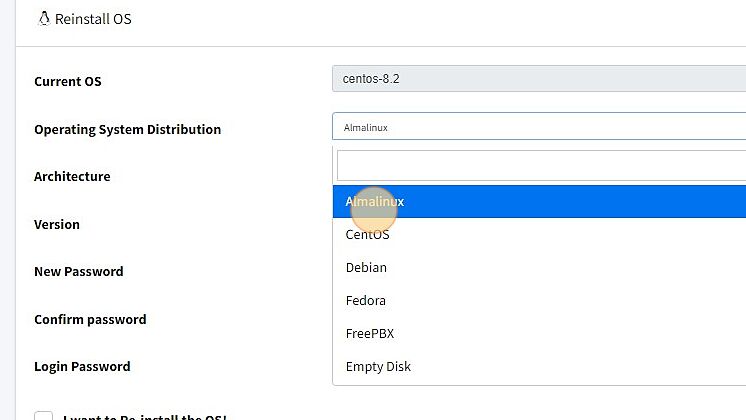
Enter the new password for the OS.
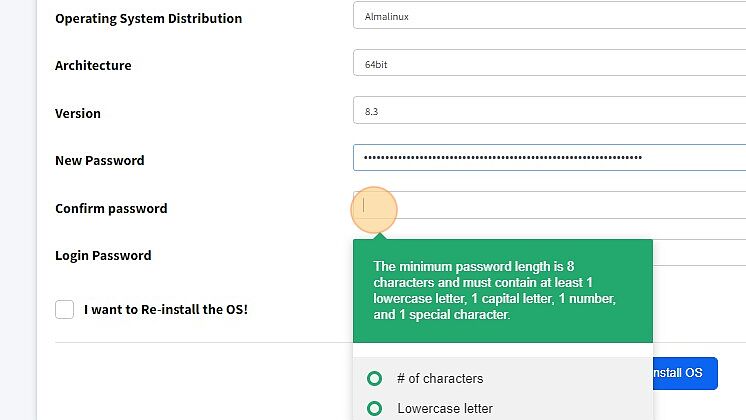
Confirm the new password by entering it again.
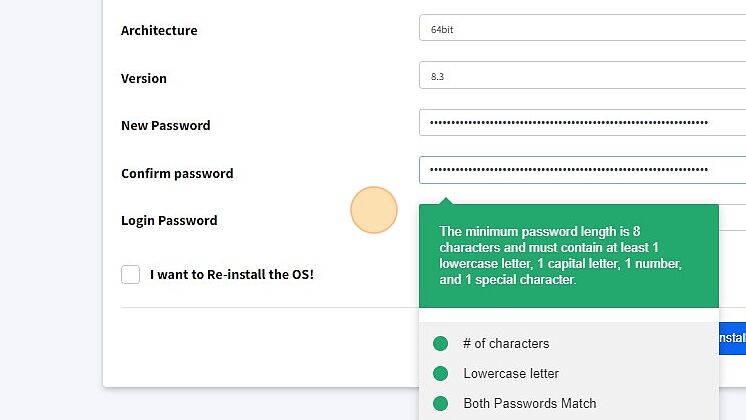
Enter your login password used to log in for https://my.GICTServer.net/.
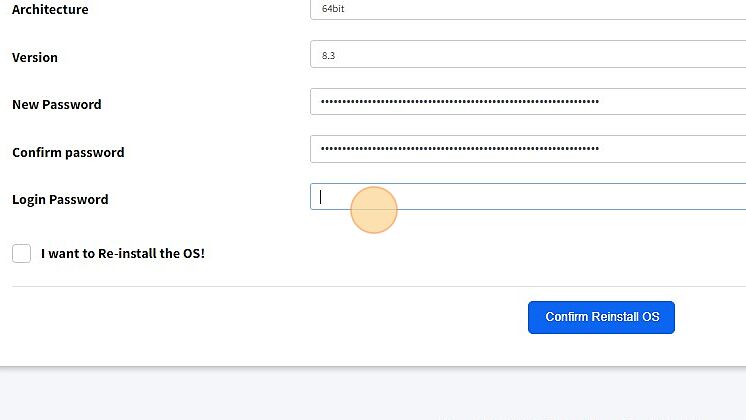
Click on the check box I want to Re-install OS!
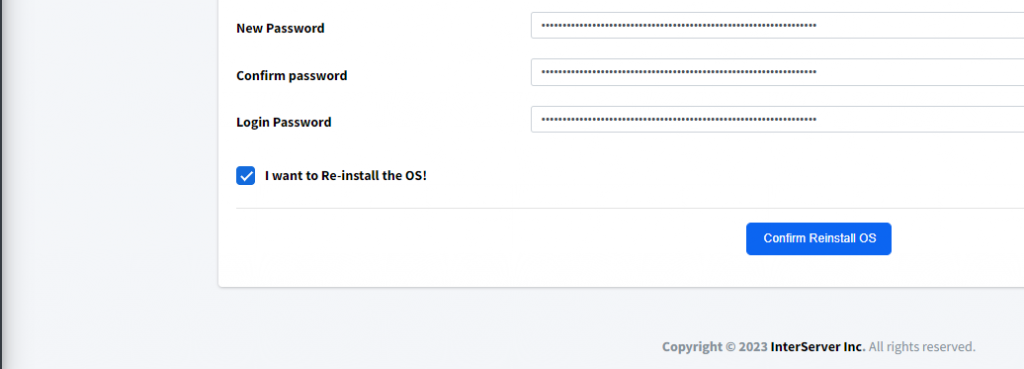
Click on Confirm Reinstall OS.
Note: Re-installing the OS will erase all the data on the VPS, please make sure to take a backup and proceed with Re-installation.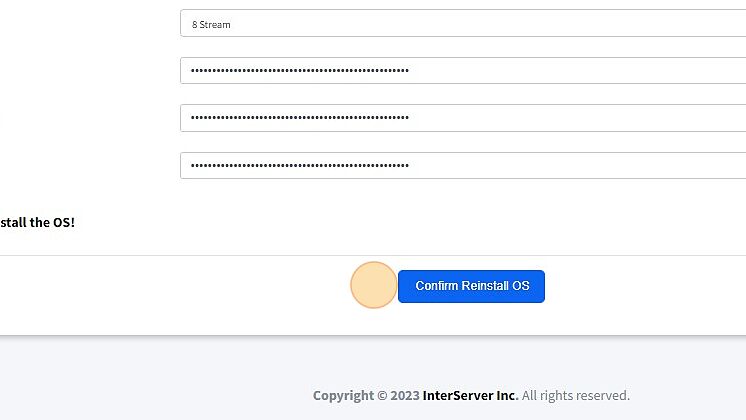
Wait for the re-installation process to complete.
Once the process is complete, you can access your VPS with the newly installed OS using the new password that you set.
If you have got any questions please feel free to contact us.