
GICT knowledge base
Install Shipping Module in Zen Cart
Published
Whenever you purchase something from the internet, The E-commerce store will allow you to select the shipping method according to your choice. It is important because different shipping methods deliver in different time frames and charge different amount. Some customers might wait for a while if shipping is free. Some customers might pay extra to get the product delivered faster.
ZenCart allows us to install multiple shipping modules in our E-commerce store. You do not need any technical knowledge to install a new shipping module. You can install it directly from the admin panel of your store. A module is simply a piece of code that integrates with the core of ZenCart and allow you to add more functionality to your store. In this tutorial, I will demonstrate How to install a new shipping module in ZenCart. So, Let’s get started with the tutorial.
Install Shipping module in ZenCart
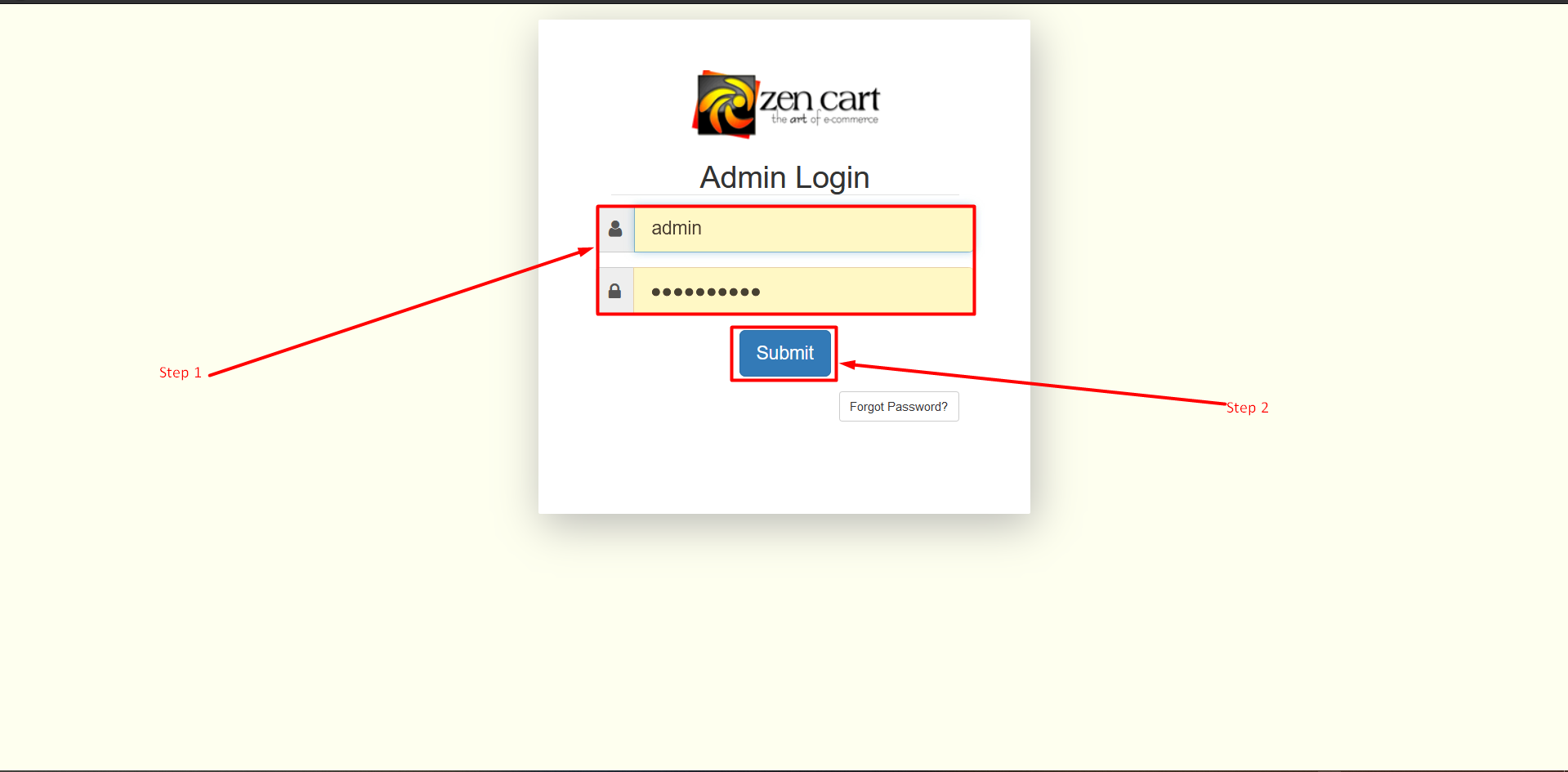
Step 1: Go to the login page using your Username and Password To log in. Type your Username and Password in the Textbox.
Step 2: Now click on the Submit button.
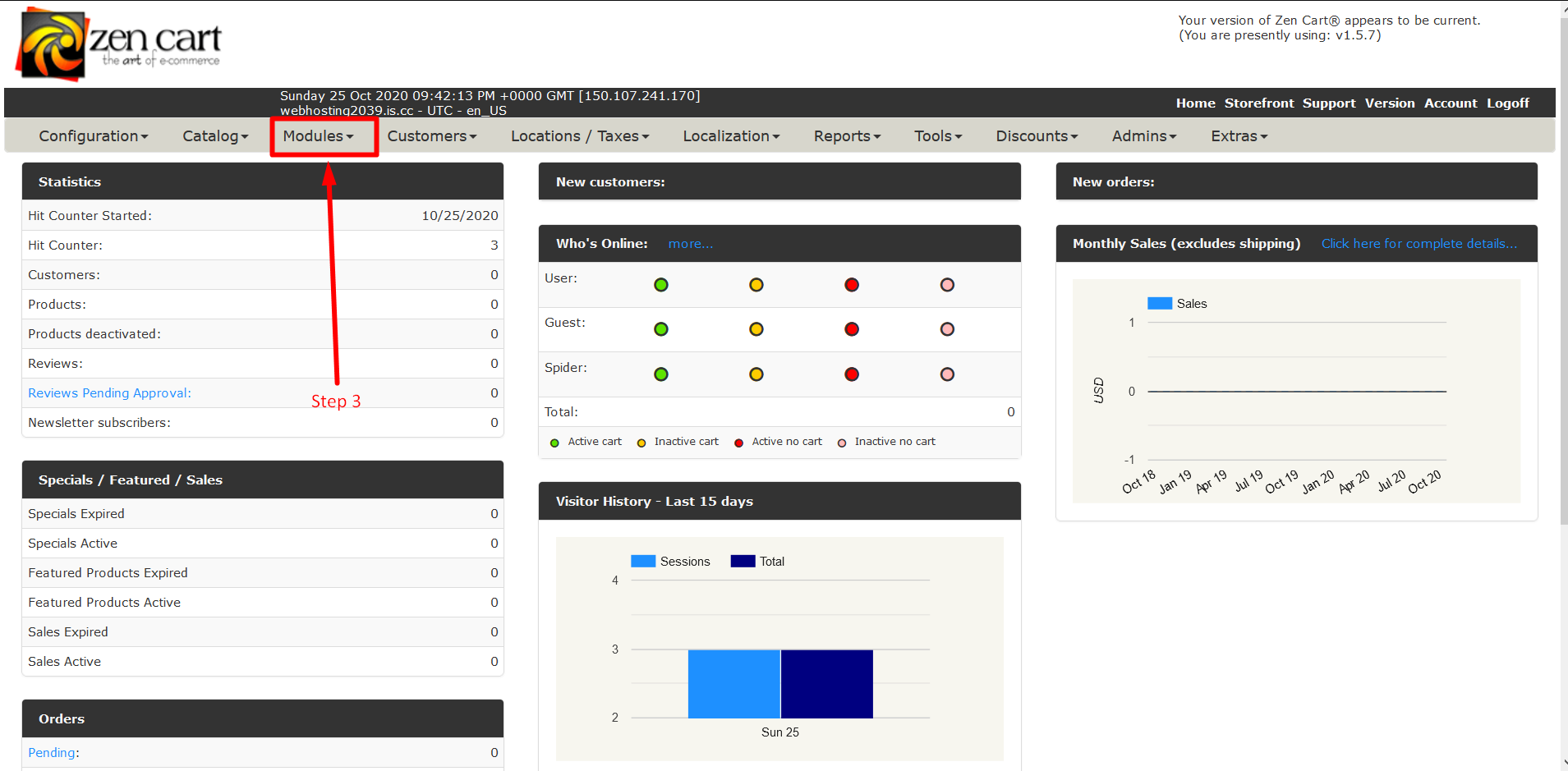
Step 3: Now Find a tab section and find the Module tab and click on the Triangle to expand that tab.
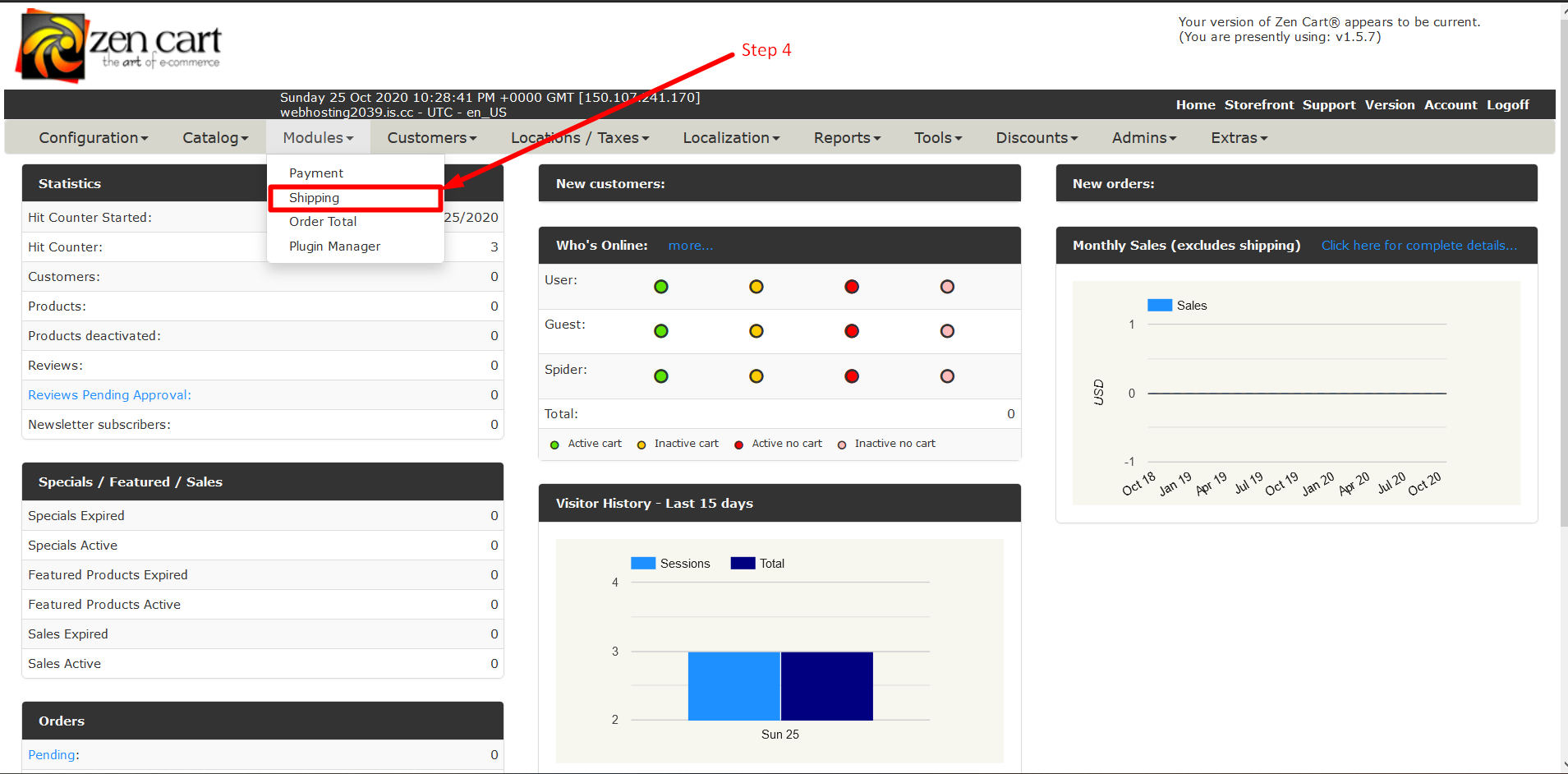
Step 4: Now Click on Shipping.
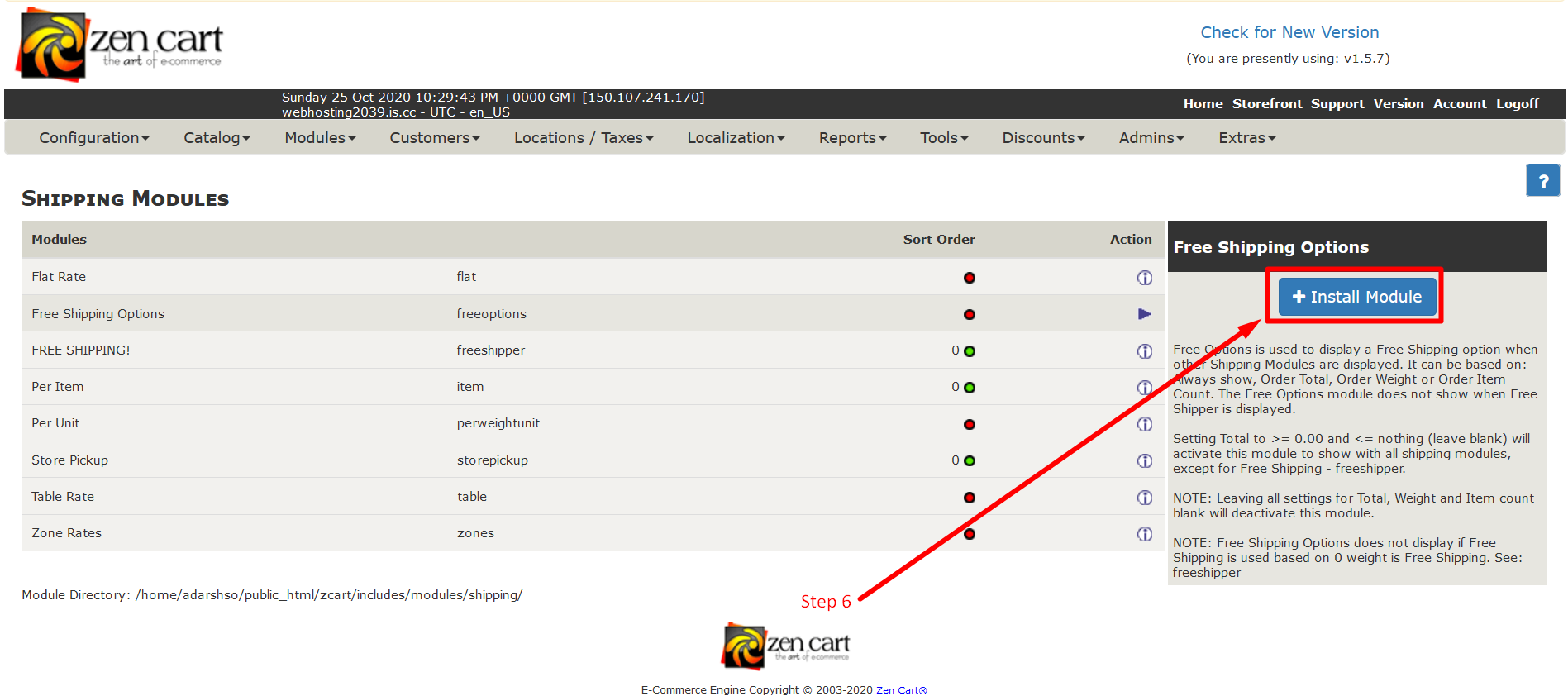
Step 5: The shipping link will take you to the Shipping module page. Now you see a list of some shipping modules which you can install.
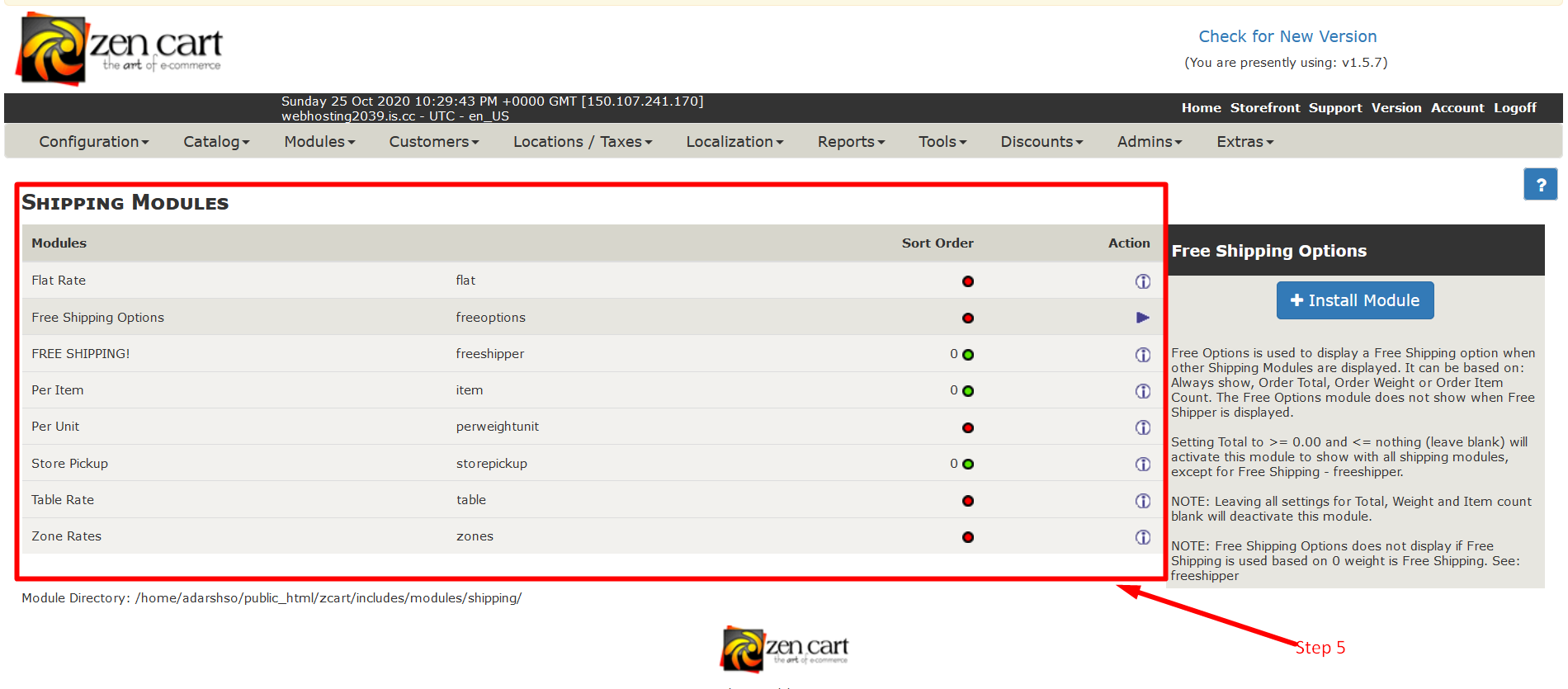
Step 6: Choose an appropriate shipping module for you and click on +Install Module.
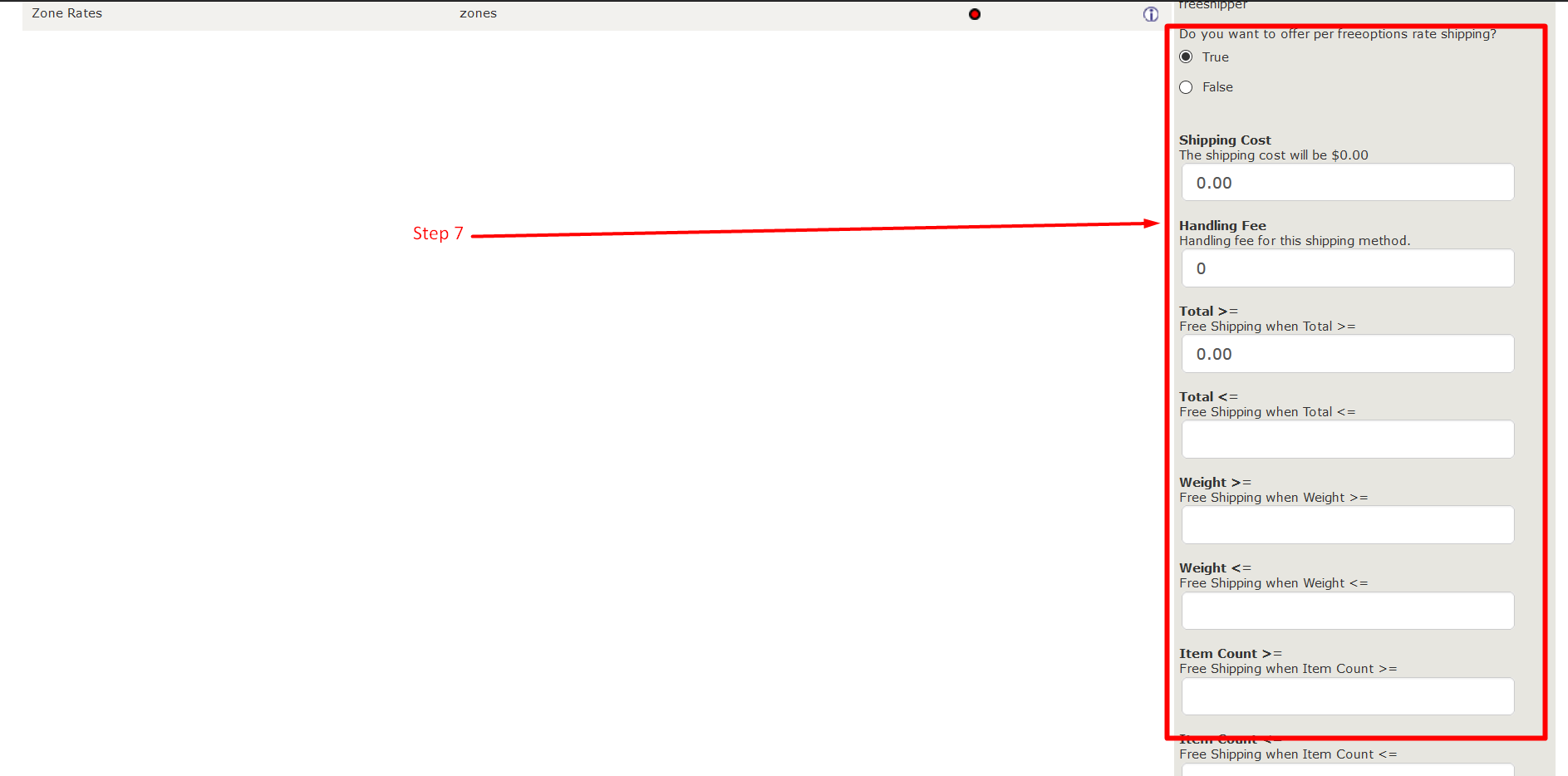
Step 7: After installing the module scroll-down and fill in the information for your installed module.
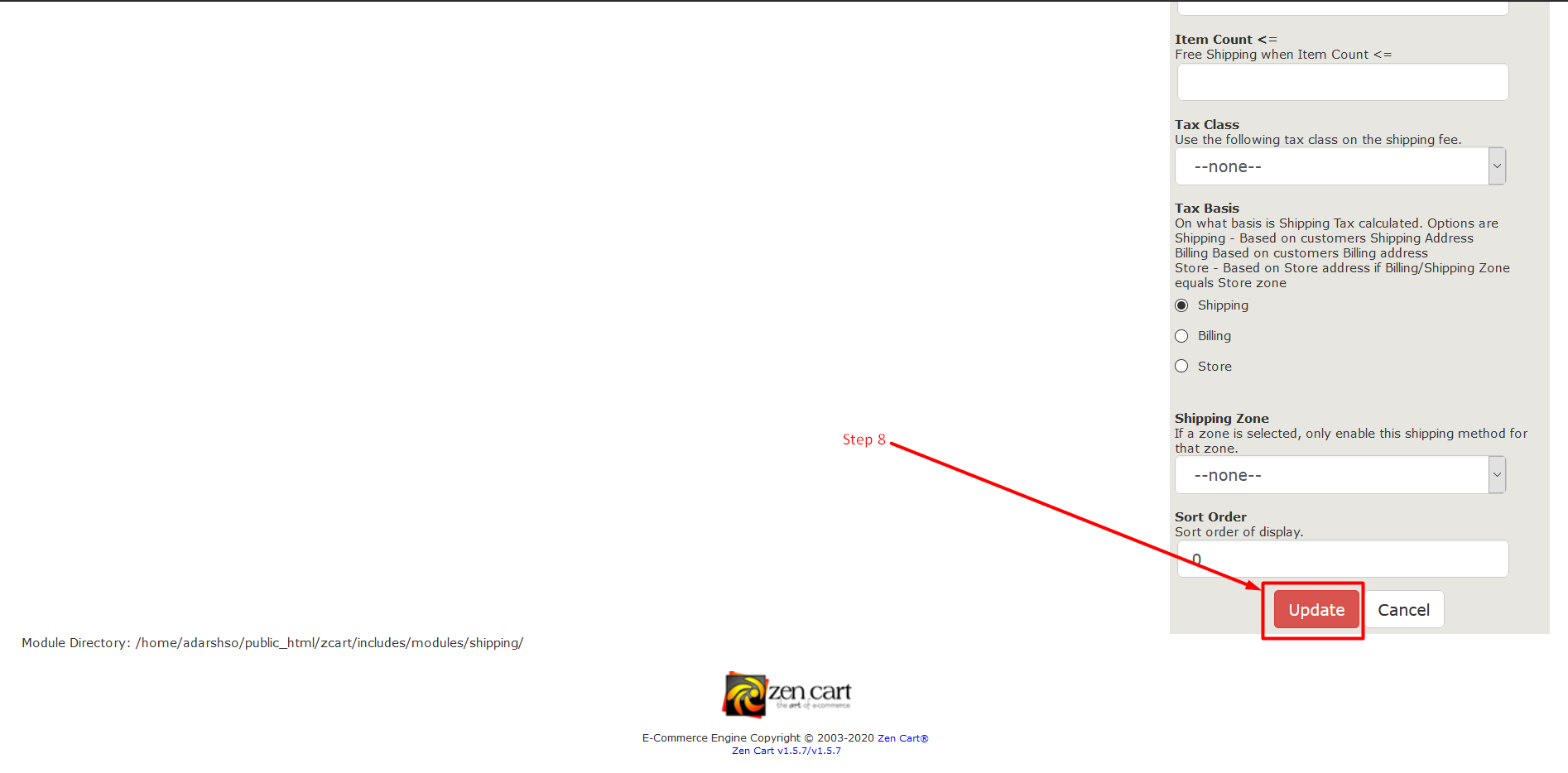
Step 8: Then click on the Update button to save the settings.
You can also modify and remove modules from your ZenCart store. Just navigate to the list of modules and perform actions according to your requirement. We hope this tutorial was helpful for you. If you have something to share, please use the comment section given below.
Related guides
Top 10 Best Content Management Systems in 2021!
Follow this list to learn in detail about the 10 most popular content management systems available in the market.
E-CommerceWooCommerce vs Shopify : The best E-commerce platforms
WooCommerce and Shopify are the two most popular E-commerce platforms. Follow this tutorial to learn more about both of them.
E-CommerceBest Applications to Run E-commerce Websites
E-commerce Hosting:E-commerce is the process of selling and buying of goods or services over the world wide web. It is also known as electronic commerce or
E-CommerceEasy Digital Downloads Plugin for WordPress
Easy Digital Downloads (EDD) plugin is the second most well-known WordPress eCommerce plugin, after WooCommerce. EDD plugin is used to create an eCommerce