
GICT knowledge base
How to Install Payment Module in Zen Cart?
Published
E-commerce is a new step to better retail. Internet allows you to create an E-commerce store with as little investment as few products and a website. ZenCart is an open-source E-commerce store management system. It allows you to create and manage a store on the internet for Free and you get all the features you need to run a successful E-commerce store.
If you can’t work with one Payment method, you can easily install additional payment modules to add more payment methods to your store. This too, does not require you to have any technical knowledge. You can install additional modules directly from the admin panel of ZenCart. In this tutorial, I will demonstrate How to install a new Payment module in ZenCart. You can use this method to install any Payment module in your store.
Install Payment Module in ZenCart
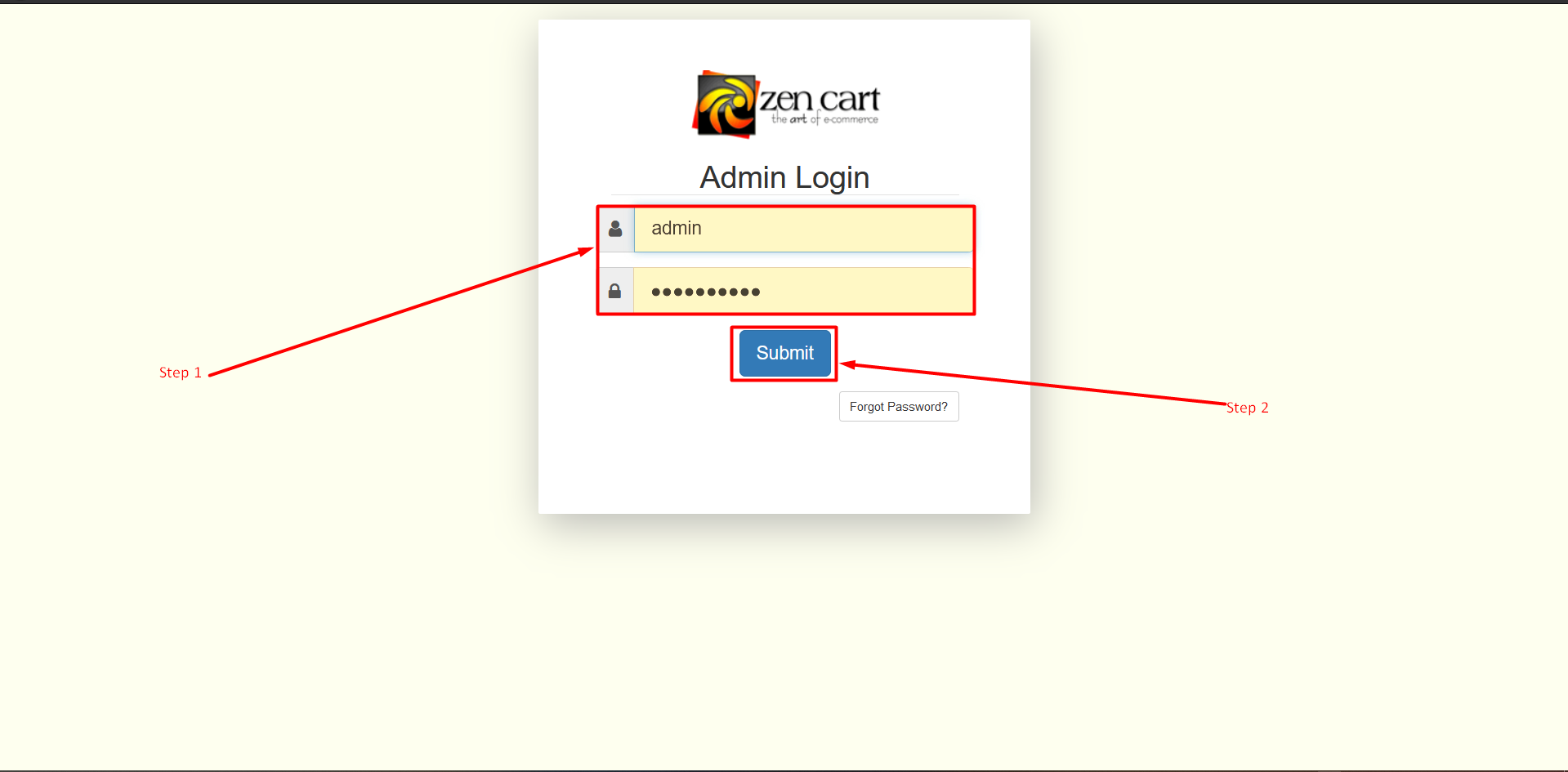
Step 1: Open the administrator login page. Type your Username and Password in the Textbox.
Step 2: Now click on the Submit button.
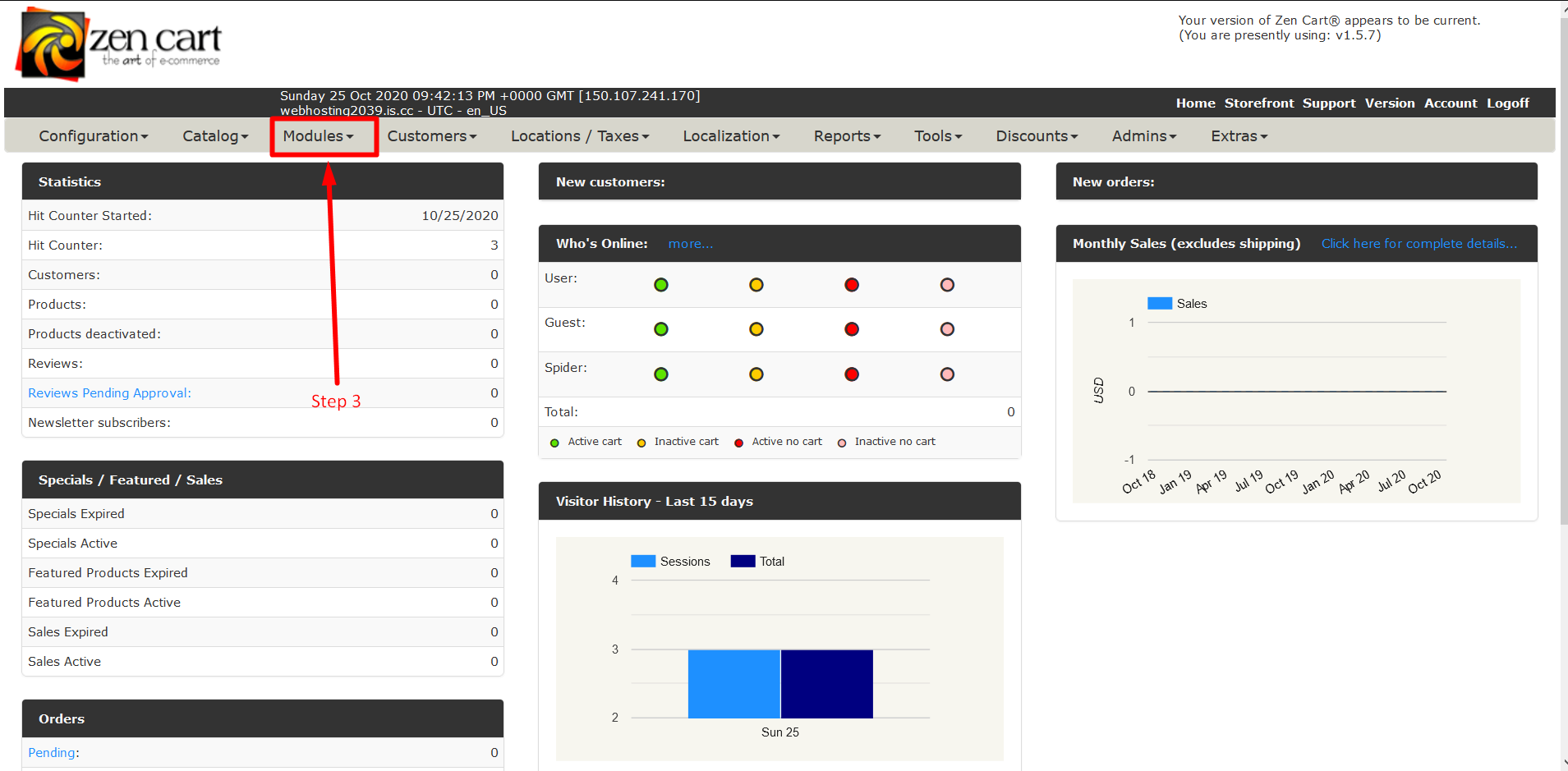
Step 3: Now Find a tab section and find the Module tab and click on the Triangle to expand that tab.
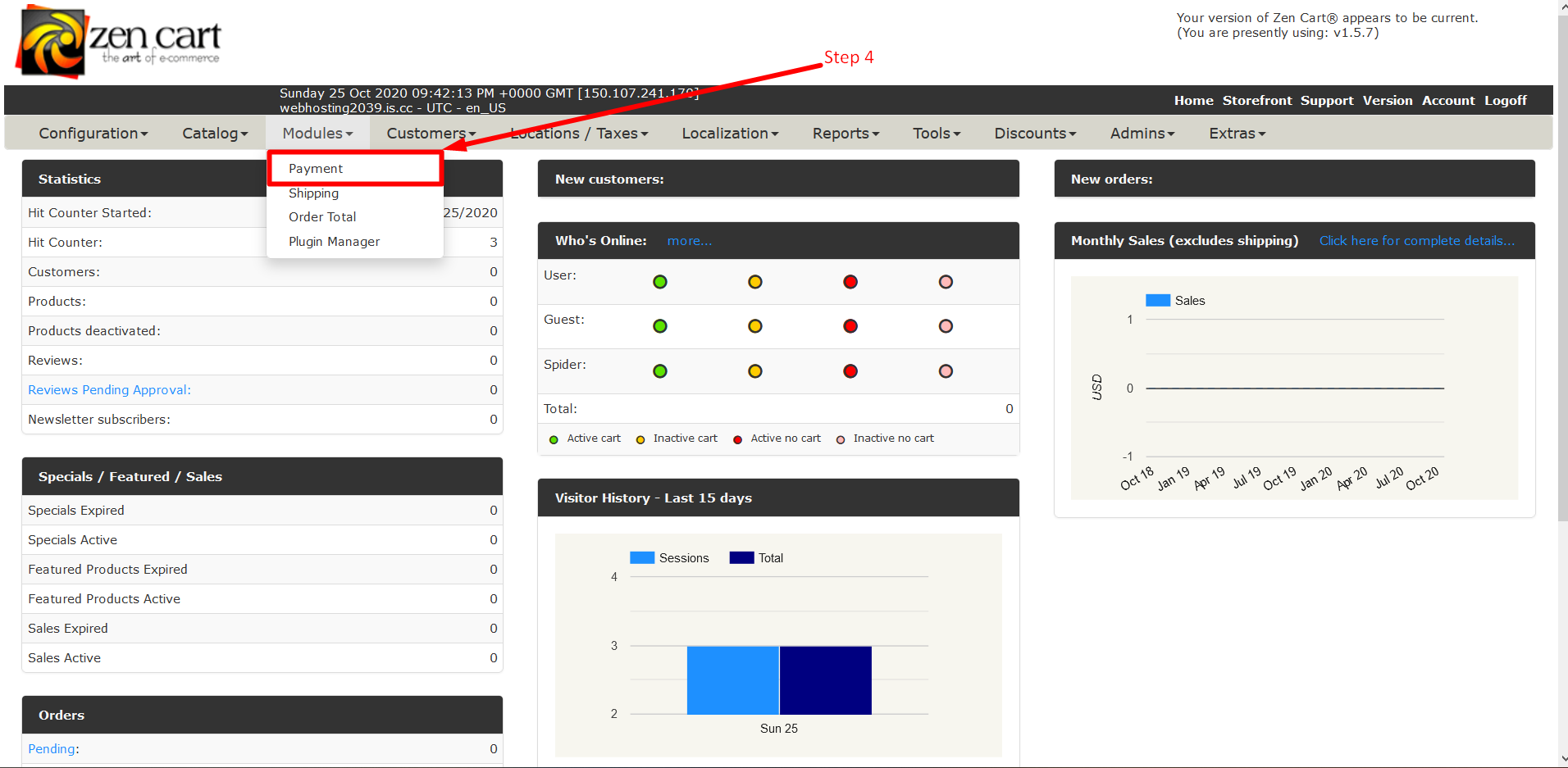
Step 4: Now Click on Payment. You can also install modules in different parts of your store.
Step 5: Scroll Down and Find the list of modules.
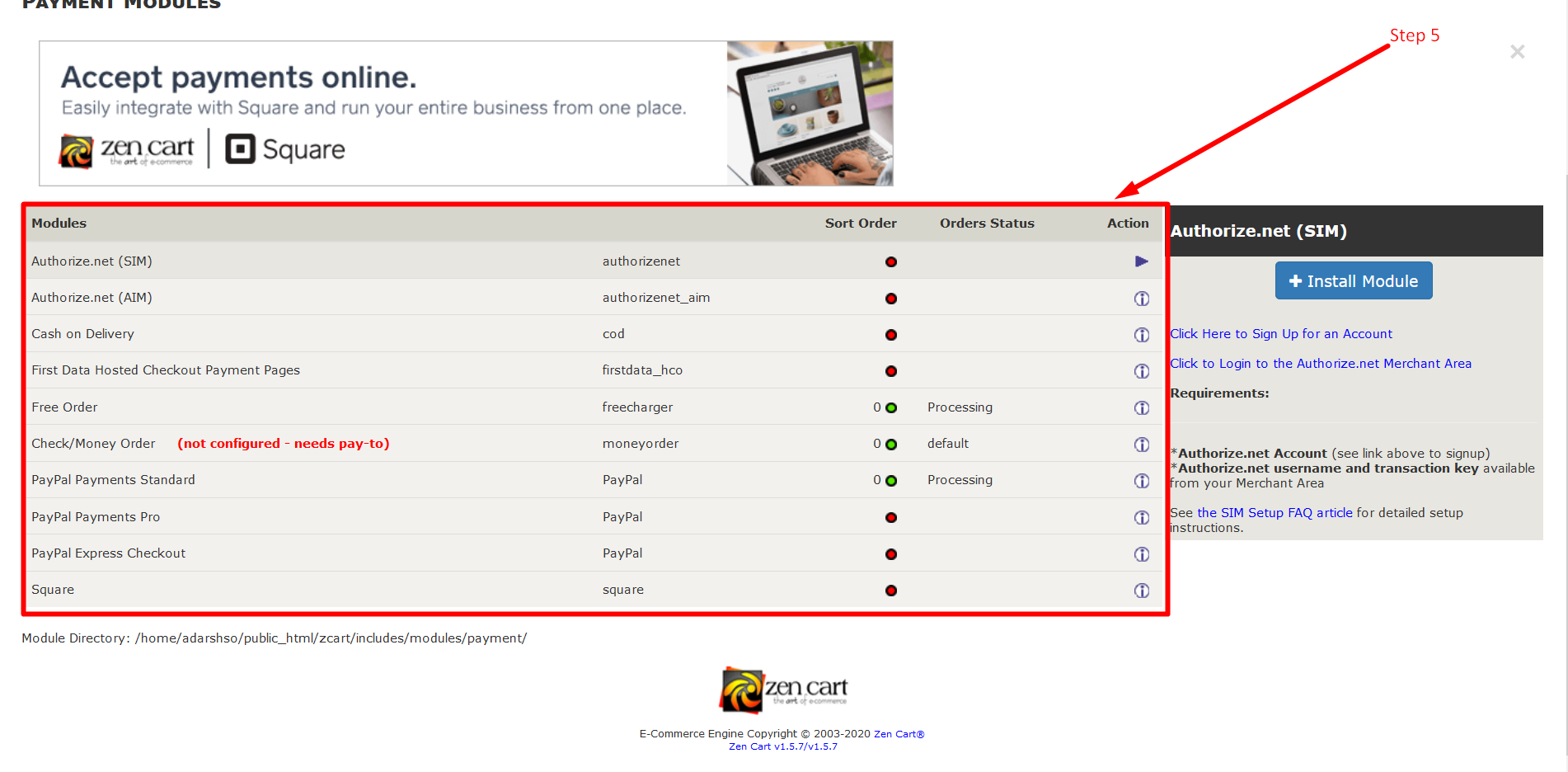
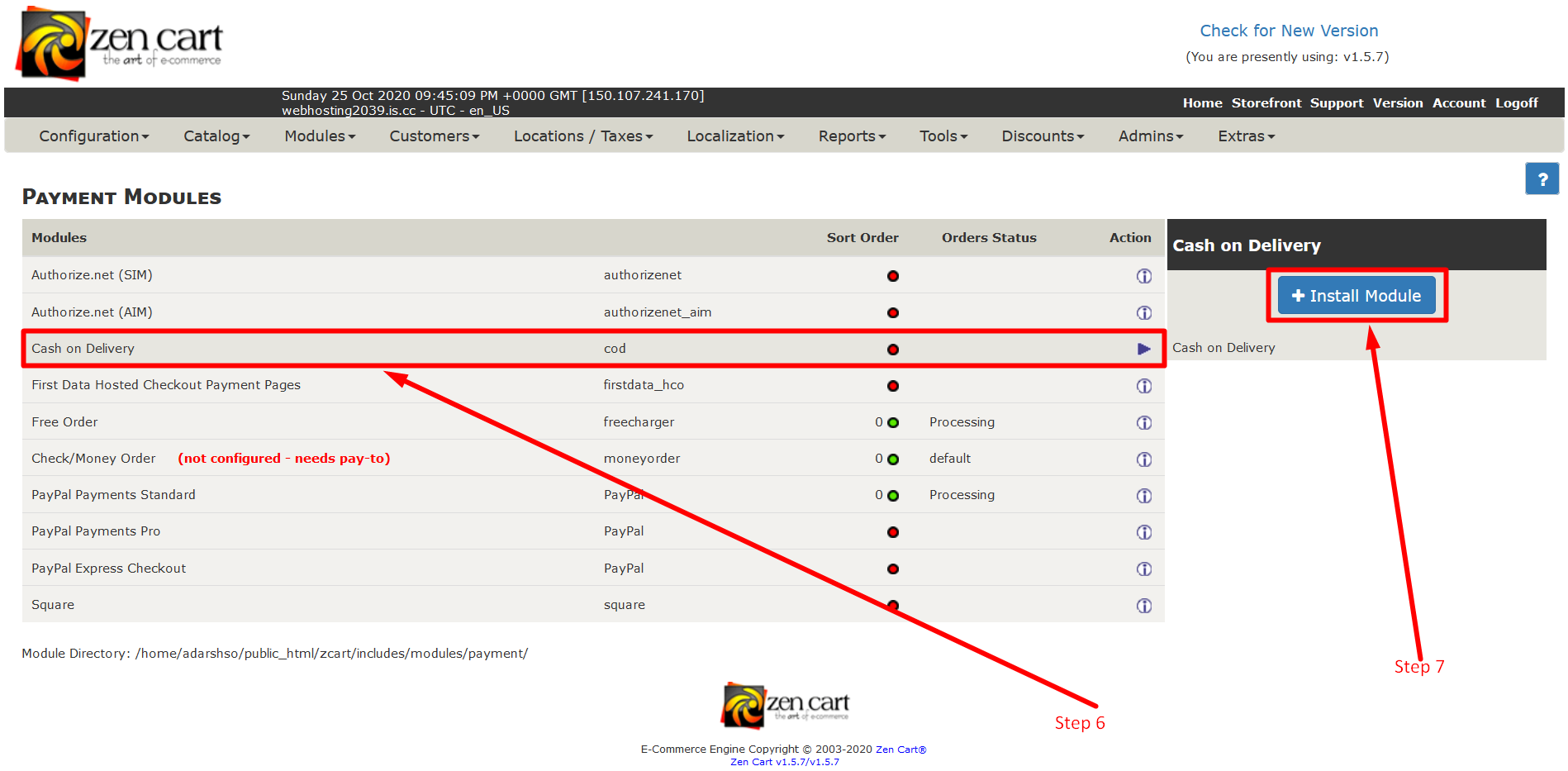
Step 6: Select the Appropriate Payment Option.
Step 7: Then Click on +Install Module to install the module on your website.
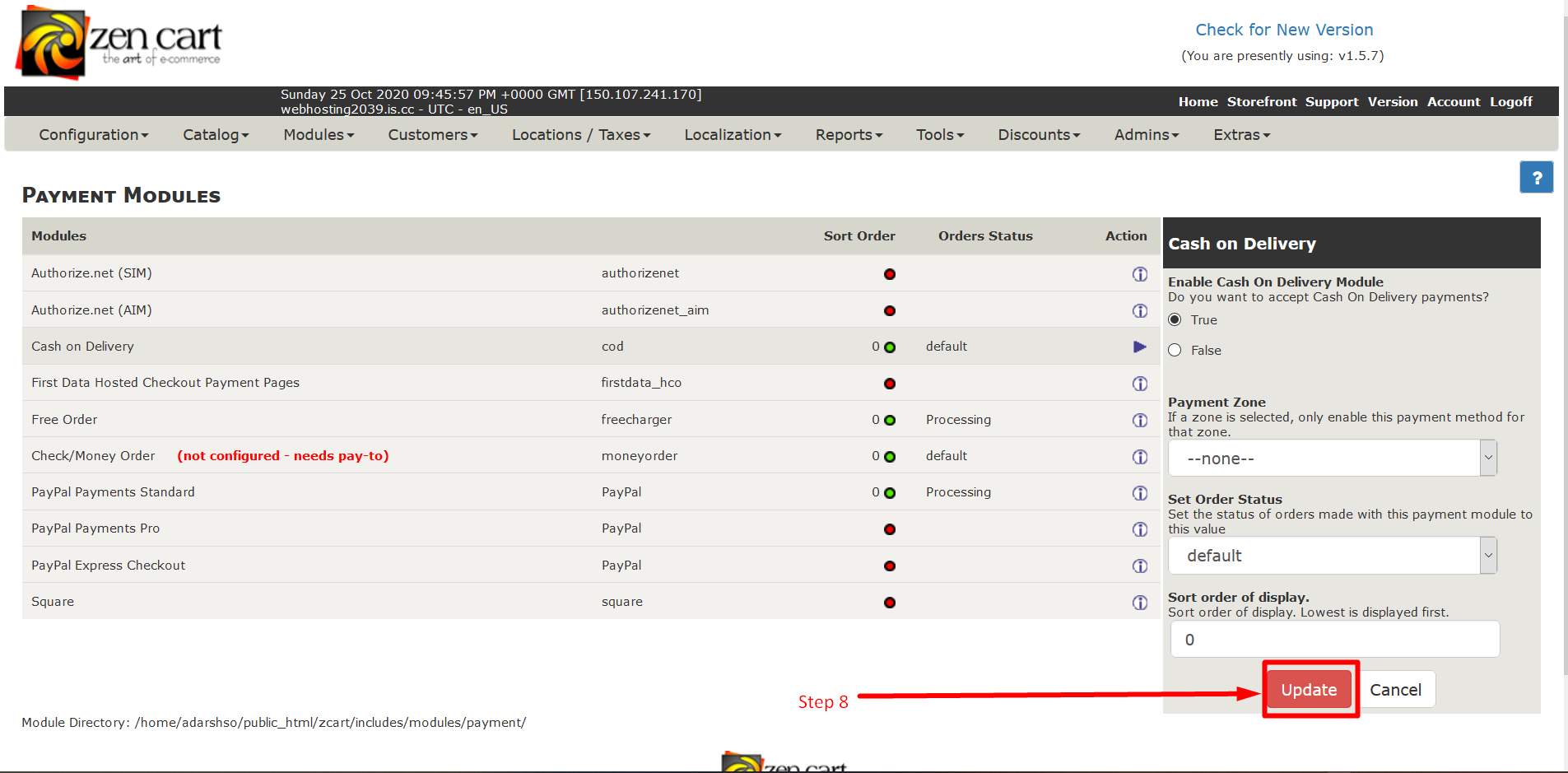
Step 8: To update the module setting Select and enter the details to update and click on Update.
So, this is how you can add Payment modules in ZenCart. Each module allows you to accept the payment in a different way. You can have multiple Payment modules in your store to allow your customers select the best for them.
We hope this tutorial was helpful for you. If you have questions regarding this topic, please let us know in the comment section given below. If you are an active GICTServer customer, our customer support staff is available 24*7 for you.
Related guides
Top 10 Best Content Management Systems in 2021!
Follow this list to learn in detail about the 10 most popular content management systems available in the market.
E-CommerceWooCommerce vs Shopify : The best E-commerce platforms
WooCommerce and Shopify are the two most popular E-commerce platforms. Follow this tutorial to learn more about both of them.
E-CommerceBest Applications to Run E-commerce Websites
E-commerce Hosting:E-commerce is the process of selling and buying of goods or services over the world wide web. It is also known as electronic commerce or
E-CommerceEasy Digital Downloads Plugin for WordPress
Easy Digital Downloads (EDD) plugin is the second most well-known WordPress eCommerce plugin, after WooCommerce. EDD plugin is used to create an eCommerce