
GICT knowledge base
How to use AccessPress Social Sharing plugin for WordPress
Published
AccessPress social share plugin adds a great great feature to your WordPress site using which the user can easily share the website content such as page, post, media on personal social media networks like Facebook, Twitter by using the latest APIs.
This plugin allows you to share your content on Facebook, Twitter, Pinterest, LinkedIn, and Digg. Also, there is an option to share it by email and increase your social reach dramatically!
The premium version contains two plugins. One is AccessPress social counter and the other is AccessPress social share itself. AccessPress social share counts the number of followers on each of your social media accounts that you can display on the website.
Now, Let’s take a look at some of the features provided by this plugin. As the plugin comes in two versions, free and paid, we will first see the features available in the free version.
Free Features:
- Social media sharing for Facebook, Twitter, LinkIn, Pinterest and Digg.
- 5 Well-designed themes.
- Auto-update on all APIs.
- The latest use of APIs to fetch data.
- Caching – To avoind frequent API calls.
- Shortcode – Allows you to display sharing buttons anywhere on the website.
- Fully Responsive
- Purposeful forum, E-mail support.
- Free updates for Lifetime
Free version includes everything that a typical WordPress website requires. Now, Let’s see the Paid Features.
Paid Features:
- 13 Social media sites.
- 10 Well-designed themes.
- Pinterest image pin option.
- BuddyPress and WooCommerce compatible.
- Pop-up for sharing.
- Floating sidebar.
- 20 themes for social sharing count.
The features are awesome and well divided. It’s time to install this plugin in a WordPress site.
How to install AccessPress on WordPress
- Click here to download the latest version of the plugin.
- Go to the Plugins -> Add New -> Upload section.
- Upload the file you just downloaded using the link above.
- Click on the Submit/Install button.
It will take a few seconds to upload and install the plugin. Once the installation is done, you can start using it. Make sure you have Activated the plugin after installation is done.
Let’s see what is available in the Free version of the plugin.
How to use AccessPress social sharing plugin
Basically there are 4 main tabs in the plugin settings section. They are:
- Social Networks
- Share Options
- Display Settings
- Miscellaneous
We will take a look at all the sections and understand how to work with the plugin.
Social Networks
From the social networks tab, You can configure the social media sites you want to display to the user.
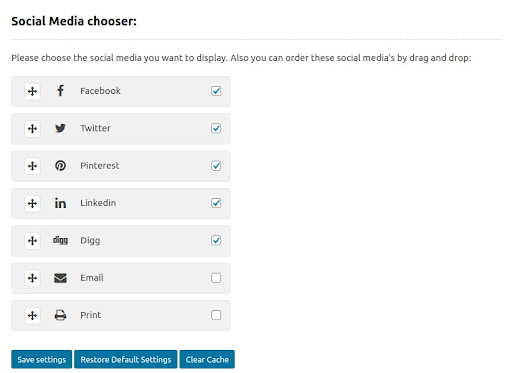
In the free version of this plugin, you can select from the 5 social media sites only. You can also add the E-mail sharing and Print in the free version. In the paid version, you get 13 social media sites.
Share Options
From the share options, you can choose the type of page on which you want to display the social sharing social share like the post, page, front page, archives, attachment pages, etc.
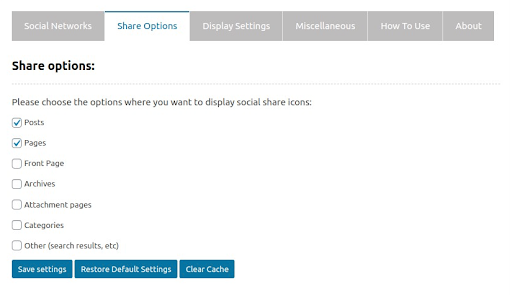
Social sharing buttons are good when they are placed on a page with the actual content and the front page. But some websites has different requirements. You can also select Archives, Attachment pages, Categories and other pages.
Display Settings
From the display settings tab, you can design the appearance, location and much more.
Display positions
It allows you to choose an option where you want to display your social shares. There are three options to select from:
- Below content
- Above content
- Both (below content and above content)
Social icons sets
There are 6 pre-defined themes to select from, in which you can choose the theme you want to use. There is no more configuration required to setup icons.
Miscellaneous settings
In miscellaneous settings, you can configure the following settings of the plugin as per your requirement.
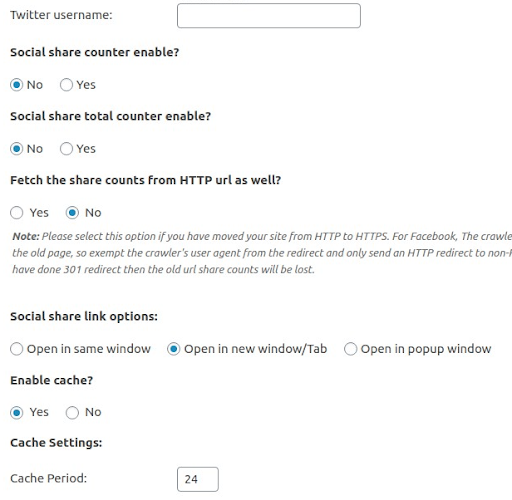
Let’s see what each option means and what we can do about it.
- Twitter username- You can manually set the name of the Twitter username for sharing the tweets.
- Share counter- You can enable or disable the share counter for social shares.
- Cache settings- You can set a period to avoid frequent API calls for share counts.
- Social share link options- You can select whether you try to open in the same window or a new window or popup window as per your requirement.
- Email settings- You can setup the email header and email body as per your need.
So, That’s all for the Free version of the plugin. You can get a lot more features if you decide to use the paid verison of AccessPress social sharing plugin. If you want a simple, quick and Free solution that works for most of the good websites, Free version is more than enough.
We hope this tutorial was helpful for you. Let us know in the comment section if you are stuck at some point while following the tutorial. We will try to help you our as soon as possible.