
GICT knowledge base
How to Drive Organic Traffic to your WordPress Website
Published
Technical SEO is an important part of your overall on-page SEO plan. While on-page SEO usually focuses on improving content and the user experience, technical SEO deals with the technical side of your website. This includes elements that help search engines easily find, crawl, and index your pages. By improving site structure, page load speed, and mobile-friendliness, technical SEO helps boost your website’s performance and visibility in search results.
Technical SEO best practices for WordPress sites
Technical SEO is an important part of on-page SEO. It mainly focuses on the parts of your website that help search engines crawl and index your content better.
Step 1: Optimize your website performance
Page speed plays a big role in keeping visitors on your site. In fact, 40% of users will leave if a website takes longer than three seconds to load.
Website performance is also a key factor for ranking, as Google uses it to measure user experience. Google looks at several Core Web Vitals to assess how well your site performs:
- Largest Contentful Paint (LCP): This measures how long it takes to load the biggest elements on the page, like images or text.
- Interaction to Next Paint (INP): This tracks how quickly the page reacts when a user clicks a button or presses a link.
- Cumulative Layout Shifts (CLS): This checks how often the layout of a page shifts unexpectedly, which can cause a frustrating user experience.
You can use tools like GTMetrix or Google PageSpeed Insights to check your website’s speed and performance. These tools help you assess your Core Web Vitals and show you which areas need improvement.
If your website is slow, try these tips to speed up your WordPress site:
- Choose a fast WordPress theme: A lightweight, well-coded theme helps your site load faster.
- Keep WordPress software, plugins, and themes up to date: Regular updates bring performance and security fixes that improve your site’s speed.
- Remove unnecessary plugins and themes: Unused plugins and themes take up resources and slow down your site. Regularly review and delete what you don’t need.
- Enable caching: Caching plugins like W3 Total Cache or LiteSpeed Cache store static versions of your pages, reducing the load on the server and speeding up load times.
- Use a Content Delivery Network (CDN): A CDN spreads your content across a network of servers around the world, ensuring faster delivery by serving content from the closest server to the user.
Step 2: Use canonical tags to avoid duplicate content
Duplicate content happens when the same page can be reached through different URLs, such as with both www and non-www versions. It also occurs when there are separate URLs for mobile and desktop versions.
In addition, a page in another language may be seen as a duplicate if its content is very similar to the original version.
If your site offers translations, make sure all content, including metadata, images, and videos, is translated as well.
When there are multiple URLs for the same content, search engines will choose one as the main version (canonical) and may not crawl the others as much. The issue arises if Google mistakenly marks the wrong page as the main one instead of your primary content.
To prevent this, it’s important to set up canonical tags.
- You can use tools like Siteliner to find duplicate content. Just enter your website address and click Go to start the analysis.
- Once the report is ready, scroll to the “Your Duplicate Content” section and click on “Duplicate Content.”
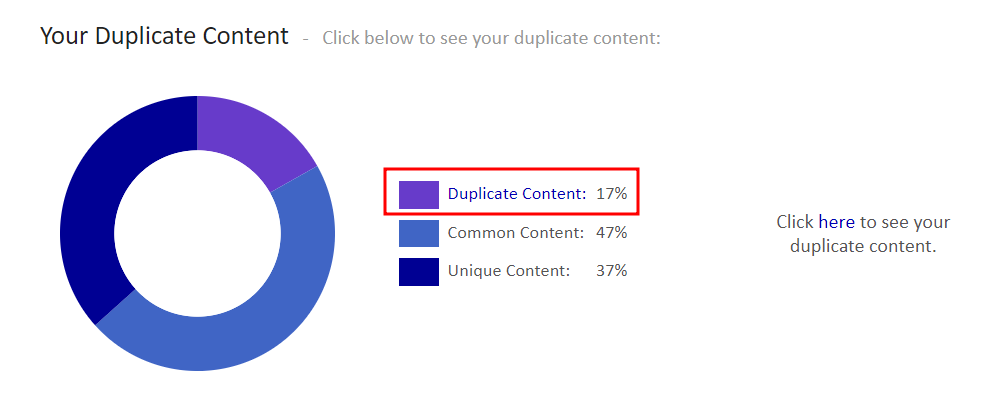
- Once you find the duplicate pages, choose which version you want search engines to index and rank. This will be your canonical page.
- To set the canonical page, go to the page or post in the WordPress dashboard. Then, scroll down to AIOSEO Settings → Advanced, and paste the URL in the Canonical URL field. Finally, update or publish the page to save your changes.
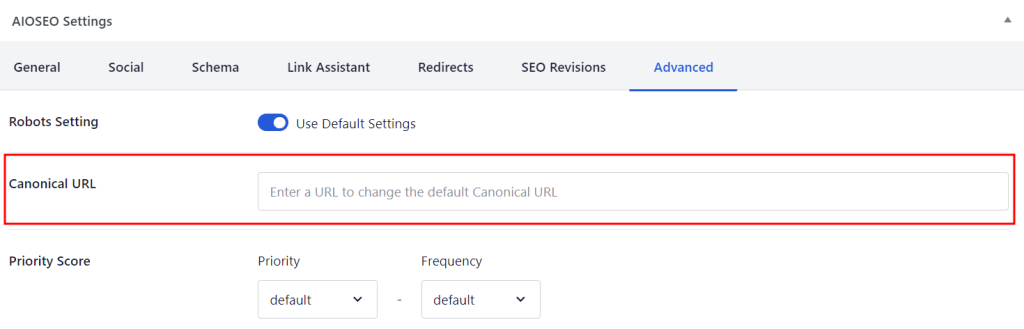
This practice helps avoid search engines indexing your site’s content under different URLs, which could weaken page rankings and divide link value. Having one consistent URL makes sure all the link value goes to a single version of your site, helping it rank better and become more visible in search engines. Another way is to place a rel=”canonical” tag in the HTML of the duplicate pages, which points to the main page. This method is a little more complicated, but you can find clear instructions on Google Search Central.
Step 3: Add schema markups
Schema markup, also known as structured data, is special code added to your webpage to help search engines understand its content better. With this code, search engines can grab details from your pages and show enhanced results that appear above the regular ones. These rich results can include things like carousels, images, and other visuals, making your pages look more appealing.
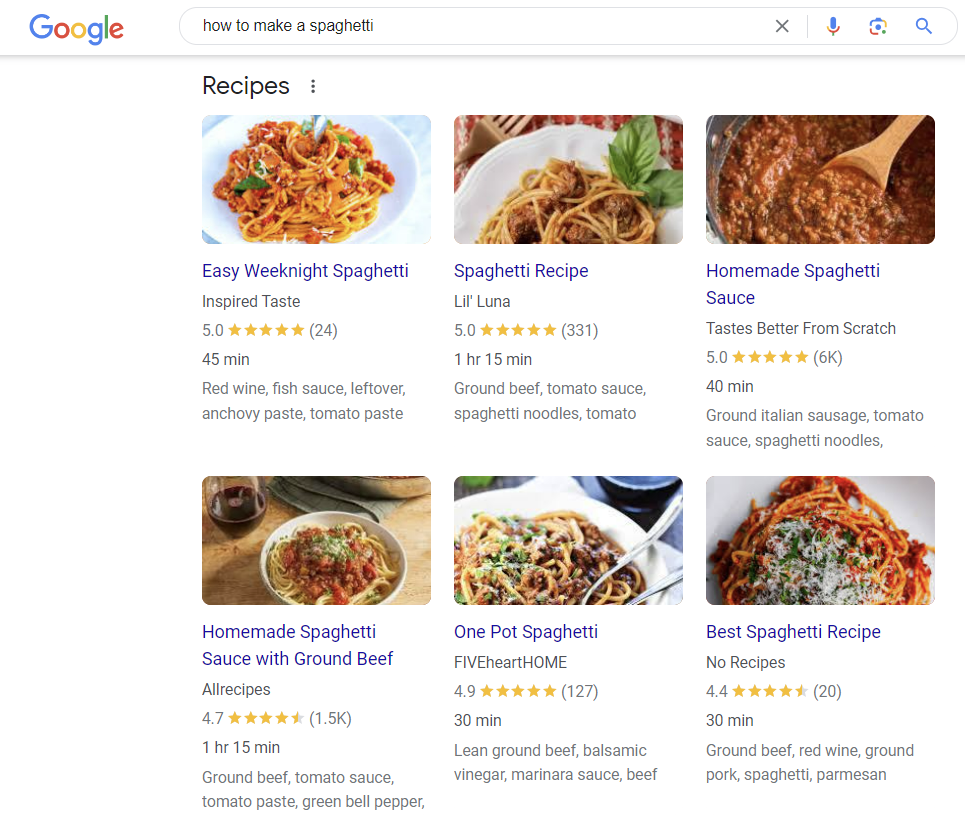
Sometimes, Google shows step-by-step guides in a list on search results pages. These are called featured snippets.
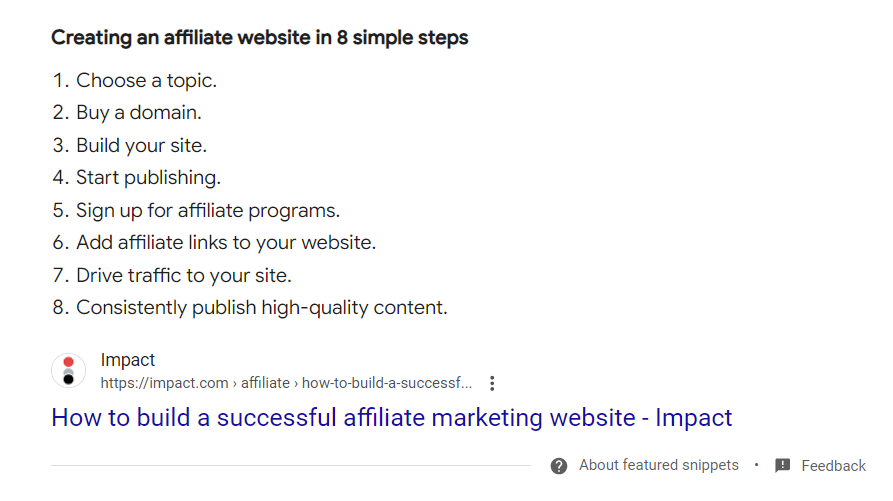
Using structured data can help make your site more visible, which can lead to more clicks. In fact, rich snippets get clicked 58% of the time, while regular search results only get clicked 41% of the time.
To increase the chances of your pages appearing as rich results, be sure to follow the structured data guidelines. However, remember that Google doesn’t always show rich results, even when you use structured data. But it’s worth giving it a try!
Here’s how you can add schema markups to your WordPress site using AIOSEO.
Step 3.1: Adding site-wide schema markup
Follow these steps to apply schema markup to all posts and pages by default:
- In your WordPress dashboard, go to All in One SEO → Search Appearance, then select Content Types.
- Click on the Schema Markup tab under both the Posts and Pages sections.
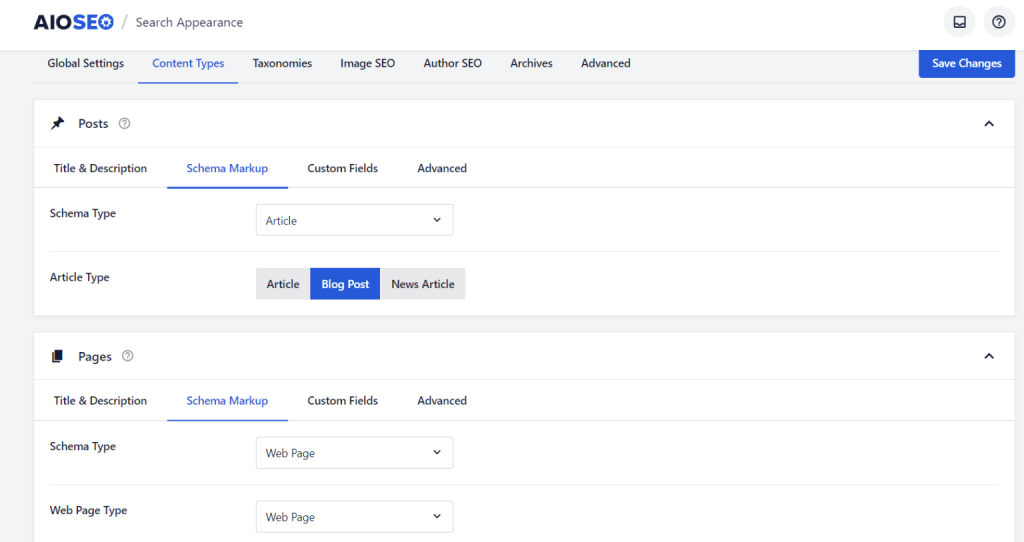
- For Posts, choose your default Schema Type from the drop-down menu. If you select Article, you’ll need to pick the type – Article, Blog Post, or News Article.
- Do the same for the Pages section, then save your changes when you’re finished.
Step 3.2: Adding schema markup for individual pages and posts
AIOSEO also allows you to add specific schema markup for individual pages and posts:
- Open the page or post you want to edit.
- Scroll down to the AIOSEO Settings and click on the Schema tab.
- Click “Generate Schema” and pick a schema template that fits your content. You can also add your own custom JSON schema by selecting the “Custom Schema” tab.
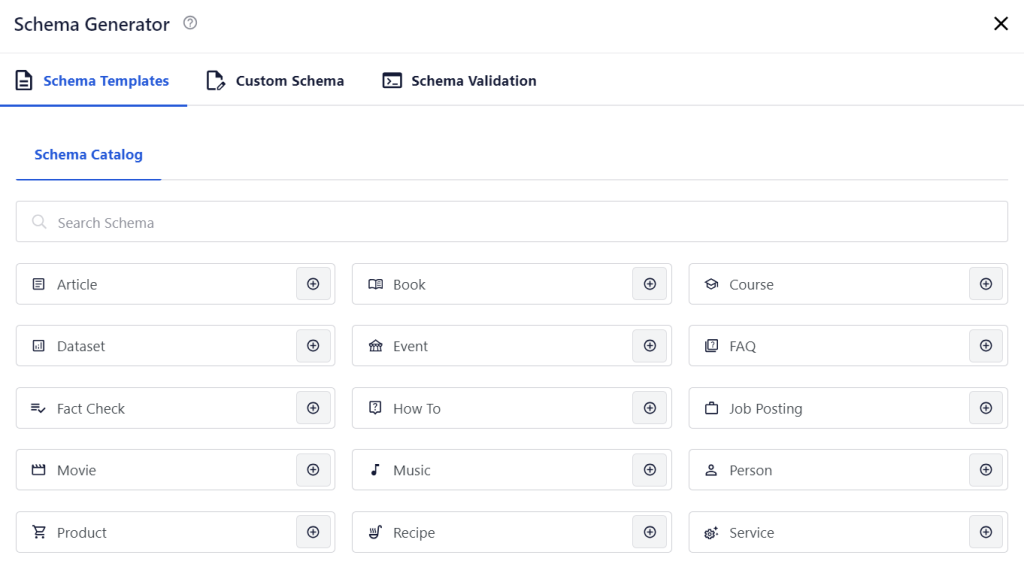
- Be careful not to use the wrong schema type. For example, don’t select the Article schema for a recipe page.
In addition to AIOSEO, there are many other WordPress schema plugins that can help you create structured data. After adding the schema, use Google’s Schema Markup Testing Tool to check if everything is set up correctly.
Step 4: Avoid cannibalization
Keyword cannibalization occurs when two or more pages on your website rank for the same keyword. This can hurt your overall SEO because traffic gets divided across different pages instead of going to one. Even worse, the page that could convert better might rank lower, affecting your conversion rate.
Here’s how to spot keyword cannibalization using Google Search Console:
- On the left menu, go to “Performance.”
- Click the (+) icon and select “Query” to filter by the keyword you want to check.
- Scroll down to the “Pages” tab to see which URLs are getting clicks and impressions for that keyword.
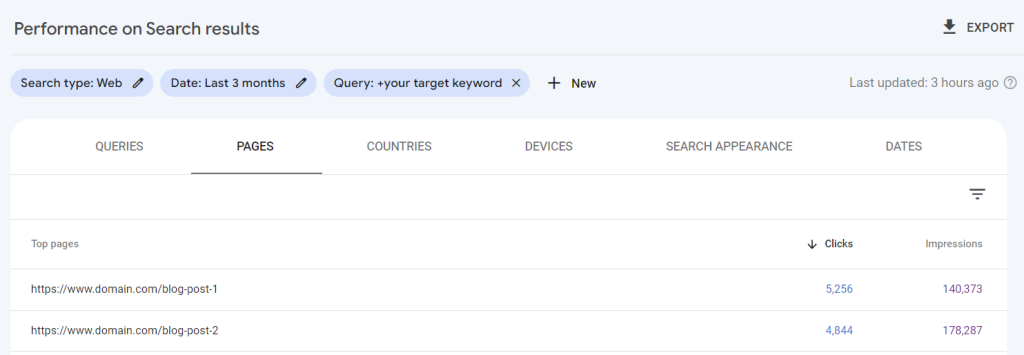
If you notice several pages getting a lot of clicks and impressions for the same keyword, it might be a sign of cannibalization.
To fix this, step back and adjust your SEO strategy. Make sure each page targets a different part of the topic or different keywords. Here’s how:
- Determine the main focus and intent behind each page. Are they really covering the same thing? Or do they approach the topic in slightly different ways?
- Choose a new focus keyword for the page you plan to update. Look for long-tail keywords or variations that cover a different angle of the same topic.
- Update the content to focus on the new keyword. This includes rewriting parts of the text, headings, and metadata so the new keyword fits naturally.
- Use internal linking to point to the updated page. Link from other relevant pages on your site using anchor text with the new keyword.
After making these changes, keep an eye on the performance of the updated page and the original one. Check how they rank, and how many clicks and impressions they’re getting for their new keywords, using Google Search Console.
Step 5: Redirect old URLs
A 301 redirect is a way to automatically send users and search engines to a different URL than the one they originally requested. It’s often used to redirect visitors from old or deleted pages to new content, so they don’t encounter a 404 error.

Apart from improving the user experience, redirects also help keep the link authority and ranking strength of your old pages.
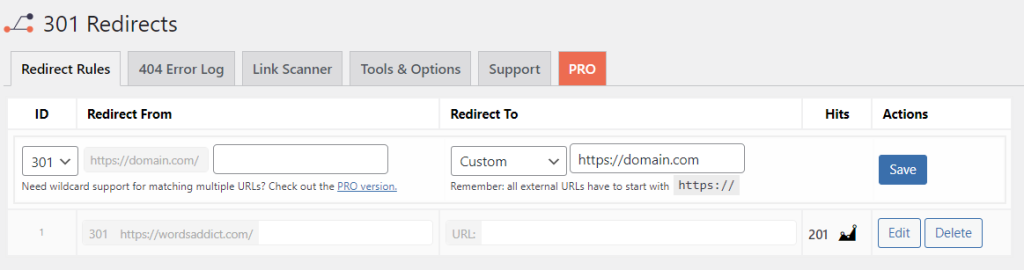
In WordPress, you can set up a 301 redirect using a plugin like 301 Redirects:
- Install and activate the plugin.
- Go to Settings and find 301 Redirects.
- Click on Redirect Rules and select 301 as the type of redirect.
- Enter the URL of your old page in the Redirect From section.
- In the Redirect To field, set the drop-down menu to Custom and enter the new URL.
- Click Save to apply the changes.
Step 6: Noindex low-value content
Low-value content refers to pages and posts that search engines and users don’t find useful. Examples of low-value content in WordPress include:
- Archive pages
- Category pages
- Tag pages
- Low-quality blog posts
To keep your site’s authority strong, it’s a good idea to prevent search engines from indexing this kind of content.
You can use tools like Ahrefs to perform an SEO audit and find low-value content on your site. Once you spot pages that target unimportant keywords with low rankings and traffic, add a noindex tag to them.
Here’s how to do it with AIOSEO:
- Open the low-value page or post and scroll down to the AIOSEO Settings.
- Go to the Advanced tab and turn off the Use Default Settings option for the Robots Setting.
- The robots meta options will show up, where you can check the No Index box.
- Click Update to save your changes.
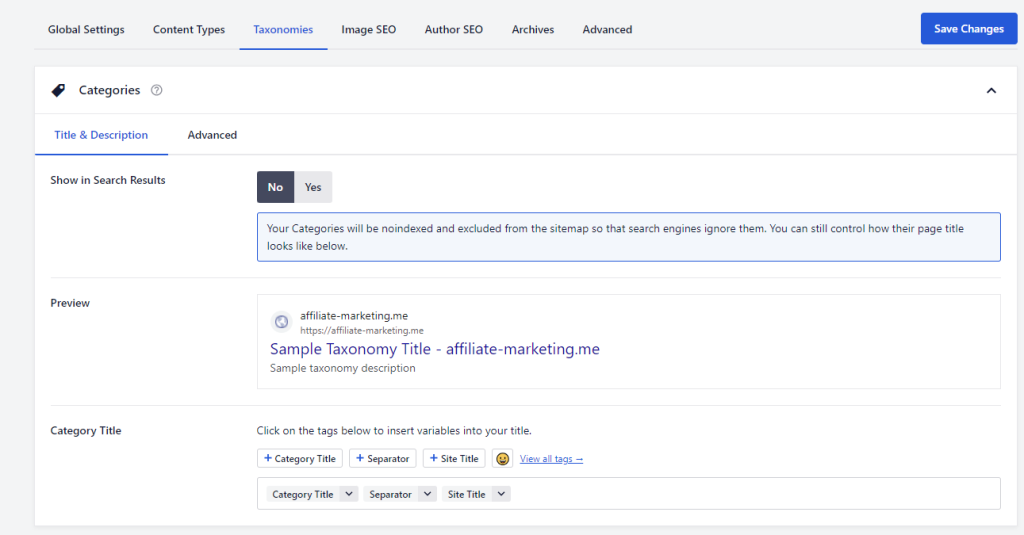
You can also set your category and tag pages to noindex in bulk. Just go to All in One SEO → Search Appearance in your WordPress dashboard. Then, click on the Taxonomies tab. For Categories and Tags, choose “No” next to Show on Search Results. Be sure to save your changes once you’re finished.
Conclusion
To sum up, getting the hang of technical SEO is key to boosting your website’s performance and making sure search engines can easily access and understand your content. By focusing on things like improving site speed, making your site mobile-friendly, using structured data, and avoiding duplicate content, you can improve your site’s rankings and visibility.
Regularly monitoring and updating your technical SEO will keep your site strong in search rankings. By using the right tools and approach, you can lay a solid foundation for lasting SEO success.
Related guides
301 Moved Permanently Error: Understanding and Implementing Redirects
Learn about the 301 Moved Permanently error, its causes, SEO implications, and effective strategies for implementing and managing redirects to optimize user experience...
SEOWhy Every Web Developer Needs a Portfolio
Discover why every web developer needs a standout portfolio and learn the essential elements that make it impressive.
SEOThe Ultimate Guide to Multilingual SEO: Expand Your Global Reach
Discover best practices for multilingual SEO to enhance your global visibility.
SEOSEO Has Changed – How to Do Keyword Research That Actually Works in 2025
Discover effective keyword research strategies for 2025. Learn how to understand search intent, utilize the best tools, and optimize your content for better visibility...