
GICT knowledge base
How to disable Windows updates
Published
Steps to disable auto-restart Windows Updates using Group policy
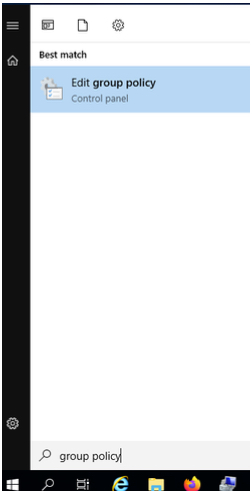
1. In the Local Group Policy Editor, Under Computer Configuration ->Expand Administrative Templates-> Windows Components-> Windows Update
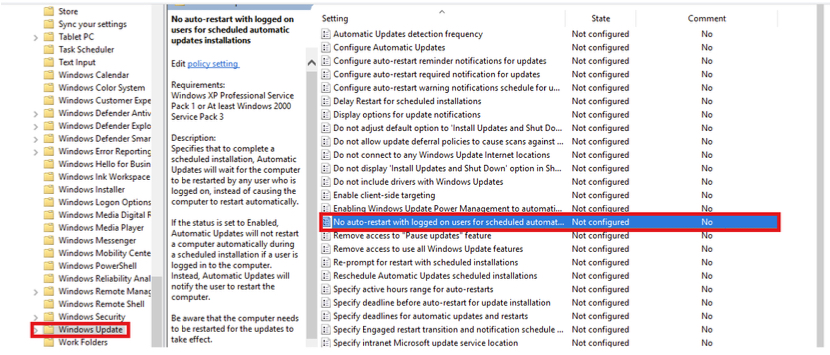
2. Double-click on “No auto-restart with automatic installations of scheduled updates” as seen in the screenshot below.
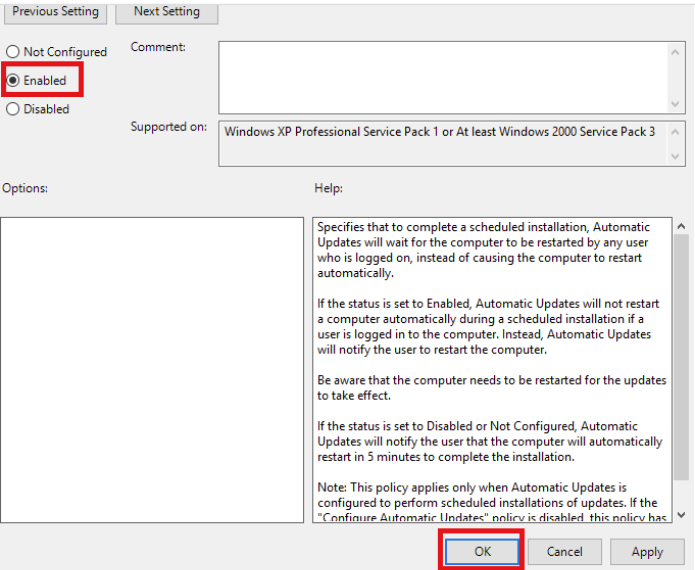
3. Select “Enabled“, and then click “OK”.
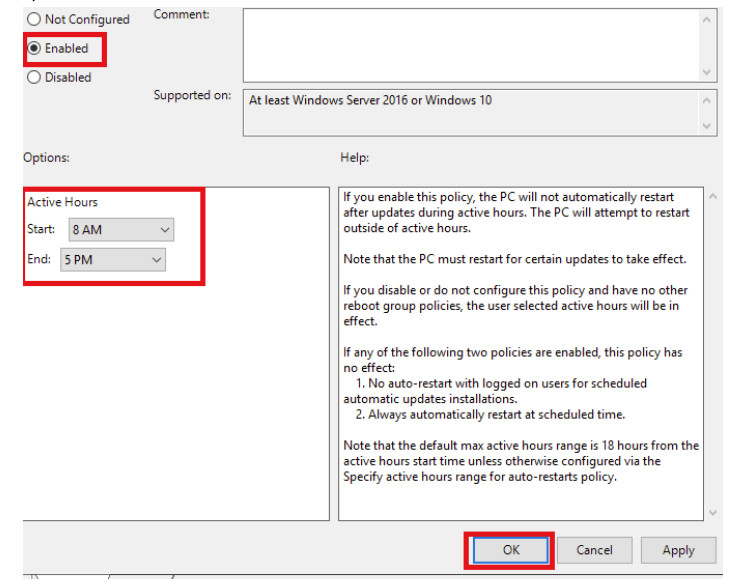
4. Double-click “Turn off auto restart for updates during active hours”
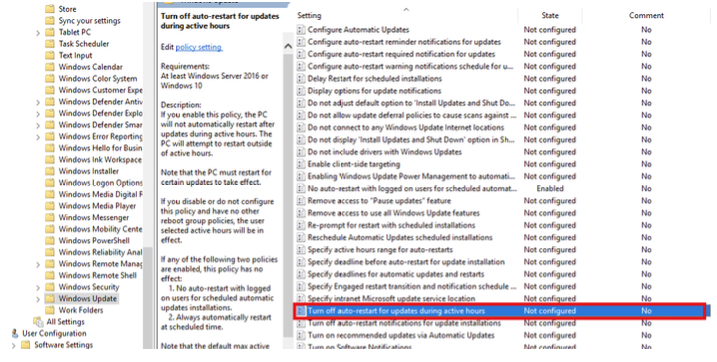
5. Select “Enabled” and choose the active hours. Then, click “Ok”
6. Close the local Group Policy editor.
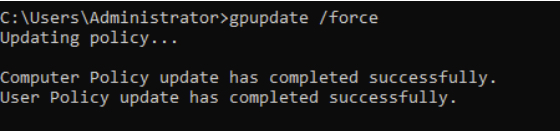
7. Enter the following command in the Command Prompt:
gpupdate /force
Steps to change Windows Updates settings
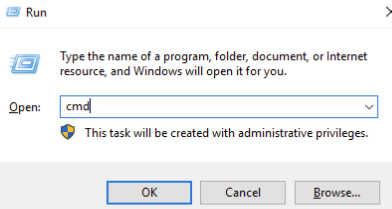
1)Login to RDP and press “WinKey+R”. Then type cmd
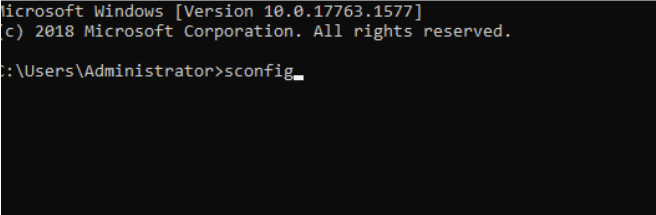
2)Type “sconfig”
3) By default, The Windows update settings (number 5) will be “Automatic”
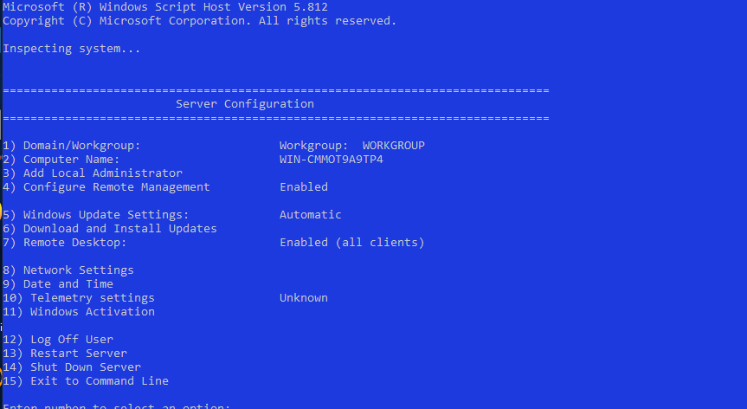
4) Enter the number “5” and the following screen will appear. To set up “DownloadOnly” or “Manual Updates”. Please type “D”(Download-only) or “M” (manual) and click Enter

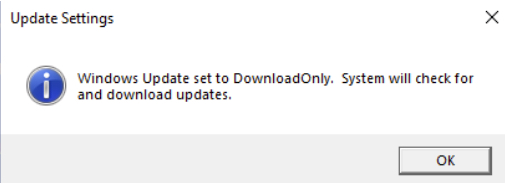
5) The following screen will appear once the settings are updated. In this case, I chose “DownloadOnly” option
If you have any questions, feel free to contact us.