
GICT knowledge base
How to Add Google Map In The Widgets On Your Site Using Maps Widgets for Google Maps Plugin
Published
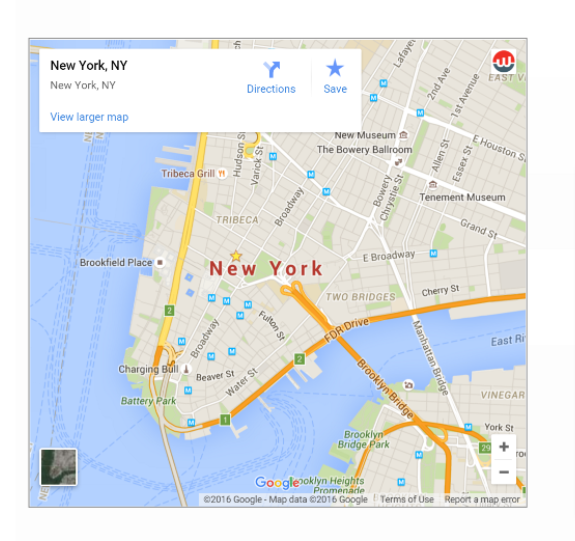
Maps Widgets for Google Maps Plugin is a robust Google Map plugin for WordPress sites. You can easily display google maps of any location with thumbnails and lightbox in just a few minutes. You can install and activate the plugin from the WordPress plugin directory for free. If you are using Gutenberg editor, then the plugin provides Google Map Gutenberg plugin.
The thumbnail of the Maps Widget for Google Maps plugin uses the Google Maps Static Maps API. The plugin loads the entire google map in only one request compared to 20+ requests the other google Maps plugin takes to load them. Thus, it ensures to speed up your WordPress site. Also, it allows you to set custom google map sizes such as map width & map height. To save money on API calls, you will have multiple Google map types like a road map, satellite map, terrain map, hybrid map, or custom map image. However, this feature is only available in the premium version of the plugin. Moreover, it provides many Google map color schemes such as blue, bright, midnight, neon, and many more. It also allows you to add any custom Google styles you want, but you must upgrade your plan to premium.
The plugin also lets you add a custom map pin icon as well. Moreover, you can also use images in the map icons. It comes with a 1500+map icons library, but it is included in the premium version. You can also modify the link types like custom URL, lightbox map, and many more. It also supports almost all image formats. You can also get multiple languages for Google maps. So, let’s discuss the basic features of the plugin in brief,
Features:
- Maps Widgets for Google Maps is a very straightforward and user-friendly interface.
- The plugin is free to use. Also, the plugin offers a premium version as well.
- Maps Widget for Google Maps offers more than 50 extra features. Also, it includes such as multiple map pins support, map pin clustering, pins library, skins, export, import, and widget cloning features, Google Analytics integration and premium, USA-based support.
- You can also get custom Google map sizes like map widget and map height.
- Also, you can choose any google map type you prefer – road map, satellite map, terrain map, hybrid map, or custom map image to save money on API calls.
- Using the plugin’s premium version, you can use the google map on any page, post, or custom post type.
- Moreover, you can add unlimited pins with custom markers and descriptions to thumbnail and interactive Google maps.
- The plugin is free to use. But it also offers a premium version with advanced features and options.
- Also, you will have map colour scheme options. It comes with 15 map styles & any custom google map style.
- It provides lightbox features such as close on overlay click, close on ESC key, close button & show map title.
Pricing Details:
Maps Widgets for Google Maps is free to use Google Maps plugin. You can install and activate it from the WordPress plugin directory for free. The plugin also provides a premium version. Also, it offers three premium plans – Pro Personal, Pro Personal lifetime, Pro Unlimited Agency. The Pro personal plan costs $29 per year and includes a license for a single site and one year upgrade. The Pro Personal Lifetime plan retails at $39 with lifetime validity and provides a single site license. Also, the Pro Unlimited Agency plan costs $79 with lifetime validity and provides the license for unlimited personal sites. You can upgrade to the premium version for unlocking the pro features of the plugin.
How to Install and Activate Maps Widgets for Google Maps Plugin
The installation process is Straightforward. You can follow the simple steps mentioned below to install and activate the plugin.
Step 1: First, you need to log in to the WordPress admin dashboard.
Step 2: Now, you will see the option “Plugins” on the left-hand side panel of the WordPress dashboard. Click on “Plugins,” then select “Add New.”
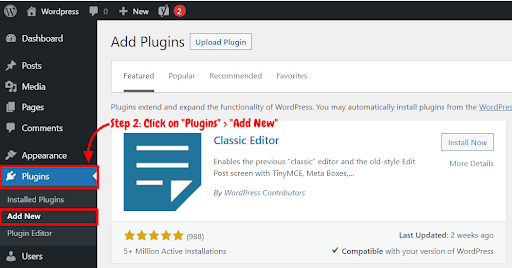
Step 3: You will see a search bar on the top right-hand side corner of the dashboard. Now, Search “Maps Widgets for Google Maps Plugin”
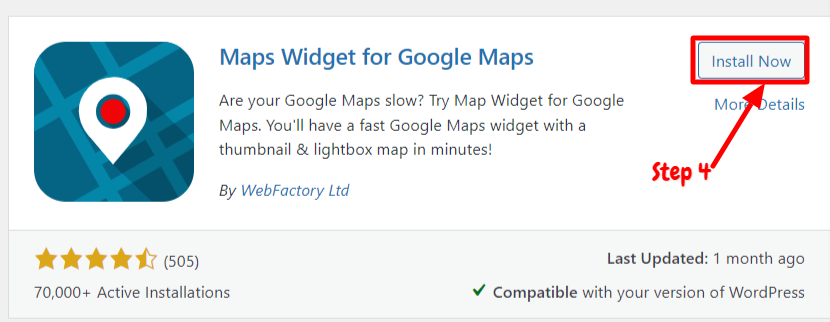
Step 4: After that, you need to click on “Install Now.”
Step 5: After installation, you will need to activate the Maps Widgets for Google Maps Plugin to use it on your site. Now, click on “Activate.”
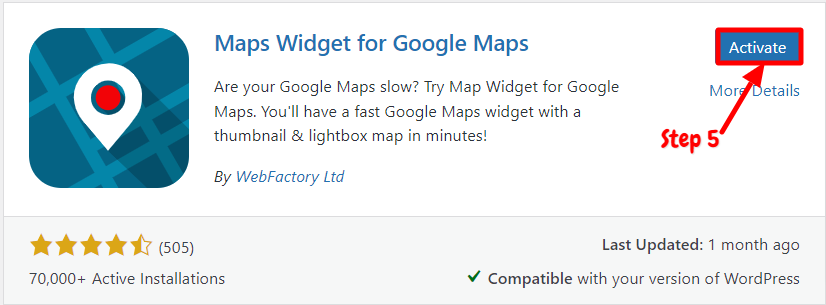
Now you have successfully installed and activated the plugin. You can easily display google maps of any location in the Widgets area using this plugin.
How to Add Google Maps in the Widget Using Maps Widgets for Google Maps Plugin
After activating the plugin on your site, you can start using this plugin on your site. You can set up the plugin easily with just a few clicks. We have explained step by step guide below on how to use Maps Widgets for Google Maps Plugin,
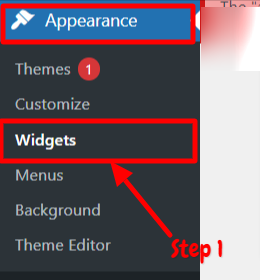
Step 1: First of all, Go to the “appearance” option on the left-hand side panel of the WordPress dashboard. Then select the “Widget” option.
Step 2: The Widget panel will open up. Click on the “+” icon to add a new widget section. Now, search for “Maps Widgets for Google Maps”. Then open this Google map widget.
Step 3: You will have a Google map widget. In this widget, you will have many sections to modify, such as map size, map type, colour scheme, zoom level, pin size and colour and many more. First, enter the title of the map and select the address of the location.
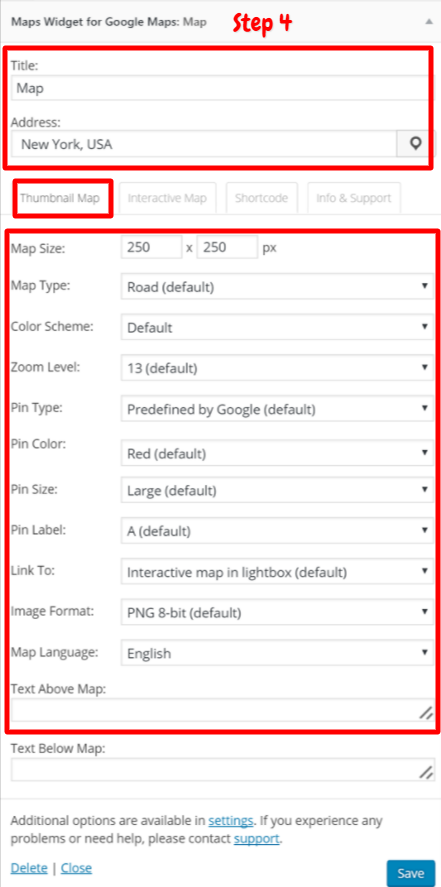
Step 4: You can modify four sections in this widget – Thumbnail, interactive maps, shortcode. First, go to the “Thumbnail Map” section. You can set the map size and map type from the available options. You will have four map types – Hybrid, satellite, road and terrain. Also, you can choose the map language and edit the text above & below the map. Now, select the image format you want.
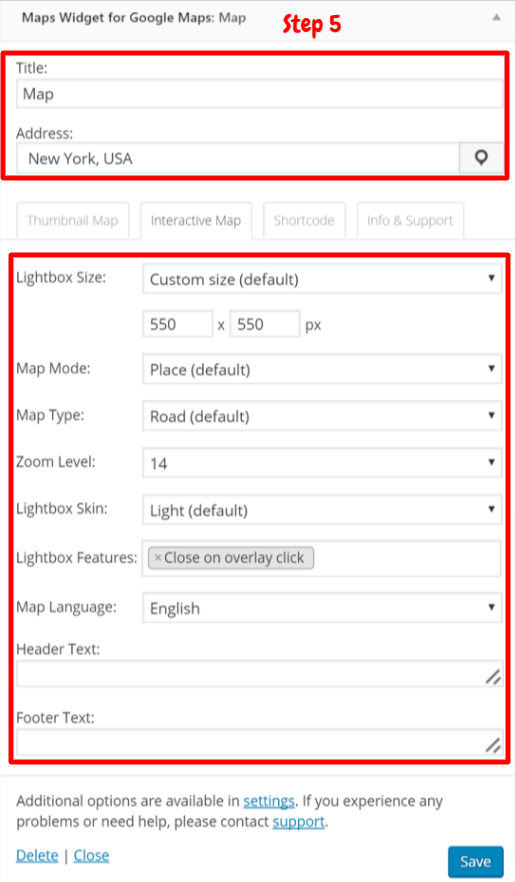
Step 5: After that, click on the “Interactive Map” section. In this section, you can select the lightbox size, skin and feature. It also allows you to modify the header and footer text. Moreover, you can also set the zoom level of the Google map.
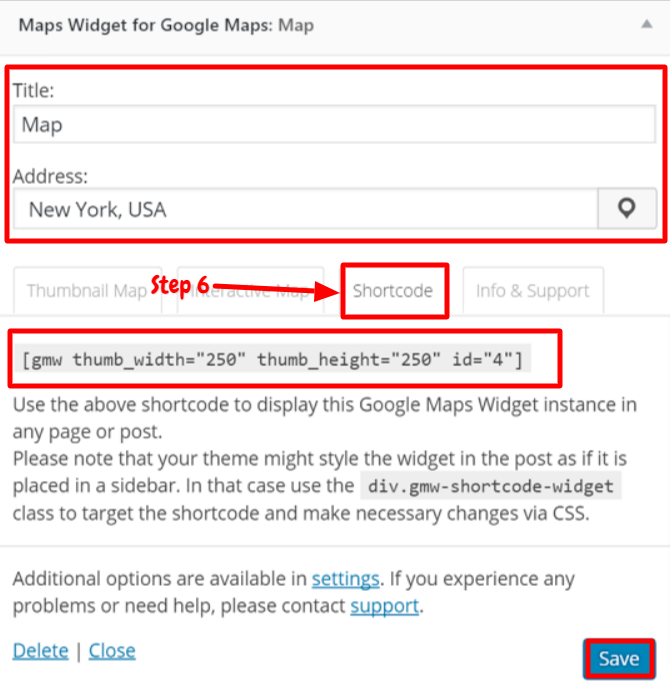
Step 6: Now, go to the “Shortcode” section. In this section, you will see the shortcode of the map widget. You can use this shortcode to display the google Maps widget anywhere on your sites, such as posts or pages. Once you are done with editing, click on the “Save” button.
After that, you can update the widget panel. The widget will be added on the front end of the site. Check the front end of your site whether it is appropriately displayed or not. This way, you can easily add Google map widgets to your site.
How to Display Google map Widget in the Post Using Shortcode
To display the Google map widgets on your site, you will have a shortcode. You can follow the steps mentioned below,
Step 1: After creating and editing the widget section. First, copy the shortcode from the widget section. Then you will have to create a new page or existing page.
Step 2: Go to the block editor of the page or post. Click on the “+” icon and search for the “Shortcode” block. After that, paste the copied shortcode.
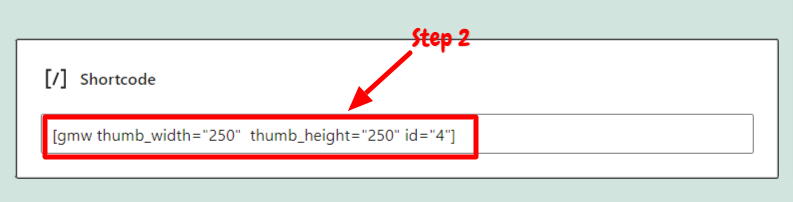
Now, you can publish or update the post or page. This way, you can display a google maps widget on the page or post using shortcode.
Conclusion
Maps Widgets for Google Maps plugin is one of the powerful WordPress google map plugins. You can easily display google maps with thumbnails and lightbox features on your site using this plugin. The plugin is available in the WordPress plugin library for free. You can easily install and activate it from the WordPress dashboard. It is free to use the Google Maps plugin and also has a premium version with advanced options.
It uses the Google Maps Static Maps API. Thus, the plugin loads google maps in only a single request while the other Google maps plugin takes 20+ requests to load Google maps. Therefore, it ensures to speed up your site. You will have multiple custom map sizes and styles. The Pro version of the plugin provides various google map types, 1500+ map pin libraries, link types, Google map colour schemes and many more advanced options. Also, the plugin offers a Google map widget shortcode. So you can display the google Maps widget anywhere on your sites, like page or post. You can follow the steps mentioned above to display the map widgets on your site using the shortcode.
The installation and the setup process are very straightforward. You can follow the steps mentioned below to install and activate the plugin. Also, we have explained step by step guide on how to set up this plugin. We hope this article will help you embed google maps of locations on your site using the Maps Widgets for Google Maps Plugin.