
GICT knowledge base
Enable Geolocation in PrestaShop
Published
Prestashop is a powerful E-commerce management system with lots of advanced features. In this tutorial, We will understand one such feature that will allow you to control who can see your store and catalog as per the location. It simply means that you can block whole countries out from your store if you can’t provide your services in that location.
In Prestashop, you can also set some advanced rules with GeoLocation. For example, You can whitelist the IP addresses if someone is working for you from the location that is blocked to access your store. You can update settings to allow people from restricted countries to visit your store but block all the orders from that location. Or, you can also block them alltogether from viewing your store.
In this tutorial, I will show you How to enable and use Gerolocation in Prestashop. It is a very easy process that will only take few minutes to perform. So, Let’s get started.
Enable GeoLocation in Prestashop
To enable Geolocation, Log in to the admin panel of your Prestashop. Then, click on the Preferences -> Geolocation from the left sidebar of the admin panel. See the following screenshot for reference.
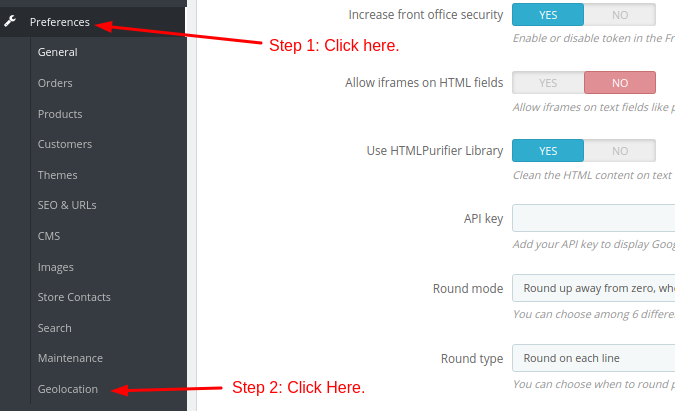
If you are using the Geolocation in the first time in your store, You will see a simple note. It will ask you to download a file, upload it inside the /tools/geoip and extract it to use the GeoLocation feature in Prestashop.
On this page, you will see a huge form. In the first section, Click Yes on a switch with GeoLocation by IP Address label. Then, in the second section, you have to select the accessibility of Blocked users and also the countries in which you want to show your store.
In the third section, you have to whitelist the IP address that can access your store. By default, you will see a lots of IP addresses in that section. It is recommended to add additional whitelisted IP address at the end of the list.
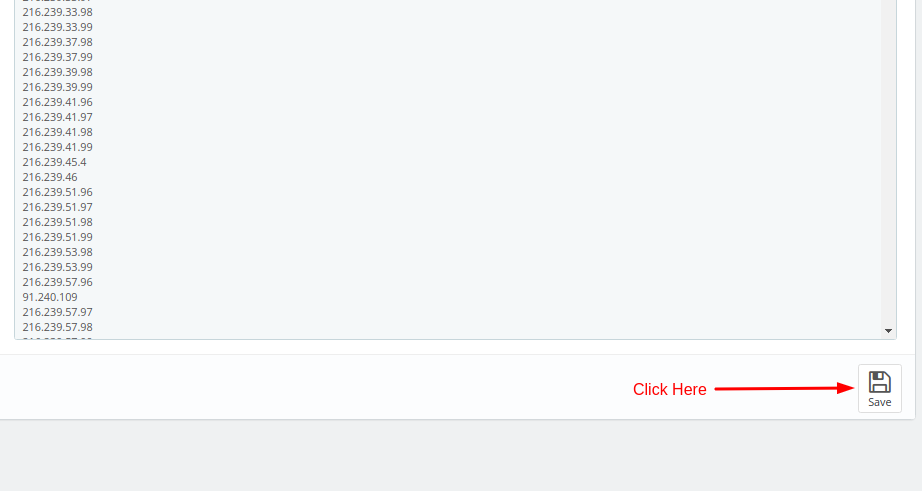
Finally, click on the Save button given at the bottom of the page to apply changes. Now, the countries that are checked will be able to access your store while the countries that are not checked won’t be able to access your store.
So, this is how you can enable Geolocation in prestashop. We hope you this short tutorial was helpful to you. If you have any questions, please let us know in the following comment section. We are happy to help!
Related guides
Top 10 Best Content Management Systems in 2021!
Follow this list to learn in detail about the 10 most popular content management systems available in the market.
PrestaShopInstall and Configure PrestaShop With Memcached
In this tutorial, we can check Install and Configure PrestaShop With Memcached on Ubuntu. Memcached is an open-source, free memory object caching system
PrestaShopBest Applications to Run E-commerce Websites
E-commerce Hosting:E-commerce is the process of selling and buying of goods or services over the world wide web. It is also known as electronic commerce or
PrestaShopHow to Speed Up PrestaShop Store?
In this tutorial, we can check how to speedup PrestaShop Store. If you are already a user of the PrestaShop for your e-commerce website, in order to improve