
GICT knowledge base
Enable Error Reporting in OpenCart
Published
Error reporting is important. Not only for eCommerce sites but almost all the websites that make the internet. Error reporting is not required only if you have a static HTML website. But if you are using any kind of content management systems like WordPress or OpenCart, your website’s structure is more complex than you think. It is because these content management systems run on multiple services like PHP, MySQL, and Apache. So, what is the importance of error reporting in OpenCart?
Let’s say you or your developer or technical partner is updating the code of the website. Or let’s say he/she is installing a new extension and the site goes down due to some unknown reason. When the site goes down, there is always some issue with the code or version of the dependencies your new extension uses. If the error reporting is enabled, your OpenCart store will log errors in the error log file as well as show the issues on the screen. It will help a technical person understand and solve the issue/
If you do not know what I am speaking about, do not worry as it is aimed at technical users. In this tutorial, I am going to show you how to enable Error reporting on the OpenCart store so that a technical person-in-charge can get the idea of how to solve an issue. Let’s get started with the tutorial.
Enable Error Reporting in OpenCart
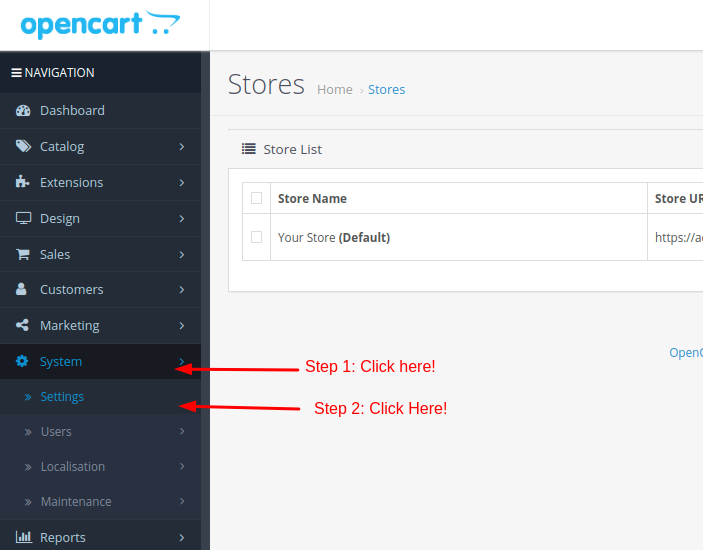
To enable error reporting, first log in to the admin panel of your OpenCart store. Then, click on the System -> Settings option from the left sidebar.
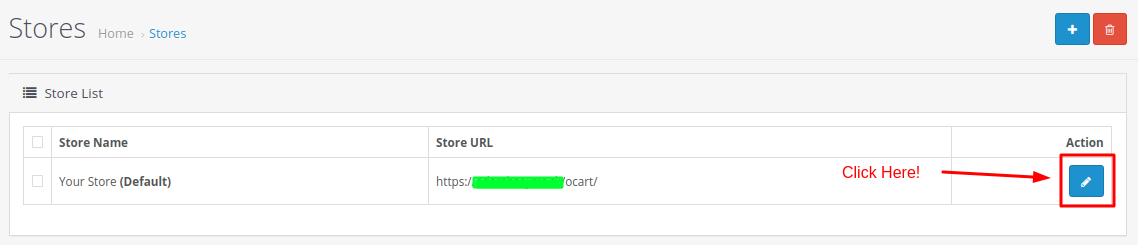
Now, You will see a list of stores available under your current OpenCart installation. Once you are there, click on the Settings option corresponding to the store you want to update, just like the following image.
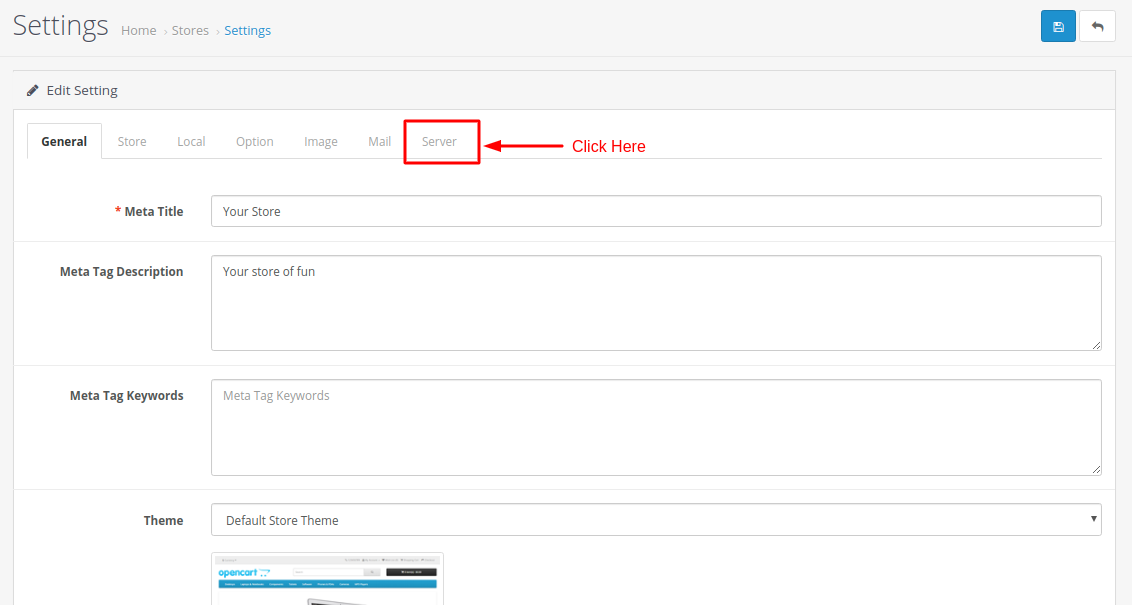
On this page, you can update the most important settings of your store. You can update General, Mail, Server, Store and many more options directly from this page. Right now, we want to enable Error reporting on the store. The option to enable it comes under the Server section, so click on the Server tab.
In the Server section, scroll down a bit to see the Error Handling section. In that section, you will see three options. The first one allows you to decide whether or not you want to display errors on the screen when something goes wrong. The second option allows you to decide whether or not you want to log those errors in a log file. And the third one allows you to enter the log file name. You can update as per your requirements.
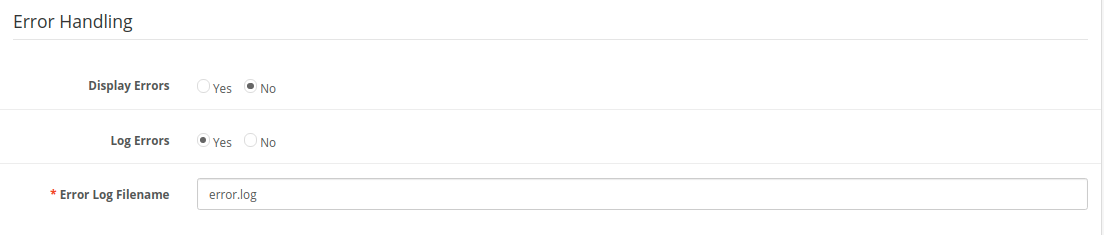
To enable error reporting, Set Yes in Log Errors and enter the file name in which you want to log those errors. So, this is how you can enable Error logging in OpenCart. Let us know if you are facing any issues with this method, we are happy to help!
Related guides
Top 10 Best Content Management Systems in 2021!
Follow this list to learn in detail about the 10 most popular content management systems available in the market.
E-CommerceWooCommerce vs Shopify : The best E-commerce platforms
WooCommerce and Shopify are the two most popular E-commerce platforms. Follow this tutorial to learn more about both of them.
E-CommerceBest Applications to Run E-commerce Websites
E-commerce Hosting:E-commerce is the process of selling and buying of goods or services over the world wide web. It is also known as electronic commerce or
E-CommerceEasy Digital Downloads Plugin for WordPress
Easy Digital Downloads (EDD) plugin is the second most well-known WordPress eCommerce plugin, after WooCommerce. EDD plugin is used to create an eCommerce