
GICT knowledge base
Change Admin Startup Page in Magento
Published
Magento is one of the most popular eCommerce platforms on the network. It has almost every feature you will ever require to run an eCommerce store. You can also use different themes and extensions to improve the functionality and features of your store. It also has a powerful admin panel that you can customize as per your requirements. The main page you see after logging in is the Startup page. It is important as you can see what you want to see directly after logging in.
You can set any page as a startup page in the admin panel of your Magento store. It is a simple process that does not require you to update any code. Magento provides the interface directly in the admin panel to change the startup page. In this tutorial, I am going to show you how to do that. You can also follow the tutorial visually by looking at the screenshots given after every step of the process. So, Let’s get started with the tutorial.
Change Startup Page in Magento
First of all, log in to the admin panel of your store. Now, click on the Stores option given in the main menu. It will reveal a few more options under the category. From the sub-menu, click on the Configuration option that will redirect you to a section where you can update the most important settings of your store.
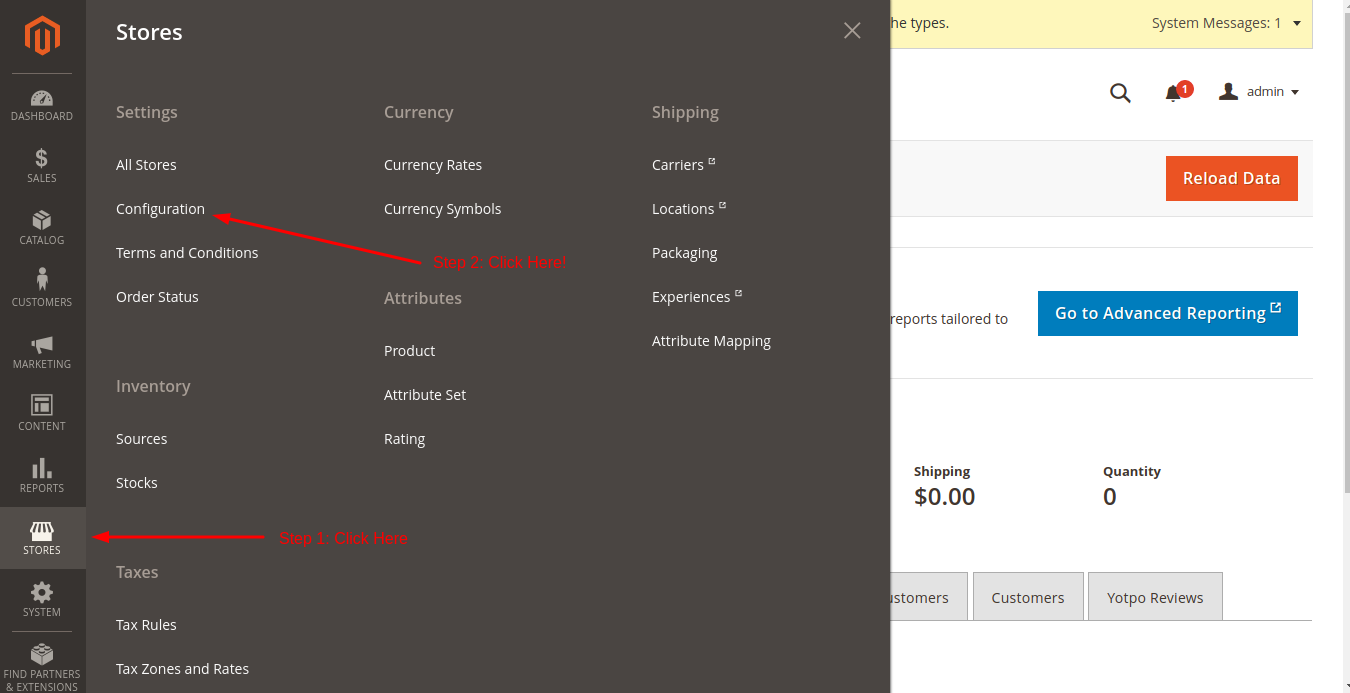
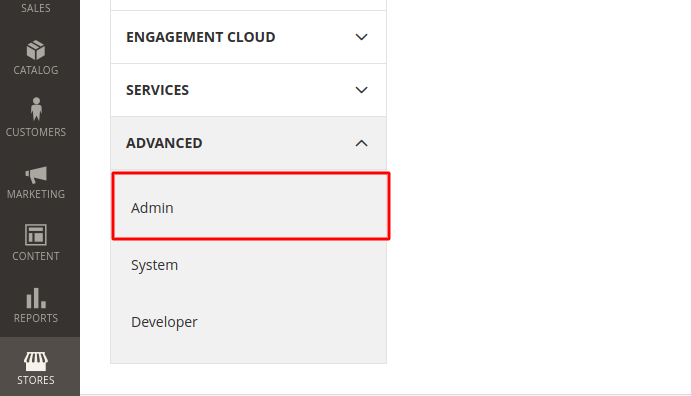
On this page, look for the Advanced -> Admin option in the left sidebar. To locate the option, refer to the following screenshot.
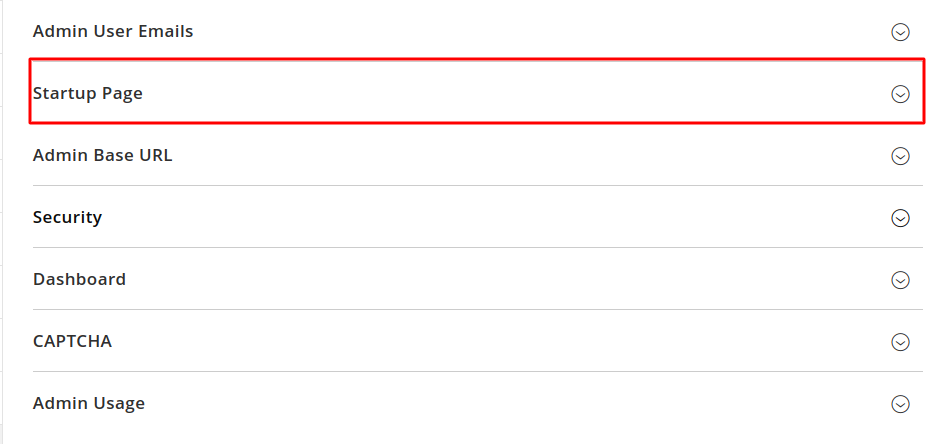
On this page, you will see many collapsed sections like Admin user details, startup page, Admin base URL, Security, Dashboard and CAPTCHA. Click on the Startup Page option to expand the section.
It will reveal a simple select option with the label Startup Page. Click on the select option and select the page you want to set as a startup page in your admin panel.

Finally, click on the Save Config button given at the top-right corner of the section, just like the following image.
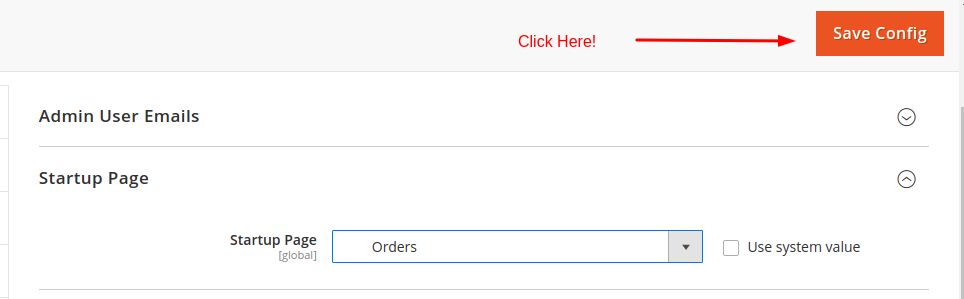
Clicking on the Save Config button will apply the changes immediately. So, this is how you can change the admin startup page in Magento. If you have any questions regarding this tutorial, please let us know in the following comment section. We will get back to you with help as soon as possible.
Related guides
Top 10 Best Content Management Systems in 2021!
Follow this list to learn in detail about the 10 most popular content management systems available in the market.
E-CommerceWooCommerce vs Shopify : The best E-commerce platforms
WooCommerce and Shopify are the two most popular E-commerce platforms. Follow this tutorial to learn more about both of them.
E-CommerceBest Applications to Run E-commerce Websites
E-commerce Hosting:E-commerce is the process of selling and buying of goods or services over the world wide web. It is also known as electronic commerce or
E-CommerceEasy Digital Downloads Plugin for WordPress
Easy Digital Downloads (EDD) plugin is the second most well-known WordPress eCommerce plugin, after WooCommerce. EDD plugin is used to create an eCommerce