
GICT knowledge base
Domain management in cPanel Jupiter theme.
Published
“Addon Domains,” “Aliases,” and “Subdomains” were deprecated in cPanel version 100 and have been removed in version 106. The functionality of those interfaces has been consolidated to the “Domains” interface.
This documentation will explain how to create “Addon Domains,” “Aliases,” and “Subdomains” in cpanel Jupiter theme.
Addon Domain
1. Log into cPanel on the account to add the domain on.
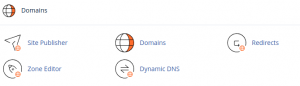
2. Click “Domains” under the “Domains” section.
3. Click the “Create A New Domain” button.
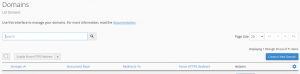
4. Enter the domain name to add in the “Domain” text box.
5. Deselect the “Share document root (/home/username/public_html) with “domain.tld”.” option.
6. Enter the directory where you want the files for this domain to exist.
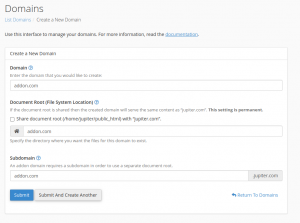
7. Click the “Submit” button.
Alias / Parked Domain
1. Log into cPanel on the account to add the domain on.
2. Click “Domains” under the “Domains” section.
3. Click the “Create A New Domain” button.
4.In the “Domain” text box, enter the domain name to add as an alias.
5. Ensure that the “Share document root (/home/username/public_html) with “domain.tld”.” option is selected.
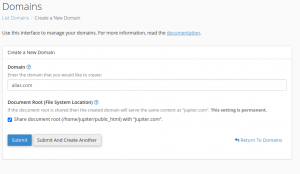
6. Click the “Submit” button.
Subdomain
1. Log into cPanel on the account to add the domain on.
2. Click “Domains” under the “Domains” section.
3. Click the “Create A New Domain” button.
4. Enter the subdomain name to add in the “Domain” text box.
5. Deselect the “Share document root (/home/username/public_html) with “domain.tld”.” option.
6. Enter the directory where you want the files for this domain to exist.
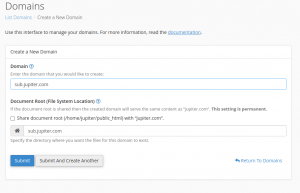
7. Click the “Submit” button.
If you need any further help, please do reach our support department.