
GICT knowledge base
6 Best Linux Distros for Gaming and Playing Windows Games
Published
Gaming on Linux is easier than ever. You can now play most Windows games on Linux without any problems. More people are switching to Linux for gaming every day. Here are the six best Linux distros for gaming that make everything simple.
Why Choose Linux for Gaming?
Linux is completely free. You never pay for the operating system. It uses less RAM and CPU than Windows, leaving more power for your games. Linux doesn’t have bloatware or forced updates that interrupt your gaming. Your old games keep working forever without compatibility issues.
Linux is also more secure. You don’t need antivirus software slowing down your games. The system doesn’t spy on you or collect your data. You have full control over your computer.
1. Pop!_OS
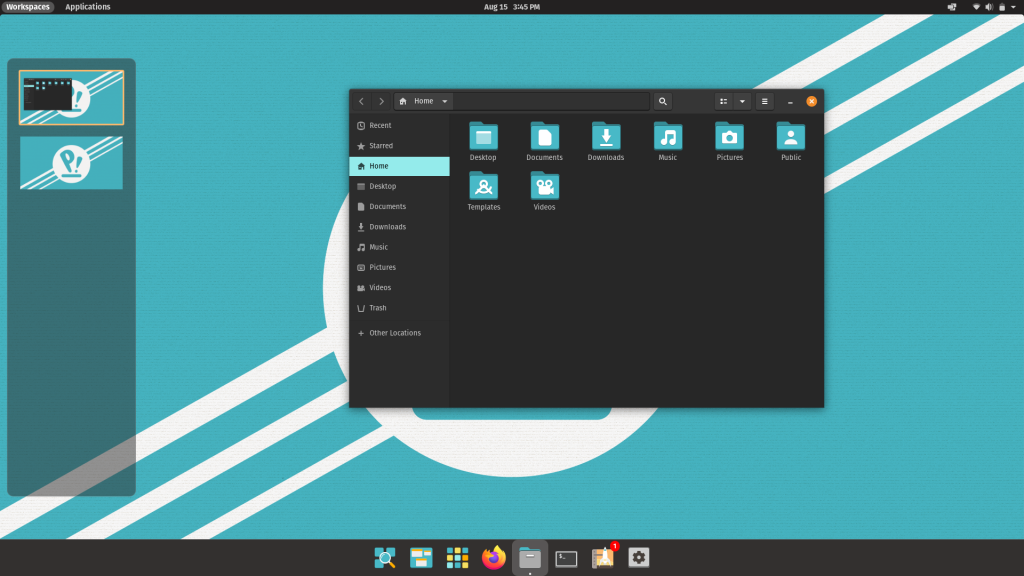
Pop!_OS is the best Linux distro for gaming right now. System76 made this distro specifically for gamers and creators. It comes with everything you need to start gaming immediately.
The distro has NVIDIA drivers already installed. You don’t need to do anything extra. Just install Steam and start playing. Pop!_OS works great on gaming laptops too. It automatically switches between graphics cards to save battery when you’re not gaming.
Pop!_OS uses a special gaming kernel that improves performance. The system updates are tested thoroughly before release. This means your games won’t suddenly stop working after an update. The Pop Shop makes installing gaming software as easy as clicking a button.
The distro also handles multiple monitors perfectly. If you have a gaming setup with two or three screens, Pop!_OS manages them without issues. Screen tearing is fixed by default. You get smooth gameplay right from the start.
Pros:
- NVIDIA drivers pre-installed
- Great for beginners
- Excellent laptop support
- Clean and fast interface
- Regular updates
- Steam works perfectly
- No screen tearing
- Multiple monitor support
- Gaming kernel included
Cons:
- Takes more disk space than other distros
- Based on Ubuntu so not always the latest software
- Limited customization options
- Pop Shop can be slow sometimes
2. Steam OS (HoloISO)
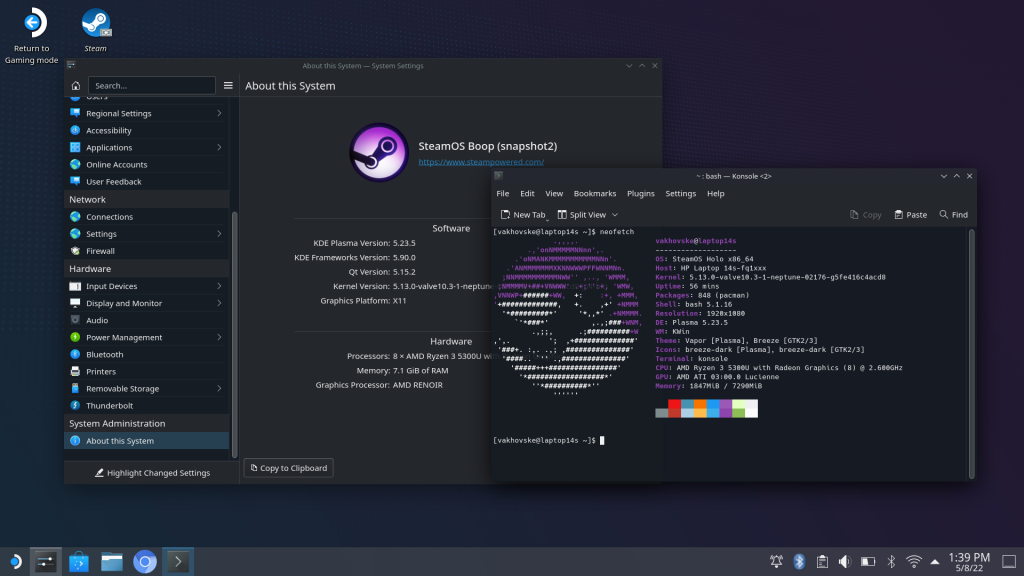
Steam OS is Valve’s own gaming system. While official Steam OS only comes with Steam Deck, you can install HoloISO on any PC to get the same experience.
This distro turns your computer into a gaming console. When you start your PC, it goes straight to Steam Big Picture mode. You can use a controller for everything. Most Steam games work without any setup needed.
The system is designed to work perfectly with TVs. You can connect your PC to your living room TV and play from the couch. Steam OS handles different TV resolutions automatically. HDR gaming works if your TV supports it.
Steam OS includes Proton by default. This tool runs Windows games on Linux. Over 15,000 Windows games work perfectly. The system downloads the best Proton version for each game automatically. You don’t need to configure anything.
Pros:
- Console-like experience
- Perfect for living room gaming
- Controller-friendly interface
- Excellent game compatibility
- Automatic game updates
- Optimized for gaming only
- TV-friendly interface
- HDR support
- Proton built-in
Cons:
- Only good for Steam games
- Not suitable for regular desktop use
- Limited to Steam ecosystem
- Harder to install non-Steam software
- Desktop mode is basic
3. Garuda Linux
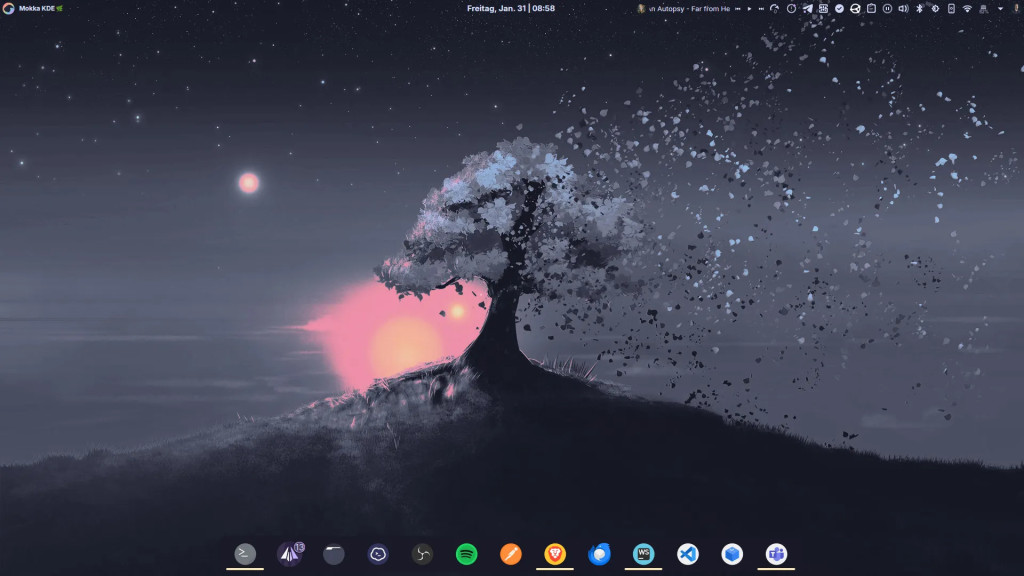
Garuda Linux is built for maximum gaming performance. It’s based on Arch Linux but much easier to use. Everything is tweaked for speed and gaming.
The gaming edition comes with all gaming software pre-installed. You get Steam, Lutris, Wine, and emulators ready to go. The system also takes automatic backups, so you can recover if something breaks.
Garuda uses the Zen kernel which is optimized for gaming. This kernel reduces input lag and improves frame rates. The system also uses ZRAM for better memory management. This helps if you have limited RAM.
The Garuda Gamer tool is amazing. With one click, it installs gaming packages, enables performance tweaks, and sets up your system for gaming. You also get RGB control software for gaming keyboards and mice.
The distro includes Timeshift for automatic backups. If a game or update breaks something, you can restore your system in minutes. This removes the fear of experimenting with settings.
Pros:
- Maximum performance for games
- All gaming tools pre-installed
- Automatic system backups
- Beautiful desktop themes
- Latest software always
- One-click optimization tools
- Zen kernel for gaming
- RGB device support
- ZRAM for better memory use
Cons:
- Uses more RAM than other distros
- Can be unstable sometimes
- Not for Linux beginners
- Requires frequent updates
- Heavy on system resources
4. Manjaro
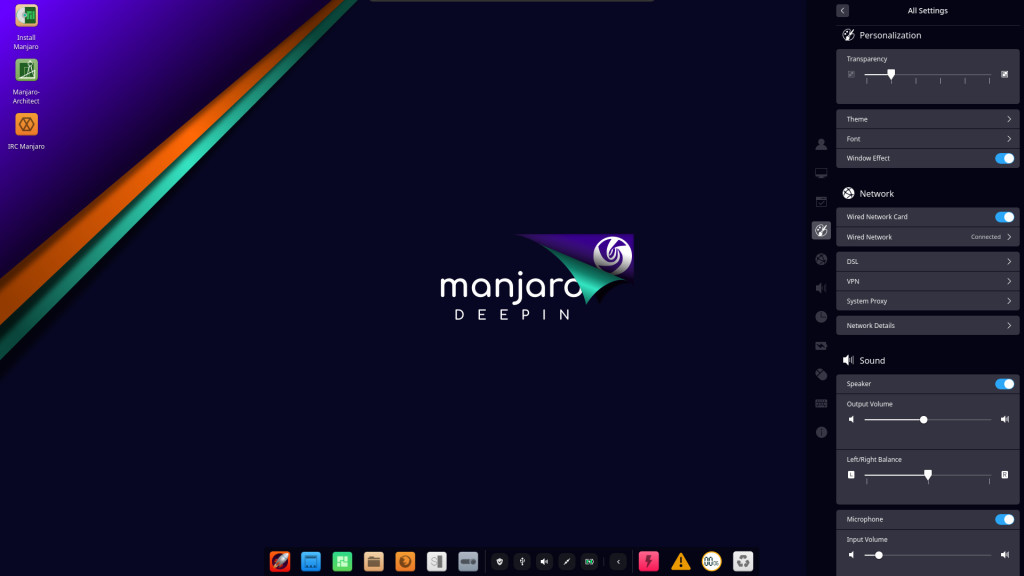
Manjaro gives you the power of Arch Linux without the complicated setup. You always get the latest drivers and software, which is great for gaming.
The distro automatically detects your hardware and installs the right drivers. You can access thousands of games and tools from the AUR repository. Updates come regularly but are tested for stability first.
Manjaro’s hardware configuration tool is excellent. It lets you install different kernels easily. If a new kernel causes problems with your games, you can switch back to an older one. This flexibility is great for gamers.
The distro supports many desktop environments. You can choose KDE for features, XFCE for speed, or GNOME for simplicity. Each version is optimized for gaming. You can even switch between them without reinstalling.
Manjaro also has great support for gaming controllers. Xbox, PlayStation, and generic controllers work immediately. The system recognizes most gaming headsets and mice without extra setup.
Pros:
- Always up-to-date software
- Access to AUR repository
- Multiple desktop options
- Good hardware detection
- Stable despite being rolling release
- Great community support
- Easy kernel management
- Controller support built-in
- Choose your desktop environment
Cons:
- Updates can sometimes break things
- Requires some Linux knowledge
- Not all software officially supported
- Need to update frequently
- AUR packages can conflict
5. Ubuntu
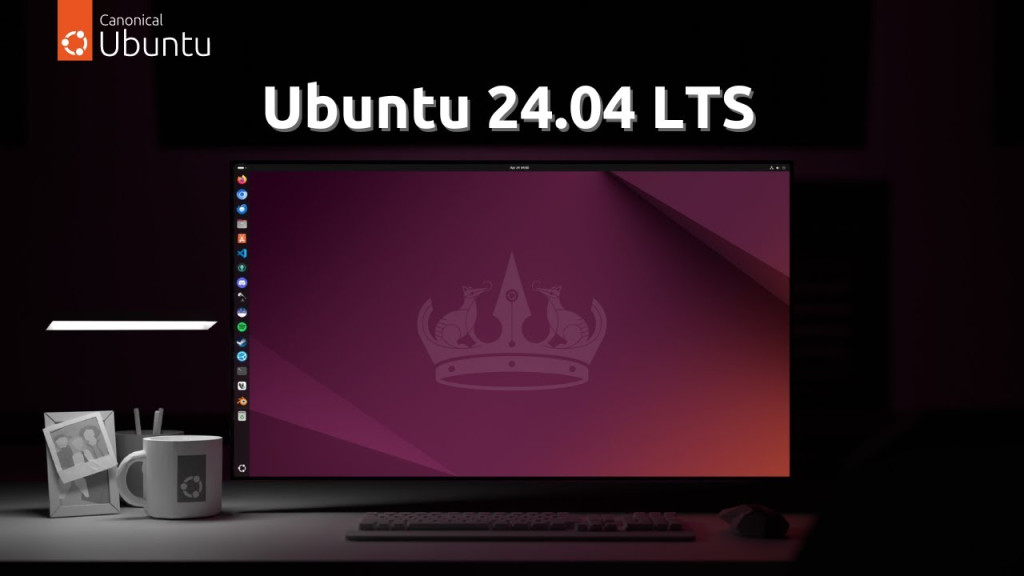
Ubuntu is the most popular Linux distro and has the best game support. Most game developers test their Linux games on Ubuntu first. This means fewer problems for you.
Everything works on Ubuntu. Steam, GOG, Epic Games, and other platforms all support Ubuntu officially. If you have a problem, you can easily find help online because millions use Ubuntu.
Ubuntu LTS versions get support for five years. Your games keep working for years without major changes. This stability is perfect if you don’t like frequent updates. Security updates still come regularly to keep you safe.
The Ubuntu community is huge. There are forums, Discord servers, and Reddit communities for Ubuntu gaming. You can find guides for any game or problem. Most gaming tutorials online use Ubuntu as the example.
Ubuntu also works great with streaming software. OBS Studio, Streamlabs, and other streaming tools work perfectly. If you want to stream your games on Twitch or YouTube, Ubuntu makes it easy.
Pros:
- Best software compatibility
- Huge community for help
- Most stable option
- Official support from game developers
- Easy for beginners
- Long-term support versions available
- Best for game streaming
- Tons of tutorials online
- Works with all gaming platforms
Cons:
- Not optimized specifically for gaming
- Older software versions
- Snap packages can be slow
- Some privacy concerns with default settings
- Can feel bloated
6. Fedora
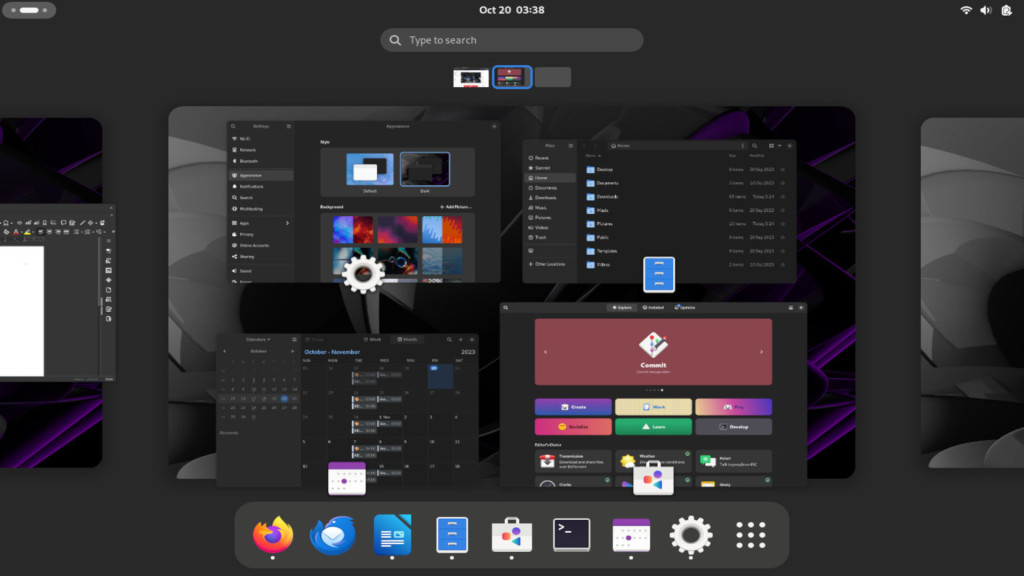
Fedora gives you the newest Linux technology for gaming. It gets new features and improvements before most other distros. Modern hardware works great on Fedora.
The distro handles new graphics cards and gaming gear really well. While it focuses on open-source software, you can easily add what you need for gaming. Once set up, Fedora is rock solid for gaming.
Fedora uses Wayland by default, which eliminates screen tearing completely. This is great for gaming. Variable refresh rate (VRR) and FreeSync work perfectly. Your games look smooth even on high refresh rate monitors.
The distro is also excellent for game development. If you want to make games while playing them, Fedora has all the tools. Unity, Godot, and Unreal Engine work great on Fedora.
Fedora’s DNF package manager is very reliable. It handles dependencies well and rarely breaks. The Flatpak support means you can install games from Flathub easily. This gives you access to many games and emulators.
Pros:
- Latest kernel and drivers
- Excellent hardware support
- Very stable and secure
- Clean, professional desktop
- Good for programming too
- Fast boot times
- Wayland for smooth gaming
- Great for game development
- Reliable package manager
Cons:
- Requires manual setup for gaming
- NVIDIA driver installation is complicated
- Shorter support cycle
- Not beginner-friendly
- Some software needs third-party repos
- Multimedia codecs need manual install
Hardware Considerations
For NVIDIA cards: Pop!_OS or Ubuntu work best. They handle NVIDIA drivers easily.
For AMD cards: Any distro works great. AMD drivers are built into Linux.
For laptops: Pop!_OS or Fedora handle battery and GPU switching best.
For old computers: Use Manjaro XFCE or Linux Mint XFCE. They use less RAM and CPU.
For high-end gaming: Garuda or Nobara squeeze out maximum performance.
Essential Gaming Software
- Steam: The main gaming platform on Linux. Enable Steam Play to run Windows games.
- Lutris: Manages all your games in one place. Handles Wine configuration automatically.
- Wine: Runs Windows programs on Linux. Required for many games.
- Proton: Valve’s tool for running Windows games. Comes with Steam.
- GameMode: Optimizes your system when gaming. Improves performance.
- MangoHud: Shows FPS and system stats in games. Like MSI Afterburner on Windows.
- Discord: Voice chat for gaming. Works perfectly on Linux.
Common Gaming Issues and Solutions
Game won’t start: Check ProtonDB for the right Proton version. Try Proton-GE for better compatibility.
Low FPS: Disable compositing in your desktop settings. Use GameMode for better performance.
Controller not working: Install steam-devices package. Add yourself to the input group.
No sound: Install PulseAudio or PipeWire. Check that the game uses the right audio output.
Screen tearing: Enable VSync in game settings. Use a compositor or switch to Wayland.
Which One Should You Choose?
For beginners: Choose Pop!_OS or Ubuntu. They work right away without hassle.
For performance: Pick Garuda Linux if you want the fastest gaming experience.
For Steam games only: Steam OS/HoloISO is perfect for a console-like setup.
For latest technology: Go with Manjaro or Fedora if you like having the newest features.
For old computers: Try Ubuntu or Manjaro with lightweight desktops.
Coming from Windows: Zorin OS or Linux Mint feel familiar and comfortable.
Want everything pre-configured: Nobara Linux has all gaming tweaks built-in.
Gaming Performance Tips
Keep your system updated. New updates often improve game performance. Use the latest kernel when possible.
Close unnecessary programs while gaming. Web browsers use lots of RAM. Give your games all available resources.
Use an SSD for your games. Loading times are much faster. Games also run smoother from SSDs.
Disable desktop effects while gaming. Compositing uses GPU power. Turn it off for more FPS.
Use wired internet for online gaming. WiFi can cause lag and packet loss. Ethernet gives stable connections.
Conclusion
Linux gaming is really good now. You don’t need Windows to play games anymore. Pick any of these distros and you can play thousands of games. Pop!_OS is the easiest to start with. Ubuntu has the best support. Garuda gives the best performance.
The Linux gaming community is friendly and helpful. Don’t be afraid to ask questions. Everyone wants to help new Linux gamers succeed.
Try a few distros and see what you like. They’re all free, so you have nothing to lose. Most Windows games now work on Linux thanks to Proton and Wine. Many games actually run better on Linux than Windows.
Remember that switching to Linux is a journey. You might face some issues at first. But once you’re set up, Linux gaming is smooth and enjoyable. No more forced updates during gaming sessions. No more Windows eating your RAM. Just pure gaming performance.
Related guides
What Happens When Your CloudLinux License Expires?
What Happens When Your CloudLinux License Expires? If you are running a web server—especially one with a control panel like cPanel—CloudLinux is an essential tool for...
CloudLinuxCloudLinux NodeJS Support for cPanel
CloudLinux NodeJS Support for cPanelNode.js is an open-source, cross-stage JavaScript runtime environment for building up a different assortment of
CloudLinuxUpgrade MariaDB or MySQL Version in Linux
Upgrade MariaDB or MySQL Version in Linux. In this tutorial, you are going to upgrade your MariaDB version from 5.5 to 10.0/10.1/10.2 or MySQL from
CloudLinuxInstall DNF in RHEL/CentOS 7
Install DNF in RHEL/CentOS 7. DNF stands for Dandified yum. DNS is a software package manager for RPM-based Linux distributions such as Fedora, RHEL and